What a rule does
Every rate on the Labor page and every extra under it has a rule: the conditions a job must meet for it to apply. You write the rules yourself; nothing is fixed in the program.
- A rate's rule is its Used when. It picks the rate among the contractor's rates of the same work order type and size, for example Thickness = 60 for the Gata NO-100 register.
- An extra's rule is its Applies when. It ticks the extra on a job automatically, for example Gum when the product has gum.
A rule reads the product's spec: the fields set on the product (Gum, Pins, Index Count, Thickness, Rough Register, Hashia, Default Ruling, Print Colors…), with the order line's own choices on top. It can also read New design (card run): Yes when a card title is printed for the first time.
Open the editor
On the Labor page, open a rate. Click the chip under Used when (for the rate) or in the Applies when column (for an extra). A chip that says Always has no rule.
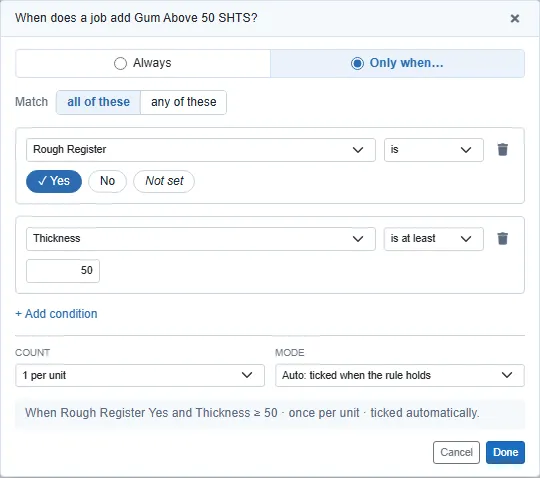
Choose Always, or Only when… to add conditions.
For each condition, pick a field, then how it compares:
Choose Means Example is one of the values you pick Rough Register is Yes is not none of the values you pick Hashia is not Not set or None is more than / is at least bigger than / bigger than or equal to Thickness is at least 50 is less than / is at most smaller than / smaller than or equal to Thickness is less than 50 is between from one number to another, both included Index Count is between 1 and 3 Fields with fixed choices (Yes / No, rulings, hashia, colours) show them as buttons: click every value that counts. Not set means the product has no value for that field.
Click + Add condition for another one. With two or more, choose all of these (every condition must hold) or any of these (one is enough).
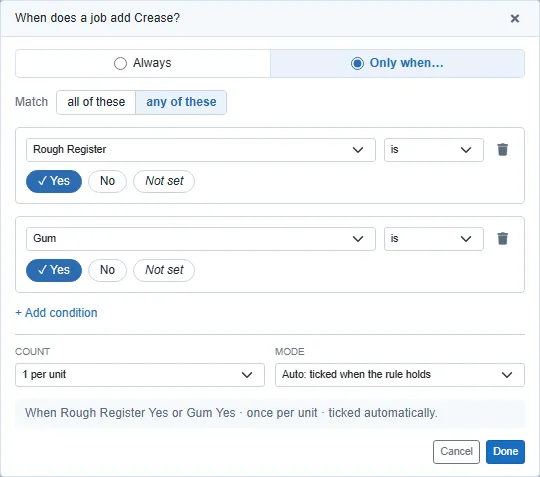
Crease: Rough Register is Yes, or Gum is Yes For an extra, also set:
Count: 1 per unit, or × a number field: the extra is paid that many times. Index is paid once for each index.
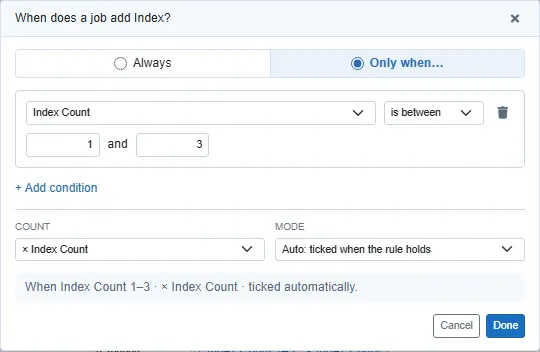
Index: between 1 and 3 indexes, paid × Index Count Mode: Auto ticks the extra on a job whenever the rule holds. Offer shows it unticked on every job; the user ticks it when it applies.
Flat up to (covers): only on a rate charged per Cover (slab). See Card slabs.
The grey line at the bottom says the rule in words. Click Done, then Update on the form to save it.
The chip on the form then reads the rule back, for example Rough Register Yes and Thickness ≥ 50.
Examples
These are the rules the rate card started with. Use them as patterns.
| Extra or rate | Applies when | Count |
|---|---|---|
| Hashia (ruling) | Hashia is not Not set or None (the chip reads Hashia not blank / None) | 1 |
| Khana (ruling) | all of: Hashia is Not set or None; Default Ruling is KHANA-B, KHANA-M or KHANA-S | 1 |
| 2-Colors (print ruling) | Print Colors is at least 2 | 1 |
| Index | Index Count is between 1 and 3 | × Index Count |
| Index Misel | Index Count is more than 3 | 1 |
| Pin | Pins is more than 0 | 1 |
| Gum Above 50 SHTS | all of: Rough Register is Yes; Thickness is at least 50 | 1 |
| Gum Below 50 SHTS | all of: Rough Register is Yes; Thickness is less than 50 | 1 |
| Gum | all of: Gum is Yes; Rough Register is not Yes | 1 |
| Crease | any of: Rough Register is Yes; Gum is Yes | 1 |
| Cutting, Imported | Always | 1 |
| Gata Register NO-100 (a rate) | Thickness is 60 | — |
On a rim job, Hashia and Default Ruling are those of the rim being ruled.
Card slabs
Card printing is charged per Cover (slab). Each title is its own print run. Its extras are the slabs, each with a Flat up to number of covers:
- Qty 0-1200 - New Design: applies when New design is Yes, flat up to 1,200 covers.
- Qty 0-1000 - Old Design: applies when New design is No, flat up to 1,000 covers.
A run within the slab is paid the slab's value once. A bigger run is paid covers × the rate. To change the limit for one card size, change Flat up to on that size's rate.
Try it on a product
At the bottom of the rate form, click Try it on a product. It uses the form as it is now, before you save.
- Type a product name (for rims and cards, pick the rim or card from the list).
- Set the Quantity (sheets for rims, covers for cards). For cards, tick New design or not.
- The product's spec appears. Change any value to see what a different product would get.
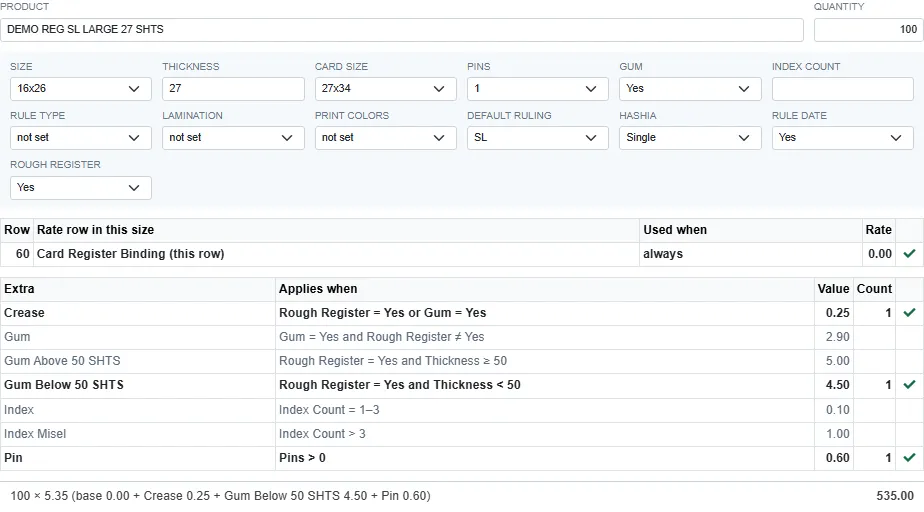
The panel shows:
- Rate row in this size: the contractor's rates for this work order type and size. A tick marks the rate the order would use, a cross a rate whose Used when does not hold. (this row) is the rate you are editing.
- The rate's extras: which are ticked (bold, with a tick and a count) and why.
- The price for the quantity, worked out the same way as on a work order.
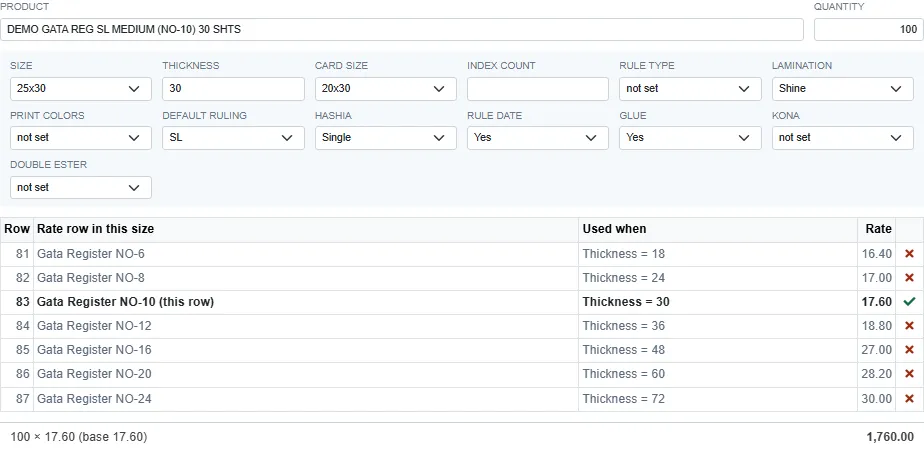
If two rates both fit, the panel shows the same warning the order would show.
A rule that reads a field the product does not have treats it as Not set. Gum is Yes, for example, never holds for a product with no Gum value.