What a manual recipe is
A manual recipe is the list of materials one unit of a product takes, typed once and stored. Every work order for that product then uses these numbers multiplied by the order quantity.
A recipe follows the product's route: the steps (jobs) that make it. Each step makes something. The last step makes the product itself, and earlier steps make parts it needs (for example ART PAPER PL, the laminated cover sheet).
| Template type | What it means | Use it when |
|---|---|---|
| Manual (stored recipe) | You type the materials once; orders use them as they are | The numbers are fixed, or the WO type has no rule template |
| Rule (worked out per order) | Each order works the materials out from the WO type's template | The template already gives the right numbers |
When a work order is saved, each step of the route becomes a job with its own materials. What one job makes is handed to the next job automatically.
New product from start to finish
A new product takes four stages: create it, fill its spec, copy the recipe of a similar product, then test one order. The example is a register like DEMO REG SL (NO-2) 30 SHTS, copied from DEMO REG SL LARGE 27 SHTS (same size, card and ruling).
Before you start, open the similar product in a second browser tab. You will copy its values field by field.
1. Create the product
- Go to Inventory Control, then Product Master, and click the green Add.
- Product name: follow the pattern of the others, for example
DEMO REG SL (NO-2) 30 SHTS. - Unit NOS, Class Inventory. Tick Active and Saleable; leave Purchasable off.
- Details tab, Classification: set Category to the customer and Group to REGISTERS. Under Packing: Pack qty 24, Pack unit BNDL.
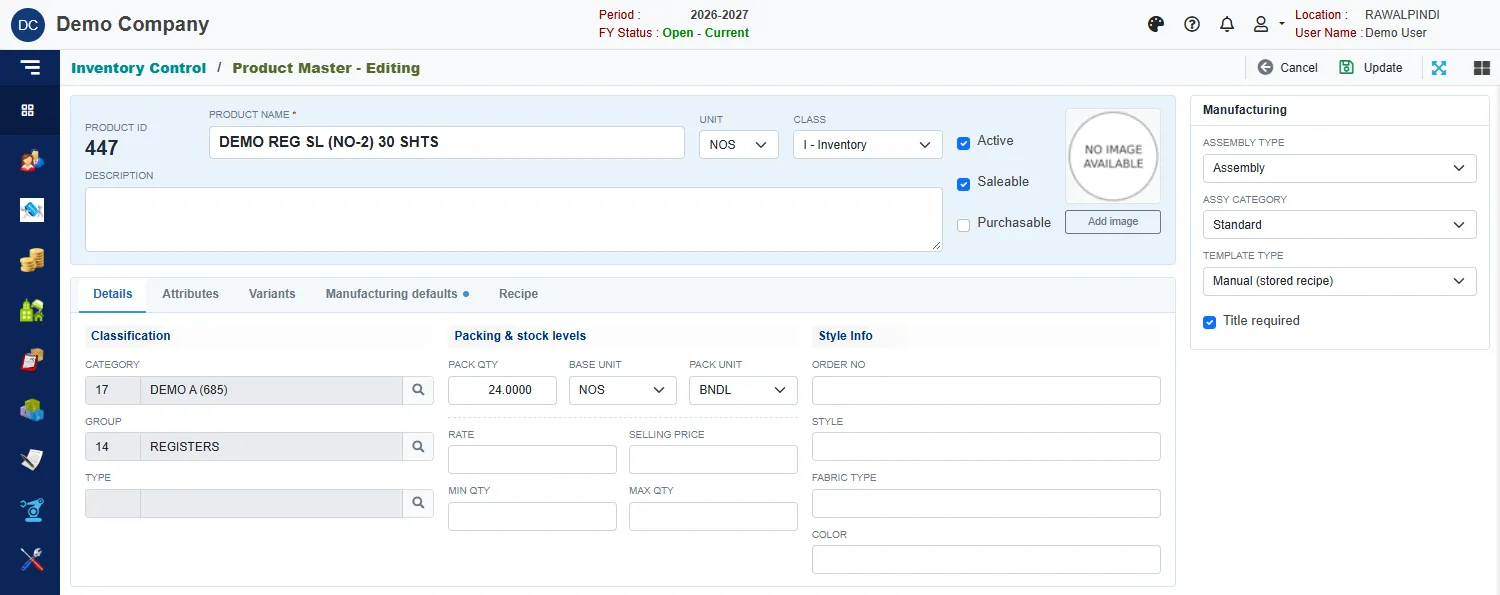
- In the Manufacturing panel on the right:
- Assembly type = Assembly. The Recipe tab only shows for Assembly and Sub Assembly.
- Assy category = Standard. Otherwise the work order picker's Standard list does not show the product.
- Template type = Manual (stored recipe).
- Tick Title required when the cover is printed per school title.
2. Fill the spec
Open the Manufacturing defaults tab. The spec decides which rim, card and film every order takes. Copy each field from the similar product; only Thickness usually changes.
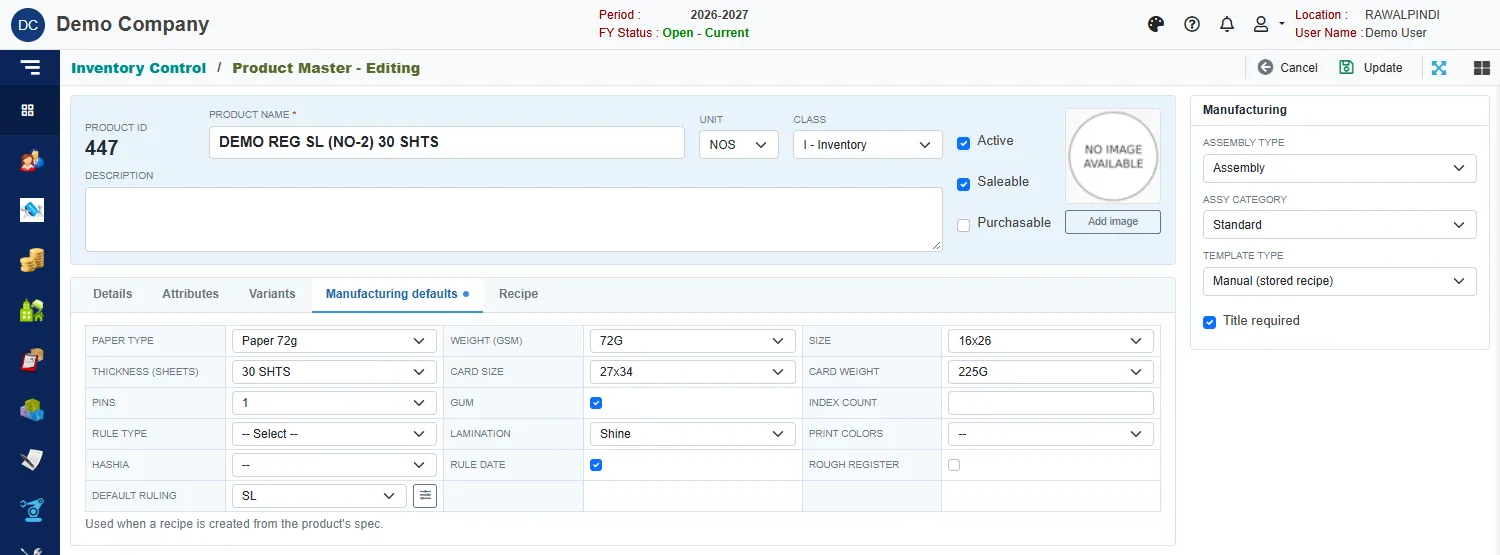
| Field | What to enter | Example |
|---|---|---|
| Paper Type | The paper of a rim you stock | Paper 72g |
| Weight (GSM) | The weight of that same paper | 72G |
| Size | The rim size | 16x26 |
| Thickness (Sheets) | Sheets in the book | 30 SHTS |
| Card Size | The card your size uses. 16x26 registers use 27x34. Never pick a size no other product uses | 27x34 |
| Card Weight | A weight that exists for that card size | 225G |
| Pins | Pins per book | 1 |
| Gum | Ticked when the book is glued | ✓ |
| Rule Type | Blank, as on the similar product (the order decides); or a fixed ruling job | blank |
| Lamination | Shine or Matte; -- means not laminated (printed card only) |
Shine |
| Default Ruling | The ruling of the sheets | SL |
| Hashia / Rule Date | As on the similar product | None / ticked |
| Index Count, Print Colors, Rough Register | Only when the book has them | blank |
Click Update at the top right. The Recipe tab becomes available.
3. Copy the recipe
Open the Recipe tab. In Last step pick Register (12). An empty recipe shows No recipe yet. Start it from:
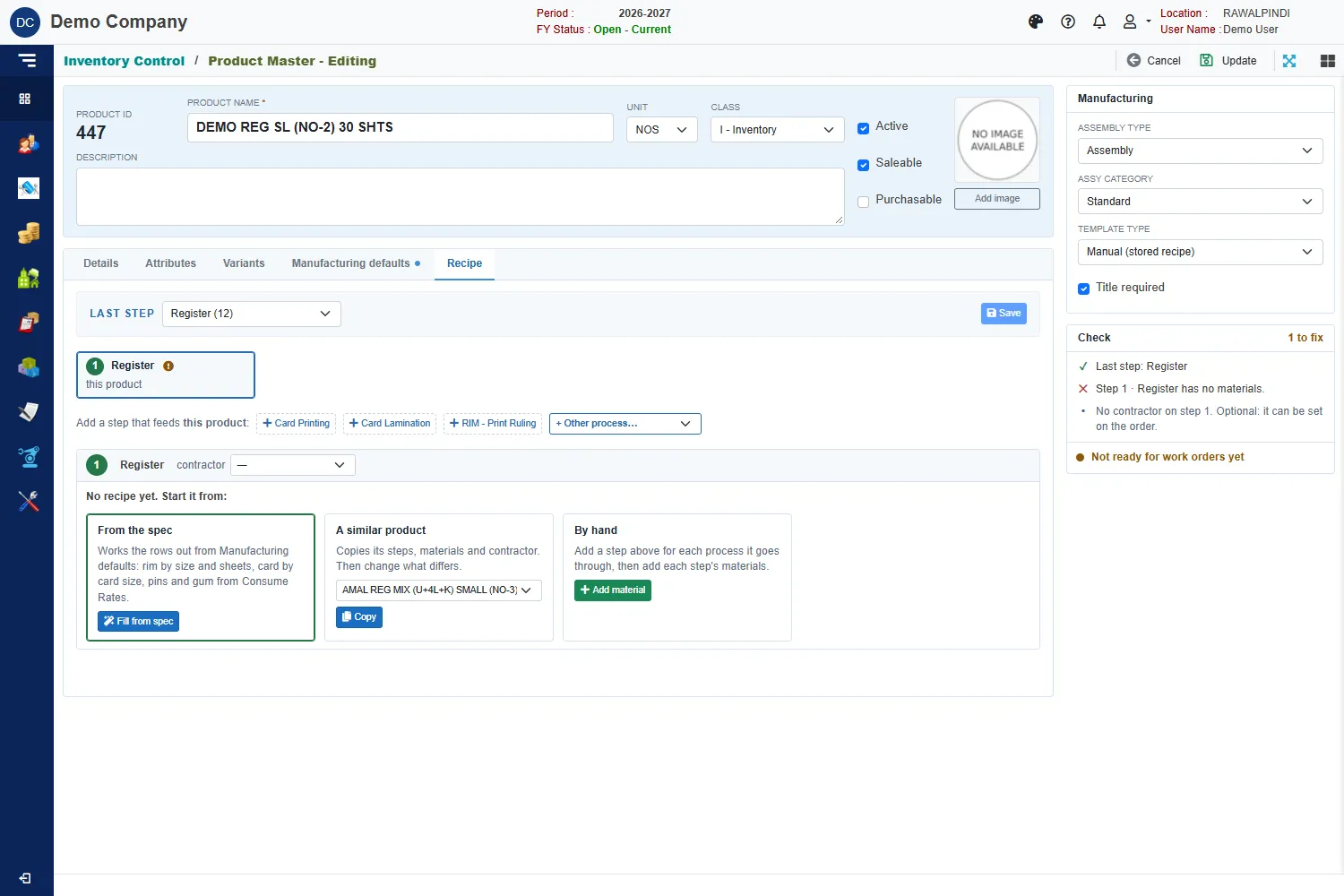
On the From the spec tile click Fill from spec. It works the rows out from the spec you just saved. If it stops, it names the field to fix (for example check Card Size): fix it on Manufacturing defaults, click Update, and fill again. For a last step it is not set up for, use the A similar product tile: pick the product you copied the spec from and click Copy.
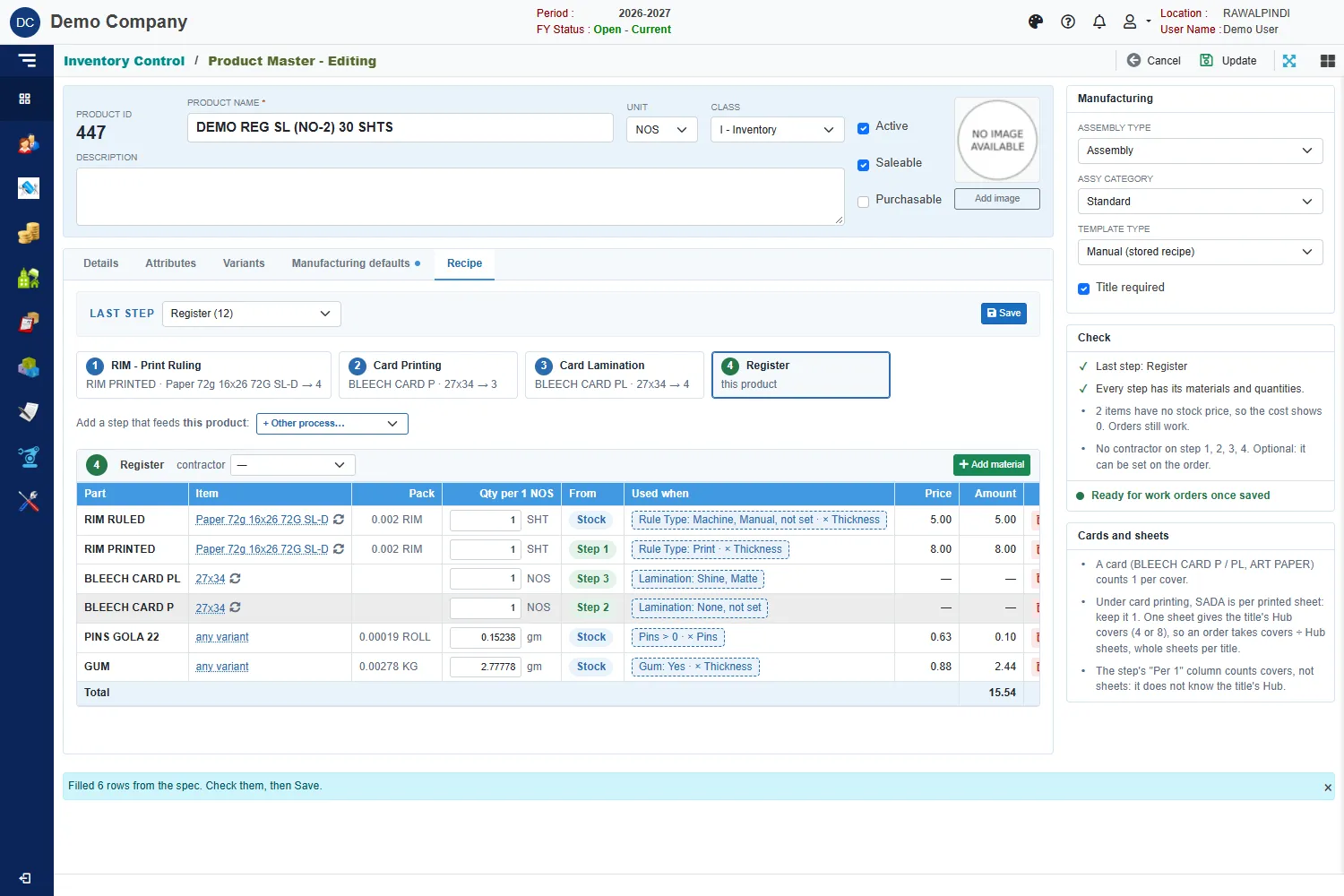
Leave the filled quantities as they are. On these registers the rim (1) and gum (2.77778) are per sheet, and the order multiplies them by Thickness: 30 sheets = 30 rim sheets and 83.3 g gum per register. Pins and card are per book.
Items with the ↻ mark follow the spec. The name shown already uses this product's paper and card, so do not click it to change it.
A new mark next to an item means that variant does not exist yet. Check that its name is real (for example not a 72g paper with a 68G weight). If it is wrong, fix the spec, not the row. If it is right, saving the recipe makes it.
When the Check panel reads Ready for work orders once saved, click Save in the Last step bar.
A different paper, size or weight for this product comes from its spec (Manufacturing defaults), never from changing a shared step. If Save says … is shared by N products, edit it on that item's own Recipe tab, press F5 and fill again.
Do not touch on a new product
- Earlier steps (Card Printing, Card Lamination, Rim Print Ruling) carry an amber shared recipe · N products mark and are locked: no item, quantity, delete or contractor changes here. Their rows serve every product that uses that card or rim, so they are changed only on that item's own product page, on its Recipe tab.
- An empty step (No materials yet) means the spec picked a card or paper that has no recipe, usually a typing mistake in Card Size. Fix the spec; do not use + Add material there.
- Opening stock typed only to let an order pass gets costed at its rate. A rate of 0 makes the book's cost wrong.
4. Test with one order
- Make a work order for the new product, for example 100 registers, and save it.
- On its Jobs tab check: 3,000 SHT of rim (30 × 100), the 27x34 card, lamination film on the card job, and a labour rate on each job.
- If something is wrong, delete the order before any Issue or Receive, fix the product, and try again.
The Recipe tab in detail
The rest of this article explains each part of the Recipe tab.
Before you start: set the Template type
The product, and every part a step makes for it, must have Template type = Manual (stored recipe). A part left on Rule shows no material table, and orders stop when its WO type has no rule template.
- Open the product in Inventory Control → Product Master.
- In the Manufacturing panel, set Template type to Manual (stored recipe).
- Click Update at the top right.
- Do the same for each part the product's steps make (for a Gata register: ART PAPER PL and ART PAPER P). If you forget one, the Check list offers Make … Manual in one click.
The product's Group (Details tab, Classification) also matters: the Last step list and "similar products" both come from it.
Step 1: Open the Recipe tab and pick the last step
On the product page, click the Recipe tab. It shows for Assembly and Sub Assembly products, once the product is saved. In Last step, pick the WO type that finishes this product, for example Gata NB + REG (22).
The tab has three areas:
| Area | Where | What it does |
|---|---|---|
| Route | Buttons across the top | One button per step, in floor order; the last one makes this product. Click a button to see that step's materials. |
| Step | Under the route | The materials of the step you clicked, and its contractor |
| Check | Right column, under Manufacturing | What still stops this recipe on a work order, with a fix button for each problem |
Step 2: Start the recipe
An empty recipe shows No recipe yet. Start it from: with only the starts that have data. The best one has a green border. Pick one; you can still change every row afterwards.
| Start | Shown when | What it fills in |
|---|---|---|
| Another variant | The product has variants and one already has a recipe | That variant's parts |
| A similar product | Another product of the same group has a recipe | Its steps, materials and contractor. Usually the fastest. |
| From the spec | The last step has a SheetMultiplier rate in Consume Rates (today Note Book, Register, Home Work Diary) | Rim by size and sheets, card by card size, pins and gum from Consume Rates. Stops and names the field when Size or Card Size is wrong. The best start when it is offered. |
| Its last order | The product was ordered before | What that order used for 1 unit |
| By hand | Always | Nothing: you add the steps and materials yourself |
Check copied numbers. An old order keeps the unit it was saved with. WO-319 used 0.25 for ART PAPER PL when its unit was PKT; today the unit is SHT and the right number is 0.5.
Step 3: Add the last step's materials
The last step's table holds what one unit of this product takes (here: 1 NOS = one register).
Add a material
- Click the green + Add material under the table.
- Type part of the name in the search box.
- Item without variants: click + Add on its row. Item with variants: click Select →, then + Add on the variant you need.
- The row appears with an empty, amber quantity box. Type the quantity for 1 unit and press Tab.
Change the variant of a row
Click the underlined variant name in the Item column. The picker opens on that item's variants; use the filters or the search box and click + Add on the right one.
Pack shows the same quantity in the pack unit, for example 15 SHT = 0.03 RIM. From is set for you: Stock, or from step n when an earlier step makes it. Remove a row with the red bin.
Step 4: Add the steps that make parts
A part your factory makes (a laminated cover, a printed sheet) gets its own step. Add it from the step that uses the part.
- Click the step that uses the part in the route (for the cover: the last step, Gata NB + REG).
- Under the route, Add a step that feeds … lists the processes set up for the last step's WO type. Click the one you need, for example + Art Paper Lamination. For anything else, use + Other process….
- The new step appears in the route, and the part it makes appears in the step that uses it as from step n (ART PAPER PL 20x30). If that part was already a Stock row, it simply turns into from step n.
- Type the part's quantity for 1 unit of the product (ART PAPER PL: 0.5 SHT per register).
A part made from another made part: click that part's step, then add the next step from there. Printing feeds lamination, so pick Art Paper Lamination in the route and click + Art Paper Printing.
Each route button shows the step number, what it makes, which step it is for, and a status: n materials, n quantities missing or no materials yet. To take a part from stock again, open its step and click the red × at the right of the step's title bar.
Step 5: Add each part's materials
Click a part's step in the route and add its materials the same way as in Step 3. One difference matters:
Quantities in a part's step are for 1 unit of that part, not for 1 unit of the product. The title bar says which: uses, for 1 SHT of ART PAPER PL · 20x30.
Use the same per-sheet rates as for notebooks and registers (lamination film by sheet size, chemical and glue from the consumption rates). Per 1 NOS shows what one register takes, read-only: film 1.524 M per sheet × 0.5 sheet = 0.762 M per register.
shared recipe (amber): this table is the part's own recipe. Every product that uses ART PAPER PL 20x30 uses these rows, so you type them once. The next product that uses the same part shows this step already filled.
Step 6: Clear the Check list and Save
The Check panel (right column, Recipe tab only) lists what still stops this recipe on a work order. Work down the red and amber lines, then save.
| Mark | Meaning | What to do |
|---|---|---|
| ✓ green | In order | Nothing |
| ✕ red | Orders stop: a step has no materials, a quantity is missing, or a part is Rule with no template | Click Go to step n, or Make … Manual |
| ⚠ amber | A made part has variants but none is picked | Go to the step that uses it and pick the variant in the Item column |
| • grey | For information: no stock price yet (cost shows 0), no contractor | Optional |
When the bottom line reads Ready for work orders once saved, click Save in the Last step bar. The line changes to Ready for work orders. Save stores this product's recipe and the recipes of the parts you typed in their steps.
Save refuses a row with quantity 0, so fill every amber box first.
Step 7: Same recipe for similar products
After saving, a folded bar Same recipe for similar products appears under the step for products without variants. Use it to give the other products of the group the same recipe in one click.
- Click the bar to open it.
- changes with the sheets names the row whose quantity follows the sheet count. It starts on the paper bought by the ream (RIM RULED). Pick nothing to copy every row as it is.
- Products with the same size and ruling are ticked. Each gets this product's quantity × their sheets ÷ this product's sheets: 15 SHT for 30 sheets gives 12 SHT for 24 sheets. Type over any number that is different.
- Untick what should not get this recipe. Greyed rows have a different size or ruling and start unticked.
- Click Create n recipes. Each ticked product gets the same rows, last step and contractor, and its Template type becomes Manual.
The made parts (ART PAPER PL, ART PAPER P) are shared, so their materials are not copied again. Products that already have a recipe, or have variants, are not listed.
Worked example: a Gata register
Route: Art Paper Printing → Art Paper Lamination → Gata NB + REG.
Step 3 · Gata NB + REG: for 1 NOS of the register
| Material | Item | Qty | From |
|---|---|---|---|
| RIM RULED | CROWN 25x30 68G SL-H-D | 15 SHT | Stock |
| ART PAPER PL | 20x30 | 0.5 SHT | from step 2 |
| GATTA 25 NO | — | 0.3787 SHT | Stock |
| Cloth Local | — | 0.0625 M | Stock |
| ASTER PAPER 27X21 (MULTI COLOR) | — | 1 SHT | Stock |
Step 2 · Art Paper Lamination: for 1 SHT of ART PAPER PL 20x30 (shared)
| Material | Item | Qty | From |
|---|---|---|---|
| LAMINATION FILM | 15.5 Shine | 1.524 M | Stock |
| CHEMICAL | — | 0.00177 KG | Stock |
| GLUE | — | 0.00034 KG | Stock |
| ART PAPER P | 20x30 | 1 SHT | from step 1 |
Step 1 · Art Paper Printing: for 1 SHT of ART PAPER P 20x30 (shared)
| Material | Item | Qty | From |
|---|---|---|---|
| ART PAPER SADA | 20x30 115G | 1 SHT | Stock |
Film 1.524 M = a 30" sheet length × 2 passes of 15.5" film over the 20" width, the same rule notebooks and registers use. On a work order for 1,057 registers this gives three jobs: printing 528.5 SHT, lamination 528.5 SHT (805 M film), and binding 1,057 NOS (15,855 SHT RIM RULED).
Questions and problems
| You see | Why | What to do |
|---|---|---|
| A step says is set to Rule (worked out per order) | That part is a Rule product | Click Make … Manual in the Check list, then add its materials |
| No active BOM template (BomTypeId=2) found for WoTypeId 57 on a Rule register | The register is still Rule, and Art Paper Lamination has no rule template | Give it a manual recipe (Step 7, or Steps 1–6) |
| Step n makes ART PAPER PL with no variant picked | The made part has several variants | Open the step that uses it and pick the variant in the Item column |
| Save says every part needs a quantity above 0 | A row was added but not filled | Fill the amber boxes, or remove the row |
| A copied number looks wrong | Old orders keep the unit they were saved with | Type the right quantity for today's unit |
| The product has variants | Each variant has its own recipe | Click a variant chip, fill it, use use for all variants on rows that are the same, then change the paper per variant |
Changing a shared part's step changes it for every product that uses that part. A product that needs different materials needs a different variant of the part.
The contractor on a step is optional. The work order takes it as the job's contractor; you can still change it on the order.
Existing work orders keep the materials they were saved with. A recipe change applies to new orders.