What it is for
Cost Master, also called the Labor page, holds the rate card: what each contractor is paid for each kind of work, the extras that can be added, and when each rate and extra applies. A work order prices every job from it. See Jobs and labour for how the rate shows up on an order.
Set up a rate before you order work from a contractor. If no rate matches, the job on the order says No rate-card row for … in this size. Add one on the Labor page.
The list
Open Manufacturing Activity Control, then Cost Master under Setup Forms.
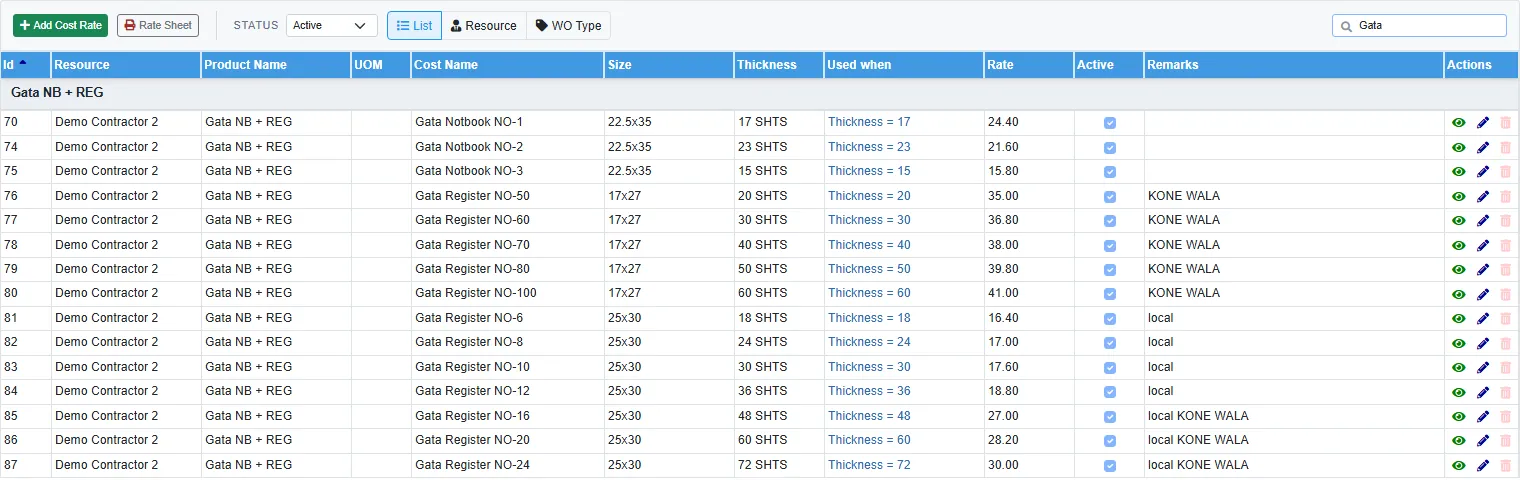
Status starts on Active. Only active rates are used to price orders.
Three views: List (every rate, grouped by work order type), Resource (one line per contractor, with a count of their rates) and WO Type (one line per work order type, with a count).
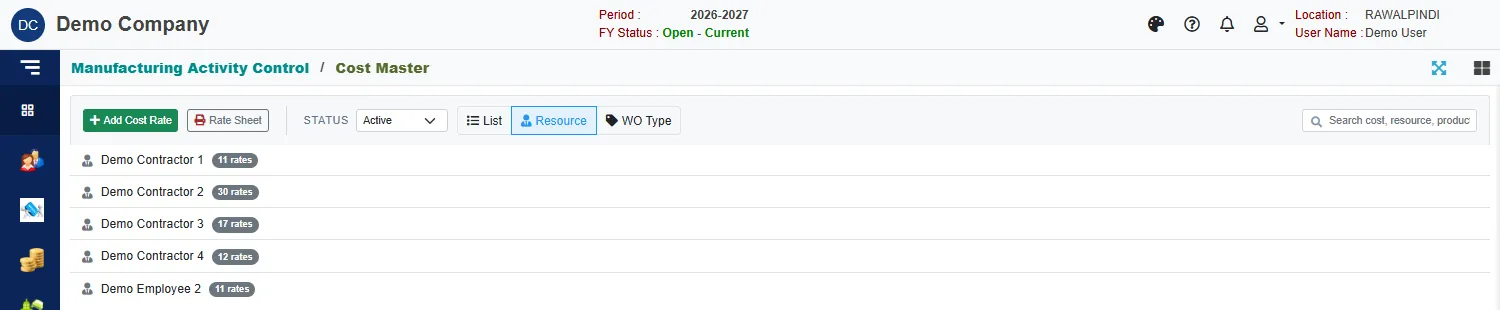
Rates by contractor The search box finds a rate by cost name, contractor or product.
The columns show the Resource (the contractor), the Product Name (the work order type), Cost Name, Size, Thickness, Used when (blank = any job), Rate, whether it is Active, and Remarks.
Add or change a rate
Click the green Add Cost Rate, or the pencil on a row.
Fill in the form:
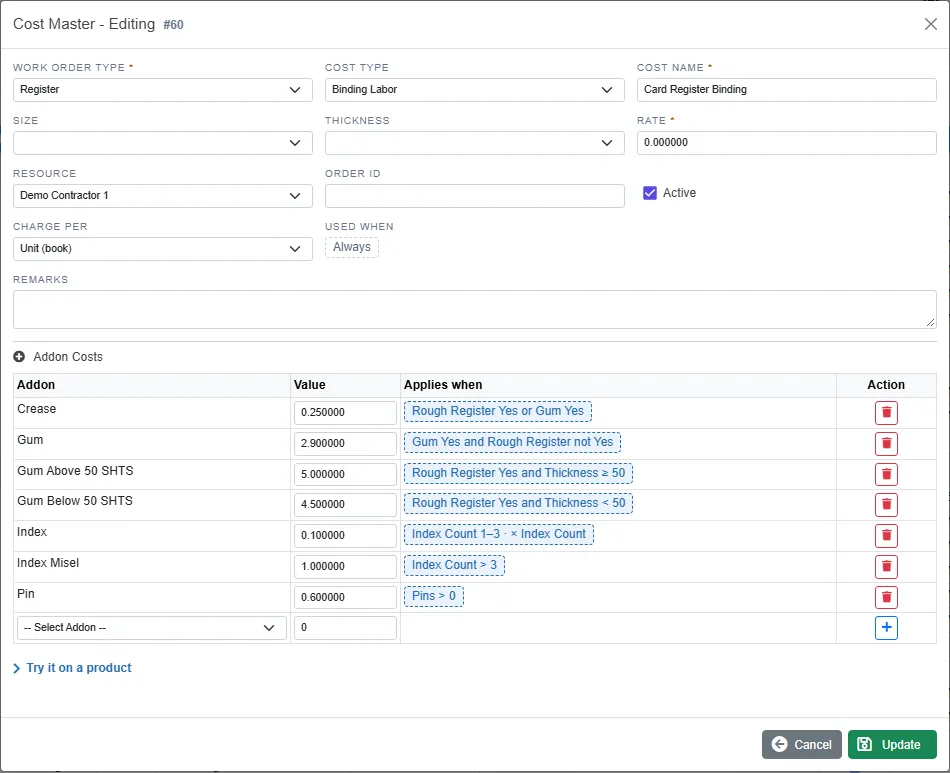
A rate with its extras and when each applies Field What to enter Work Order Type Required. The kind of work the rate is for, for example Register or RIM - Machine Ruling. Cost Type The kind of labour, for example Ruling Labor or Binding Labor. Cost Name Required. A name you will recognise, for example Rim Ruling 22.5x35. Size The product size the rate is for. Leave it blank for a rate that applies to every size. Thickness Optional, for reading only. To make a rate apply to one thickness, use Used when (below). Rate Required. The base rate, charged per unit, per rim or per cover (see Charge per). Resource The contractor (or employee) the rate belongs to. Order Id Optional. When two rates fit a job equally, the lower Order Id wins. Active Untick to stop using the rate without deleting it. Charge per Unit (book): rate × quantity. Rim: rate × rims (sheets ÷ sheets per rim). Cover (slab): card printing, a flat amount up to a number of covers, else rate × covers. A new rate starts with the usual choice for its work order type. Used when Which jobs the rate is for. Always = any job of this contractor, type and size. Click it to add conditions, for example Thickness = 60. See Labour rules. Remarks Optional note. Under Addon Costs, add the extras that go with this rate. Pick an addon in the last row, type its Value and click the blue +. The red bin removes one. Extras are things like Crease, Gum, Pin, Hashia or Khana. See Work order setup lists for where the addon names come from.
Click the chip in Applies when to say when the extra is added to a job, how many times it counts, and whether it is ticked automatically. See Labour rules.
Click Save (or Update when changing a rate).
Before saving, open Try it on a product at the bottom of the form to see which rate a product takes and what it is paid, with your changes. See Labour rules.
How an order finds its rate
For each job, the order looks for active rates with:
- the job's contractor (the Resource),
- the job's work order type, and
- the product's size, or a rate with the size left blank.
Of those, it keeps the rates whose Used when holds for the product. If several are left, a rate for the exact size wins over a blank size, then a rate with more conditions wins, then the lower Order Id.
If two rates are still level, the order uses the first one and the job shows a warning, for example Rows 40, 91 all fit: 40 used. Give them a Used when on the Labor page. Give each of those rates a Used when that tells them apart, or make one inactive.
If a contractor has rates in that size but none whose Used when holds, the job says No rate-card row of … fits: n in this size, none whose Used when holds.
A blank size means any size. Leave the Size box empty rather than typing a space or a dash.
Print the rate sheet
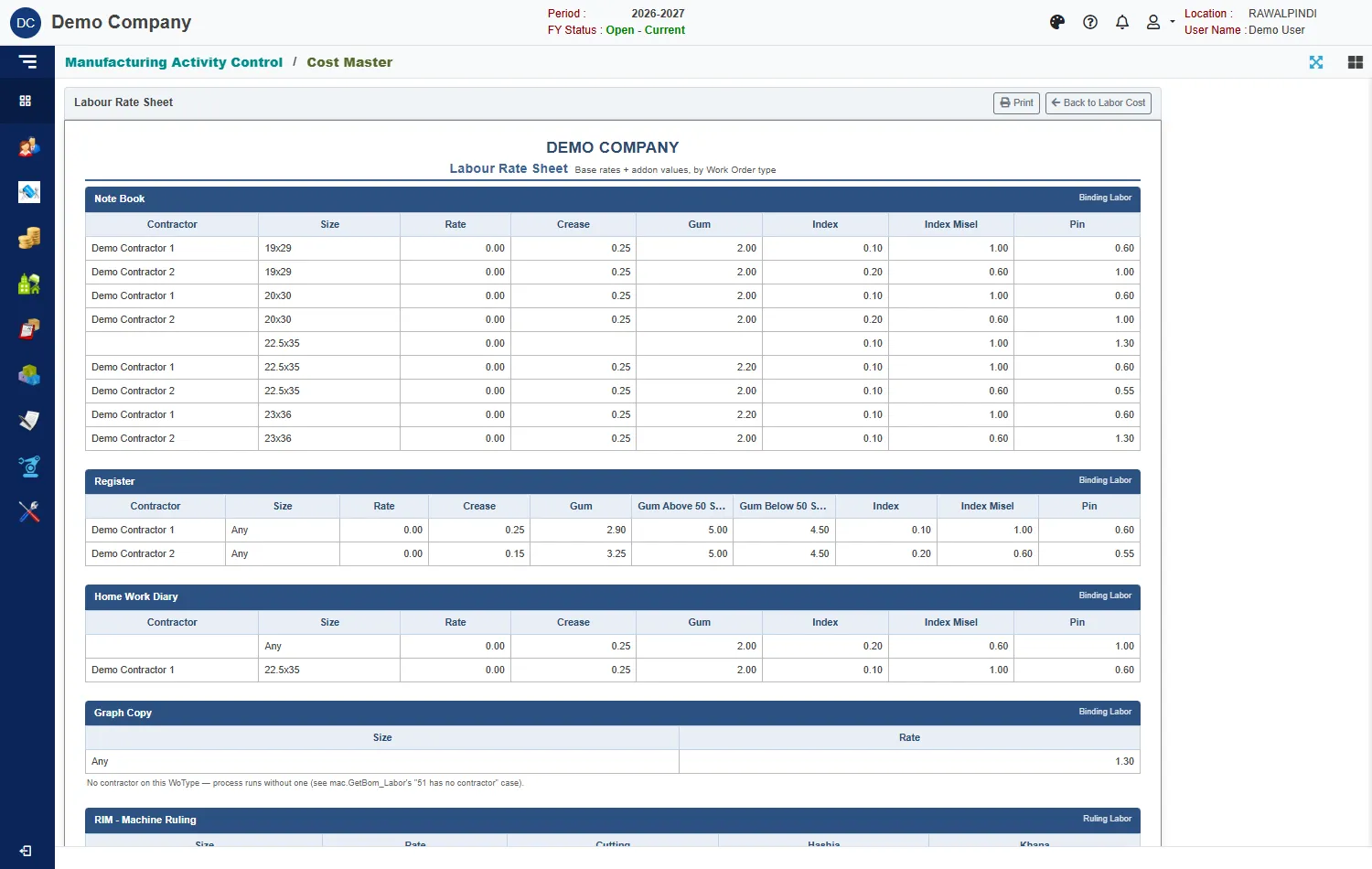
Click Rate Sheet. It lists, for each work order type, every contractor's base rate and the value of each addon. A size of Any is a rate for every size. Click Print to print it, or Back to Labor Cost to return.