What a job is
When you save a work order, PrixERP splits it into jobs: one for each step the recipe goes through. A register with a printed cover, for example, has a Card Printing job and then a Register job.
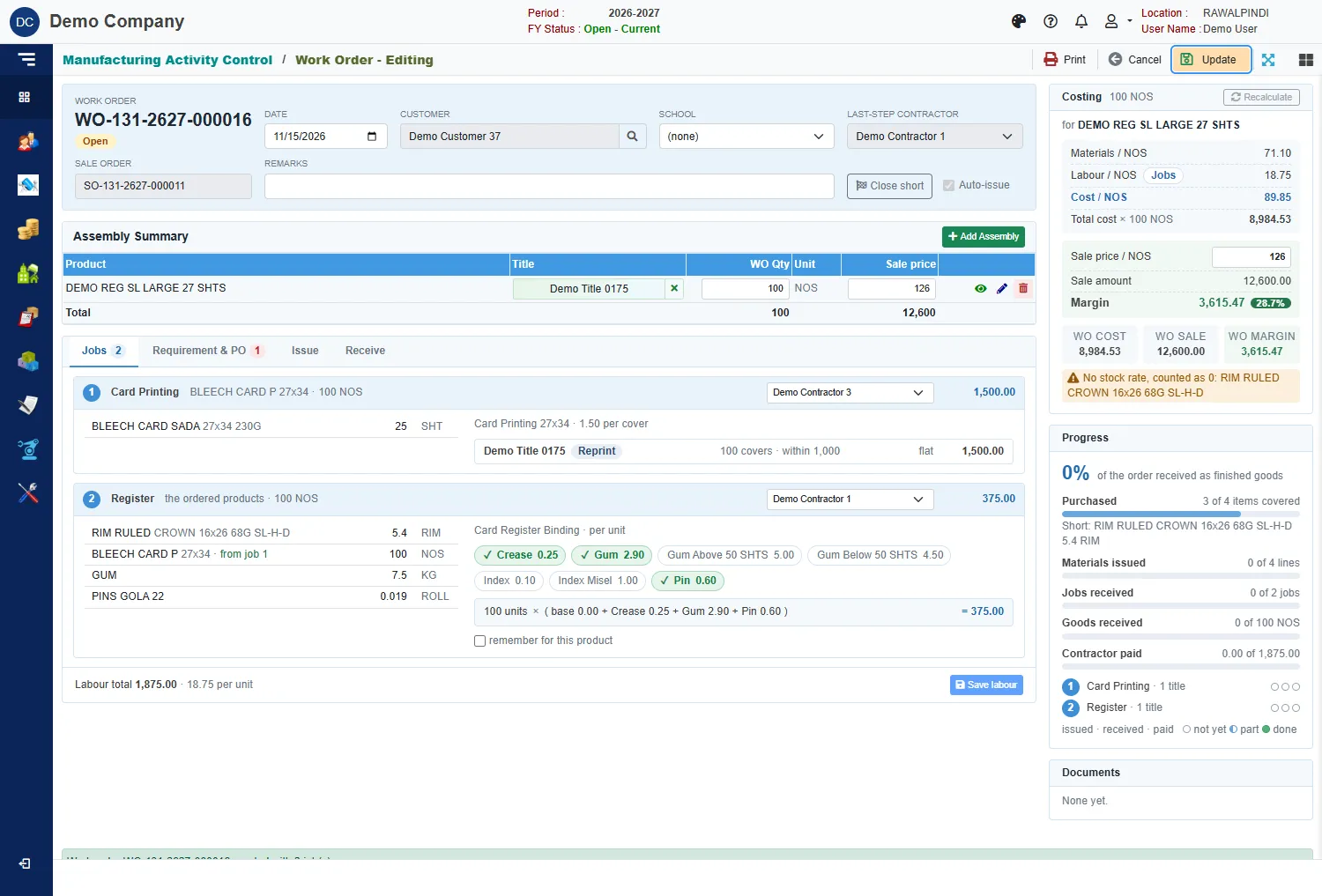
Open the Jobs tab. Each job shows:
- Its number and step, what it makes, and the quantity.
- Its contractor, chosen from a list.
- The materials it uses. A material made by an earlier job shows from job n.
- The labour for the job, and the amount on the right.
Before you save, the tab shows a preview, not saved. After saving, labour can be changed.
Jobs are kept per title for cards: each title is its own print run, so each title has its own card job.
The contractor
Pick the contractor in the box at the top of each job. The list offers the contractors set up for that kind of work in WO Operators.
The header's Last-step contractor and the last job's contractor are the same thing. If you leave the header blank, it takes the contractor you gave the last job.
Once a job has receipts, its contractor and labour cannot change. The message says: Job n (…) has receipts: its contractor and labour can't change. Reverse its receipts first.
How labour is priced
Each job is priced from the contractor's rate card, which you set up in Cost Master (the Labor page). The rate depends on the contractor, the kind of work, the size of the product and the rate's Used when rule (for example a Gata register's thickness). See Labour rules.
Books and registers
The rate is per unit. It is a base rate plus extras, each worked out per unit:
- The extras are chips such as Crease, Gum, Index and Pin. A ticked chip is added to the rate. The order ticks them from each extra's rule (point at a chip to see it, for example Ticked when Pins > 0); an extra set to Offer starts unticked. Tick or untick to match the job.
- An extra paid by a count, such as Index, shows a box for the count when it is ticked.
- The line under the chips shows the sum, for example 100 units × (base 0.00 + Crease 0.25 + Gum 2.90 + Pin 0.60) = 375.00.
- Tick remember for this product to make your ticks the default the next time this product is ordered.
Cards
Card labour is priced per cover, in slabs of quantity. Each title shows its quantity and the slab used, for example 100 covers · within 1,000 · flat · 1,500.00. The slab limits come from the rate card (Flat up to on each slab).
- A title that has never been printed before, or that is first printed by this order, uses the new design slab.
- A title that has been printed before shows a Reprint chip and uses the old design slab.
Rims
Rims are priced per rim, plus ticked extras such as Hashia and Khana.
No rate on the card
If the contractor has no rate for that work and size, the job says so, for example No rate-card row for … in this size. Add one on the Labor page. Add the rate in Cost Master, then open the order again, or pay the job with another of the contractor's rates with Pick a row (see Adjust a job's labour).
Two rates fit
If two of the contractor's rates fit the job equally, the job uses the first and shows a warning, for example Rows 40, 91 all fit: 40 used. Give them a Used when on the Labor page. Tell the rates apart with a Used when on the Labor page.
Pay this order differently
To pay one job differently from the rate card on this order only (another rate, a different base rate or extra value, an added extra), click Labor (the gear button) next to the rate name. See Adjust a job's labour.
Save the labour
At the bottom of the Jobs tab, Labour total shows the total and the amount per unit. Click Save labour to store it. A green message says Labour saved: 1,875.00. If you only changed labour, you can also use Update at the top right.
If you try to leave with labour changes you have not saved, the message says: Labour has unsaved changes. Press Cancel again to leave without saving, or Save.
Paying the contractor
A job appears on WorkOrder Payments once it has been received. The order's Contractor paid bar and each job's paid dot show how much has been paid. In the Receive tab, a step that is not yet on a bill says Not yet on a contractor bill.