What it is for
A bill of material (BOM) is the list of materials one unit of a product takes. Every recipe you make on a product's Recipe tab is stored as a BOM, so this screen is the full list of what is stored.
Make and change recipes on the product's Recipe tab. It fills them from the product's spec and warns you of what is missing. See Making a manual recipe. Use this screen to see what exists, or to enter a plain BOM by hand.
The list
Open Manufacturing Activity Control, then Bill of Material.
Each row shows the Bom No, its Date, the Assembly Name (the product it is for), its Operation (the work order type) and a Description. Rows are grouped by the product's category, with a count.
- Narrow the list with Category, BOM Type, Operation and Status (starts on Active).
- Search by BOM number, product or description.
- The eye opens a BOM to read, the pencil to change it. The bin is greyed out where a BOM cannot be deleted.
The BOM Type is one of:
| Type | Meaning |
|---|---|
| Recipe | Rows for one product or variant, used by work orders. Made on the product's Recipe tab. |
| Manual | A static BOM you enter by hand. |
Enter a BOM by hand
Click the green New BOM.
Fill in the top of the form:
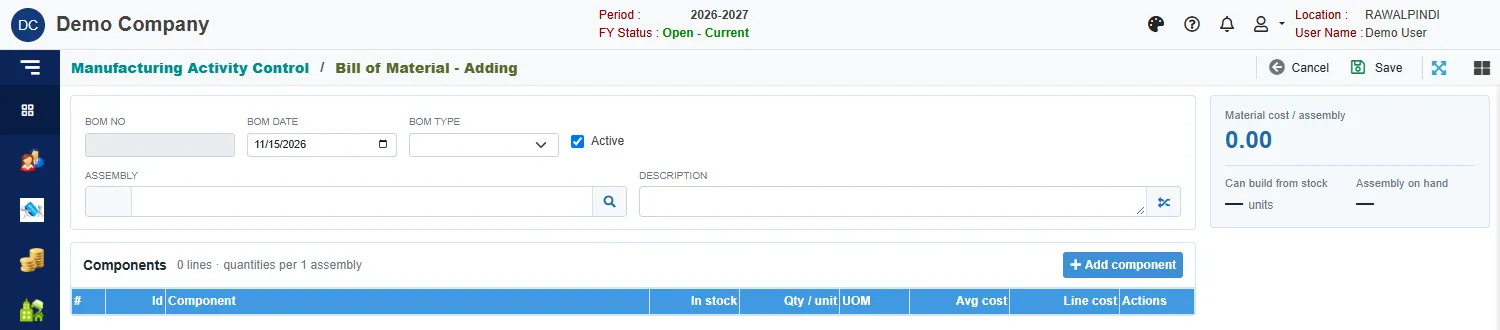
A new bill of material Field What to enter BOM No Filled in when you save. BOM Date The date of the BOM. BOM Type Recipe or Manual. Active Untick to stop using it. Assembly The product the BOM is for. Click the search button to pick it. Description A note. Click Add component and pick the materials. The list shows each component's In stock, Qty / unit (the quantity one unit of the assembly takes), UOM, Avg cost and Line cost.
Click Save.
The card on the right adds up the Material cost / assembly, and shows how many units you Can build from stock and how many of the Assembly on hand.