What a work order is
A work order tells the factory to make a quantity of a product. PrixERP breaks it into jobs, one for each step the product goes through (for example card printing, then binding). Each job has its own materials, contractor and rate. Materials go out to the jobs, finished goods come back, and the cost of the whole order builds up as you go.
The work comes from the product's recipe. See Making a manual recipe for how recipes are set up. Everything on this page assumes the recipe is already in place.
The Manufacturing module
Open Manufacturing Activity Control from the left strip.
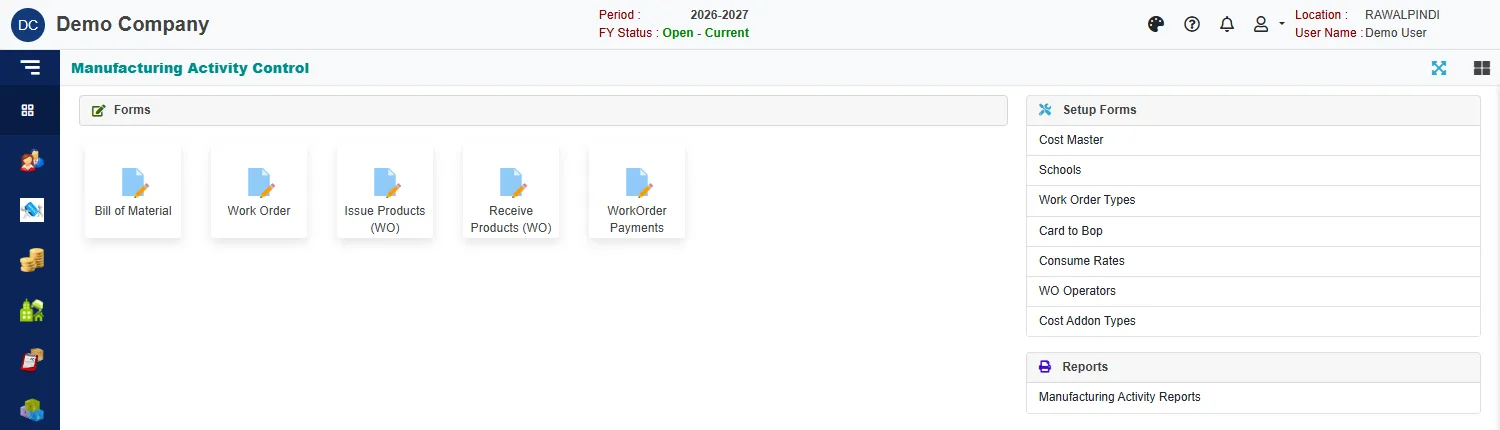
| Group | What is in it |
|---|---|
| Forms | Bill of Material, Work Order, Issue Products (WO), Receive Products (WO) and WorkOrder Payments. |
| Setup Forms | Cost Master, Schools, Work Order Types, Card to Bop, Consume Rates, WO Operators and Cost Addon Types. |
| Reports | Manufacturing Activity Reports. |
Most daily work happens on the Work Order page. Its Issue and Receive tabs do the same job as Issue Products (WO) and Receive Products (WO).
The list
Click Work Order to see the orders.

- Click the green Add Work Order to start one. See Create a work order.
- Print prints the selected order's job card. Attach attaches files.
- The filters narrow the list by WO Type, Assign To (the contractor), School and Status. Status starts on Open, so closed orders are hidden until you pick Closed or All.
- Group by groups the rows, for example by work order type.
- The search box finds an order by its number, sale order, product or customer.
- Progress shows how much of the order has been received as finished goods.
- The eye opens an order to read, the pencil to change it, and the bin deletes it. You can also double-click a row.
An order with several products shows one row for each product, with the same order number.
The order page
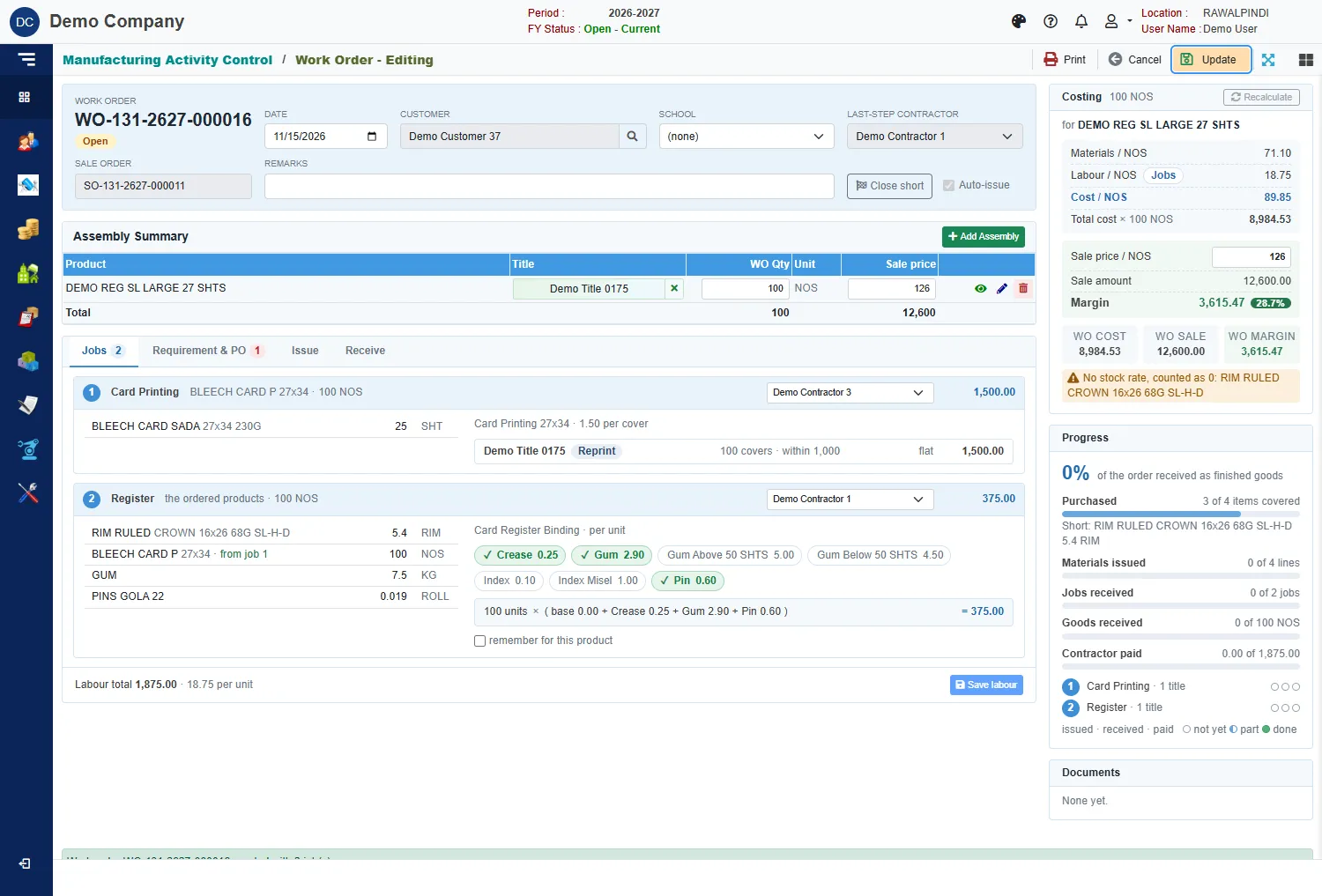
Open an order to see everything about it.
The header
| Field | Meaning |
|---|---|
| Work order | The number, and its state: Open, or Closed once it has been closed short. |
| Date | The order date. It must fall inside the fiscal year. |
| Customer | Who the order is for. Needed when a line has a title. |
| School | The school the order is for. Optional. |
| Last-step contractor | The contractor of the last job. It follows the contractor you give the last job. |
| Sale order | The sale order created for the customer when you save. |
| Remarks | Any note. |
| Close short | Ends an order that will not be completed. See Issue and receive. |
| Auto-issue | Shows that receiving a job also issues that job's materials. It is a company setting, shown here for information. |
Assembly Summary
One row for each product on the order, with its Title (for products made per school title), WO Qty, Unit and Sale price. Click Add Assembly to add another product. Use the eye to read a line's recipe, the pencil to change its options, and the bin to remove it.
Once materials have been issued or received on an order, its lines cannot change. The message says: Materials were issued or received on this order, so its lines can't change. Reverse those documents first.
The four tabs
| Tab | What it is for |
|---|---|
| Jobs | The jobs, their contractors, materials and labour rates. See Jobs and labour. |
| Requirement & PO | What the order needs, what is short, and a purchase order for it. See Requirement and purchase orders. |
| Issue | Hand materials to the jobs. See Issue and receive. |
| Receive | Take finished goods and made parts back. See Issue and receive. |
The cards on the right
Costing adds up what one unit costs and what the whole order costs:
- Materials / NOS, Labour / NOS and Cost / NOS per unit, and Total cost for the order quantity. Click Jobs to see the labour.
- Sale price / NOS: you can type the price here. Sale amount and Margin follow.
- WO COST, WO SALE and WO MARGIN: the totals.
- A warning such as No stock rate, counted as 0: … names materials that have no stock price yet. Their cost shows as 0 until they have one.
- Recalculate stores today's rates on the lines that are not fully received yet. A line that has been fully received keeps the cost it was received at, and a closed order keeps the cost it had.
Progress shows, as bars: how much is Purchased (items covered), Materials issued, Jobs received, Goods received and Contractor paid. Under them, each job has three dots for issued, received and paid: empty means not yet, half means part, and full means done.
Documents lists the issues and receipts made on the order. Each can be reversed from here.
Print the job card
Click Print at the top. The job card has the order lines, the title artwork, and one block for each job with its contractor, quantity, materials, rate and signature lines. Save a new order first: Save the work order first, then print its job card.