What these lists are
Work orders draw on a few short lists. You set most of them up once and change them rarely. They are under Setup Forms on the Manufacturing Activity Control page.
| List | What it holds |
|---|---|
| Work Order Types | The kinds of work order: Note Book, Register, Card Printing, RIM - Manual Ruling and so on. |
| WO Operators | Which contractors and employees can be given each kind of work. |
| Cost Addon Types | The extras added to a labour rate: Crease, Gum, Pin and so on. |
| Schools | Each customer's schools, and the titles printed for them. |
| Cost Master | Labour rates. See Cost Master. |
| Card to Bop and Consume Rates | Sizes and consumption figures. See Card to Bop and Consume Rates. |
Work Order Types
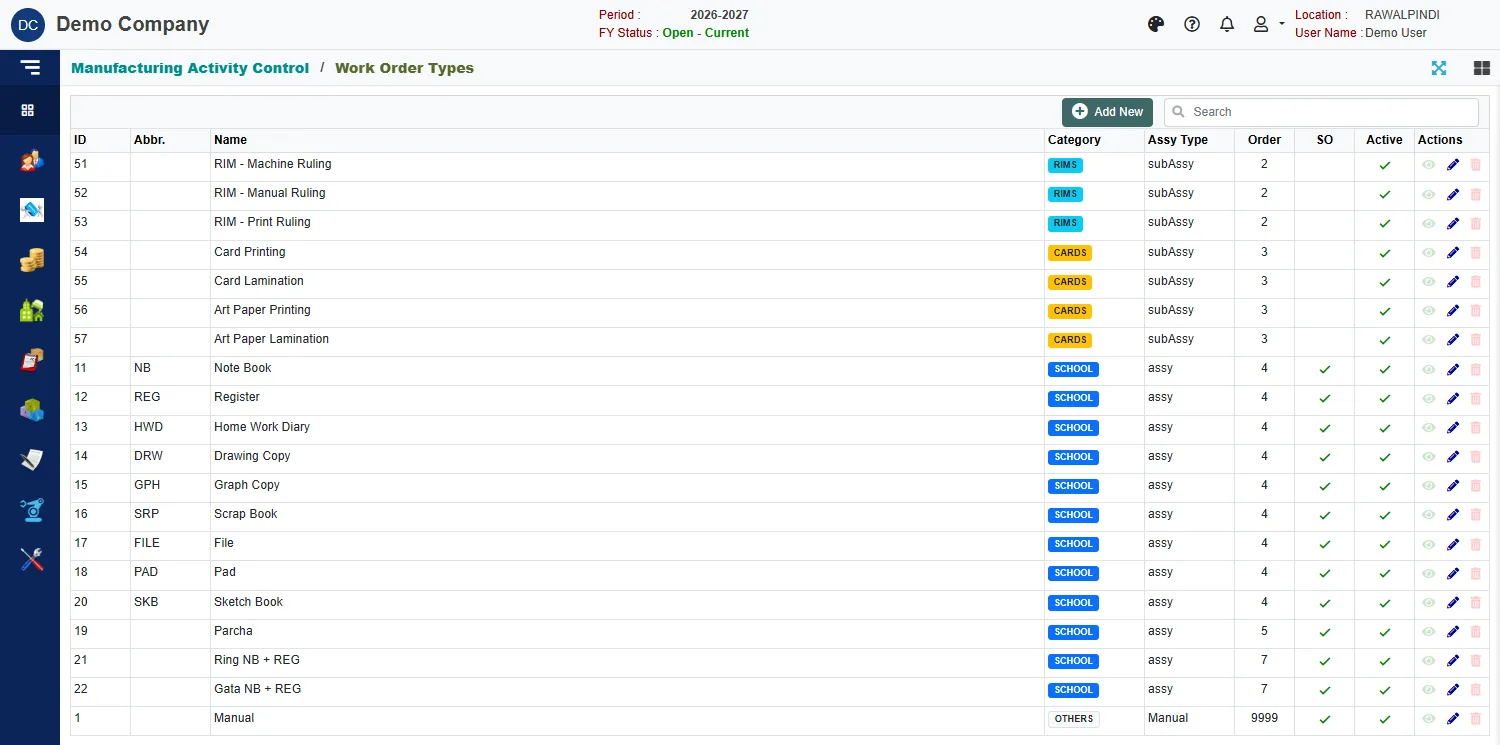
Each type has an ID, an Abbr., a Name, a Category, an Assy Type, an Order, whether a sale order is allowed (SO) and whether it is Active.
- Category groups the types in the picker: Rims, Cards, School and Others.
- Assy Type is subAssy for types that make a part for another job (rims and cards), assy for types that make a finished product, and Manual for the one-off type.
- SO ticked means saving an order of this type for a customer also creates a sale order.
To change a type, click the pencil. The form has:

| Field | What it means |
|---|---|
| Type ID and Type Name | Required. |
| Abbr. | A short code, for example NB for Note Book. |
| Assy Type and Category | As above. |
| Group Order | Where the type sorts within its category. |
| Active | Untick to stop offering the type. |
| SO Allowed | Tick to create a sale order when an order of this type is saved for a customer. |
| Display qty/rate in product's pack unit (e.g. RIM) | Tick for types such as rims that are counted in packs. |
| Linked Product, Group ID, Remarks | Optional. |
The built-in types cannot be deleted: the bin is greyed out. Change them only if you are sure; every recipe and rate depends on them.
WO Operators
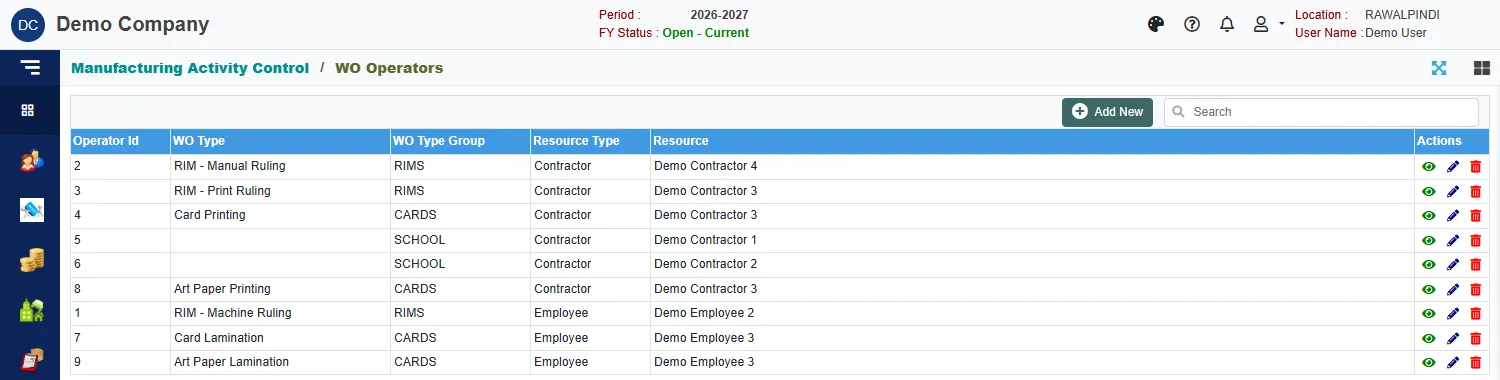
Each row says who may do a kind of work: the WO Type, its WO Type Group, whether the person is a Contractor or an Employee (Resource Type), and the Resource itself.
A row with a work order type is for that type only. A row with no type, only a group (for example School), is for every type in the group. The contractor lists on a work order offer only the operators set up for the order's types.
To let a contractor do a new kind of work, add a row for them here, then add their rate in Cost Master.
Cost Addon Types
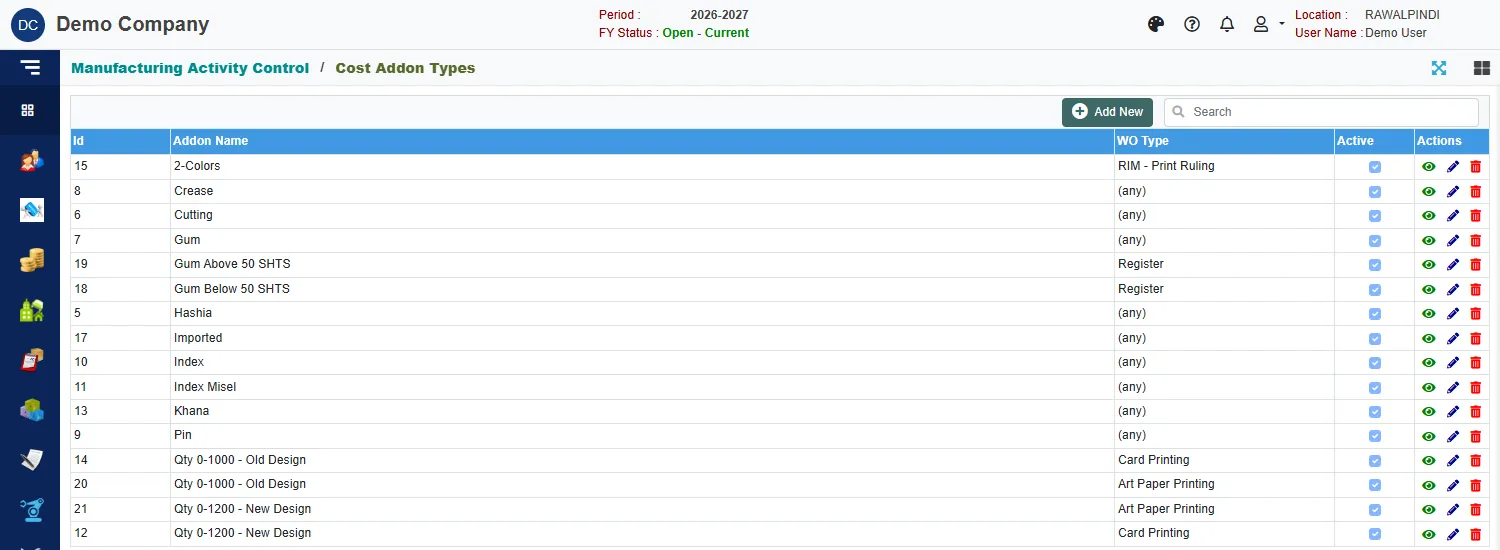
An addon type is an extra that can be added to a labour rate, for example Crease, Gum, Pin, Hashia or Khana. Card slabs such as Qty 0-1000 - Old Design are addon types too. Each has an Addon Name, a WO Type ((any) or one type) and an Active tick.
Adding an addon type here makes it available in the Addon Costs of a rate in Cost Master. Giving it a value there puts it on the order.
Schools
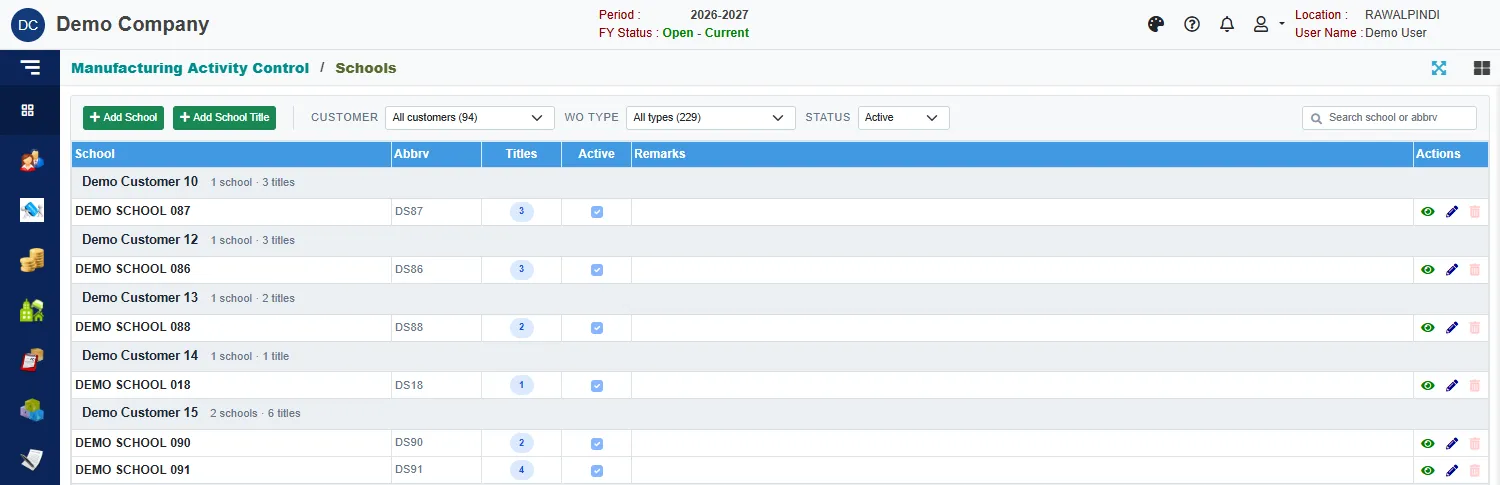
Schools are grouped under their customer. Each row shows the school, its abbreviation, how many Titles it has, and whether it is active. Use Add School for a new school, and Add School Title for a new title. The filters narrow the list by Customer, WO Type and Status.
The full steps, with pictures, are in Titles: from Work Order to stock.