What it is for
Once a contractor's job has been received on a work order, you owe them its labour. WorkOrder Payments collects the received jobs that are not yet paid into one bill, and posts the payment to the accounts.
A job appears here only after it has been received. On the work order, the job's paid dot and the Contractor paid bar show what has been paid.
The list
Open Manufacturing Activity Control, then WorkOrder Payments.
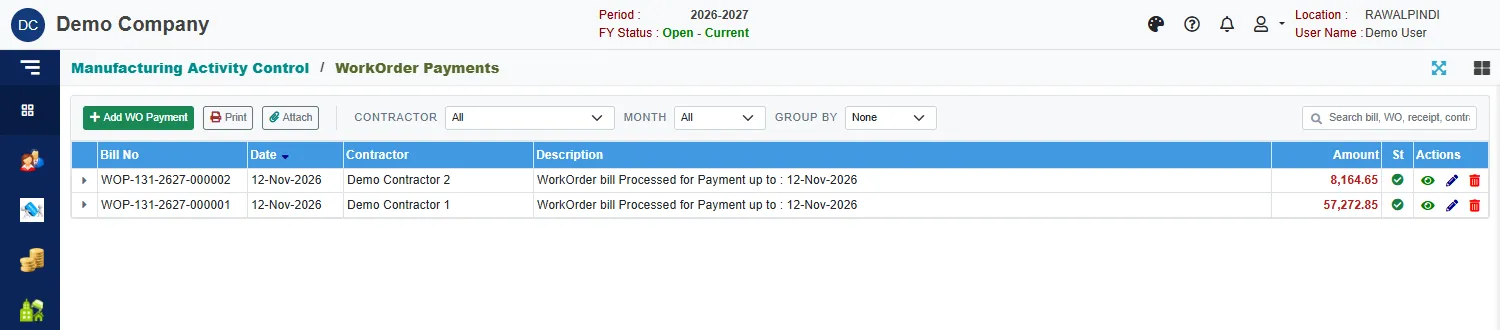
Each row is a bill, with its Bill No (a WOP number), Date, Contractor, Description and Amount. Click the small arrow to see the lines. Use Contractor, Month and Group by to narrow the list, and the search box to find a bill, work order, receipt or contractor. Select a bill and click Print to print it.
Make a payment bill
Click the green Add WO Payment.
Check the header:
Field What to enter Bill No Filled in when you save. Bill date Required. The date of the bill. Bills up to Required. Receipts up to this date can be added. Paid from Required. The cash or bank account the money comes from. Description Required. It starts with a suggested text. Click Add received work. A window lists the contractors with unpaid work, with the amount owed to each.
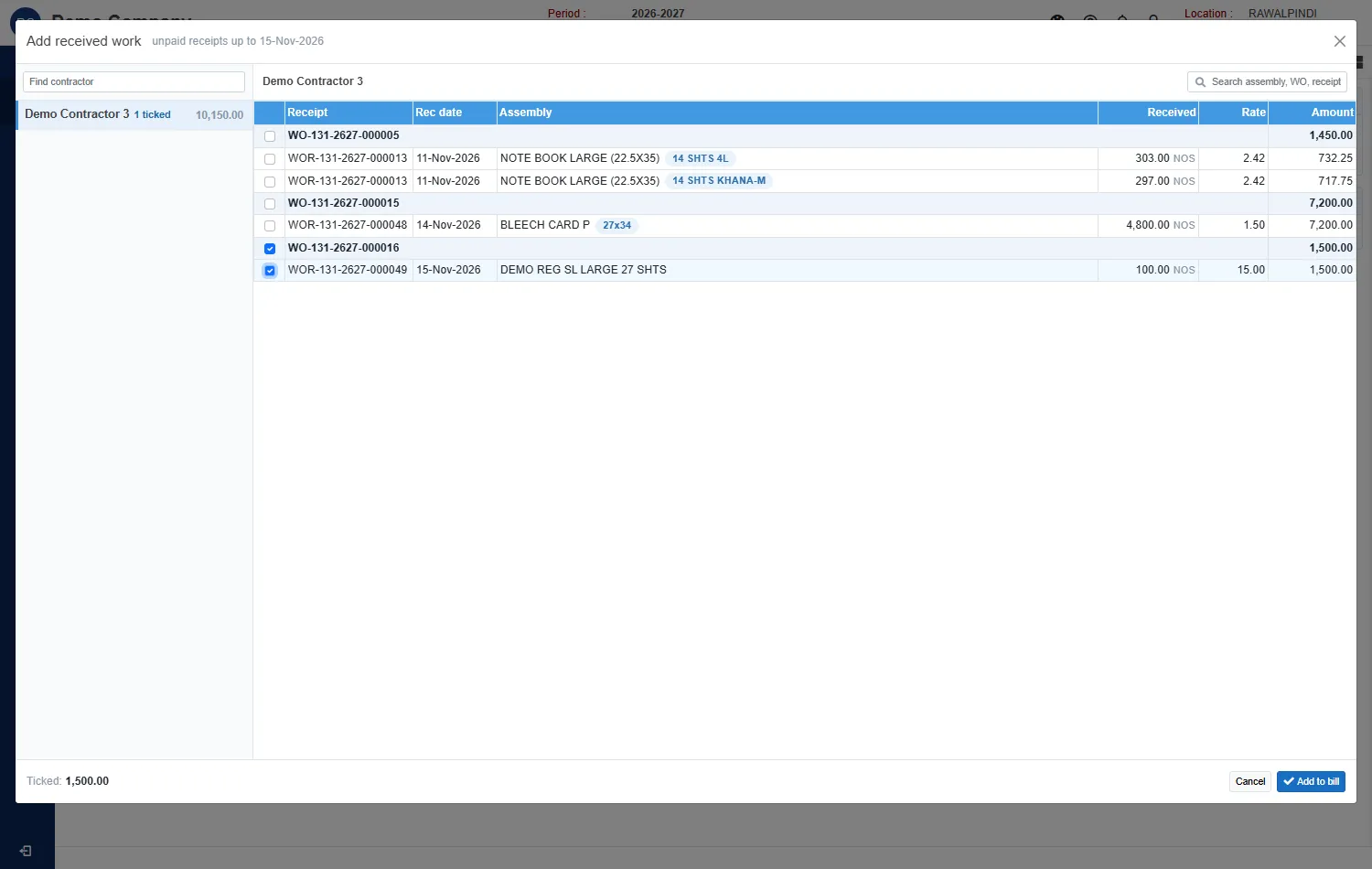
Choosing the received work to pay Pick a contractor on the left. On the right, tick the receipts you want to pay. Receipts are grouped by work order, and you can tick a whole order. The Ticked total is at the bottom. Click Add to bill.
The lines appear under Contractor work paid, with the Received quantity, the Rate and the Amount. Remove a line with the red bin.
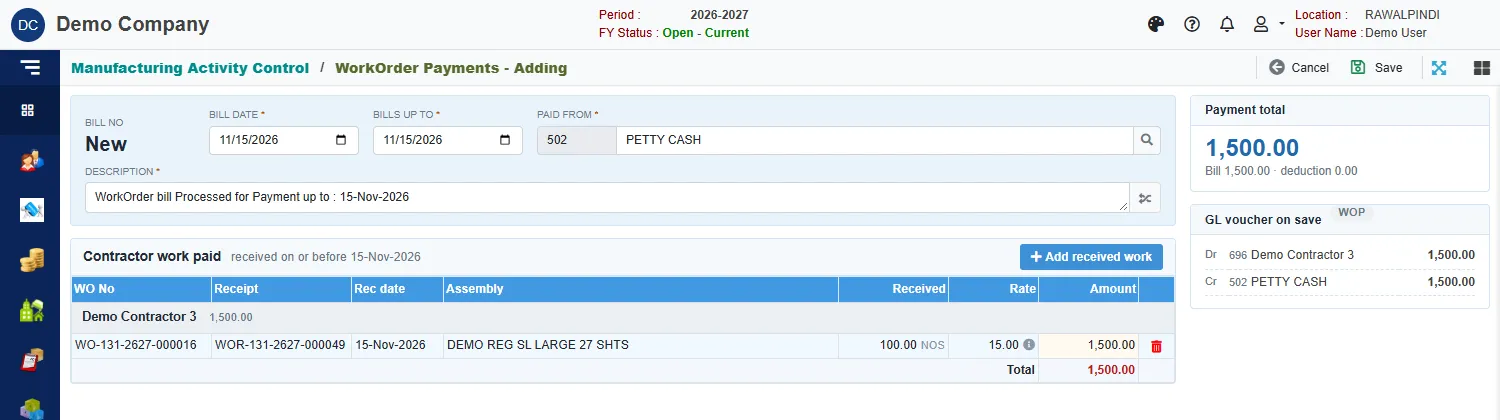
A bill with one line Check the Payment total card, and the GL voucher on save card, which shows the entry that will be posted: it debits the contractor and credits the account you pay from.
Click Save.
A green message confirms it, for example WorkOrder Payments "WOP-131-2627-000003" has been saved successfully. The paid receipts no longer appear when you add work to a new bill.
Deductions
The Payment total card shows the Bill amount and the total of any deductions on the lines.
Change or delete a bill
Use the pencil or the bin on the list. Deleting a bill cancels its accounting voucher.