How materials and goods move
A work order moves stock in two directions:
- Issue: materials go from your stock room to a job.
- Receive: what a job has made comes back. A job in the middle of the route hands its output to the next job. The last job puts the finished goods into stock.
Auto-issue is on for this company (the box in the order header is ticked and greyed). Receiving a job then issues that job's own materials for the quantity received, from your stock room, in the same step. An earlier job's output is handed to the next job when the earlier job is received. Use the Issue tab only to hand material out in advance, or to issue extra for wastage. Anything issued in advance is counted first, so the receipt issues only the rest.
Issue materials
Open the Issue tab. Each step lists its materials.
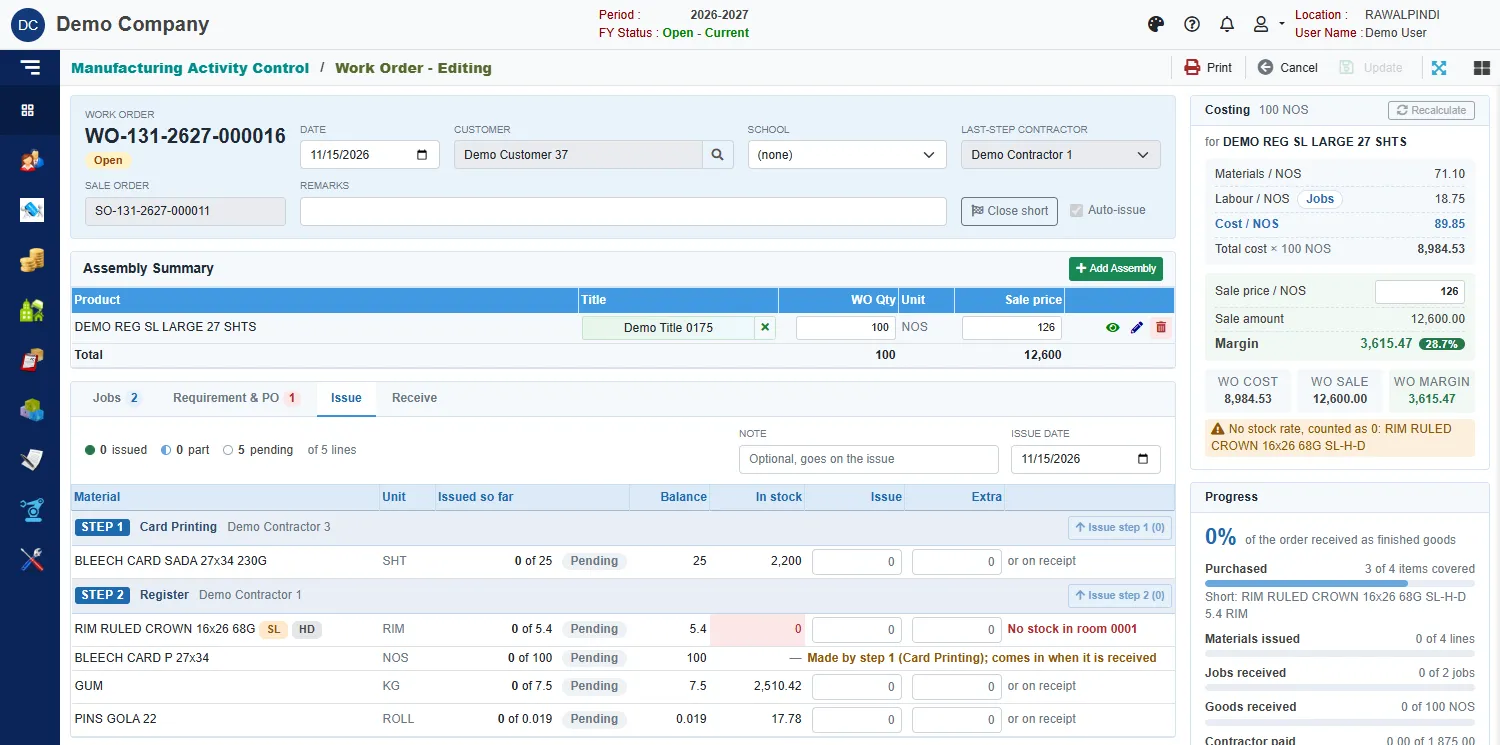
| Column | Meaning |
|---|---|
| Material and Unit | The item. Rims, film and pins are in their pack unit. |
| Issued so far | How much has been issued out of how much is needed, with a status: Pending, Part or Issued. |
| Balance | What is still to issue. |
| In stock | What your stock room holds. A red box means there is none. |
| Issue | The quantity to issue now. |
| Extra | Issue beyond the need, for wastage. |
- Enter the Issue quantity on each line, and an Extra if needed.
- Set the Issue date and an optional Note.
- Click Issue step n at the top of the step.
An item made by an earlier job says Made by step 1 (Card Printing); comes in when it is received, because there is nothing to issue for it.
Counts at the top show how many lines are issued, part and pending.
Messages you may see
| Message | What to do |
|---|---|
| Nothing to issue on this job. | Enter a quantity first, or nothing is left to issue. |
| Insufficient stock (room …): item Required: …, Balance: … | The stock room does not have enough. Receive or buy the material first. |
Receive
Open the Receive tab. Each step shows what it makes, its contractor, and where the output goes: hands over to step 2 (Register), or final assembly for the last step.
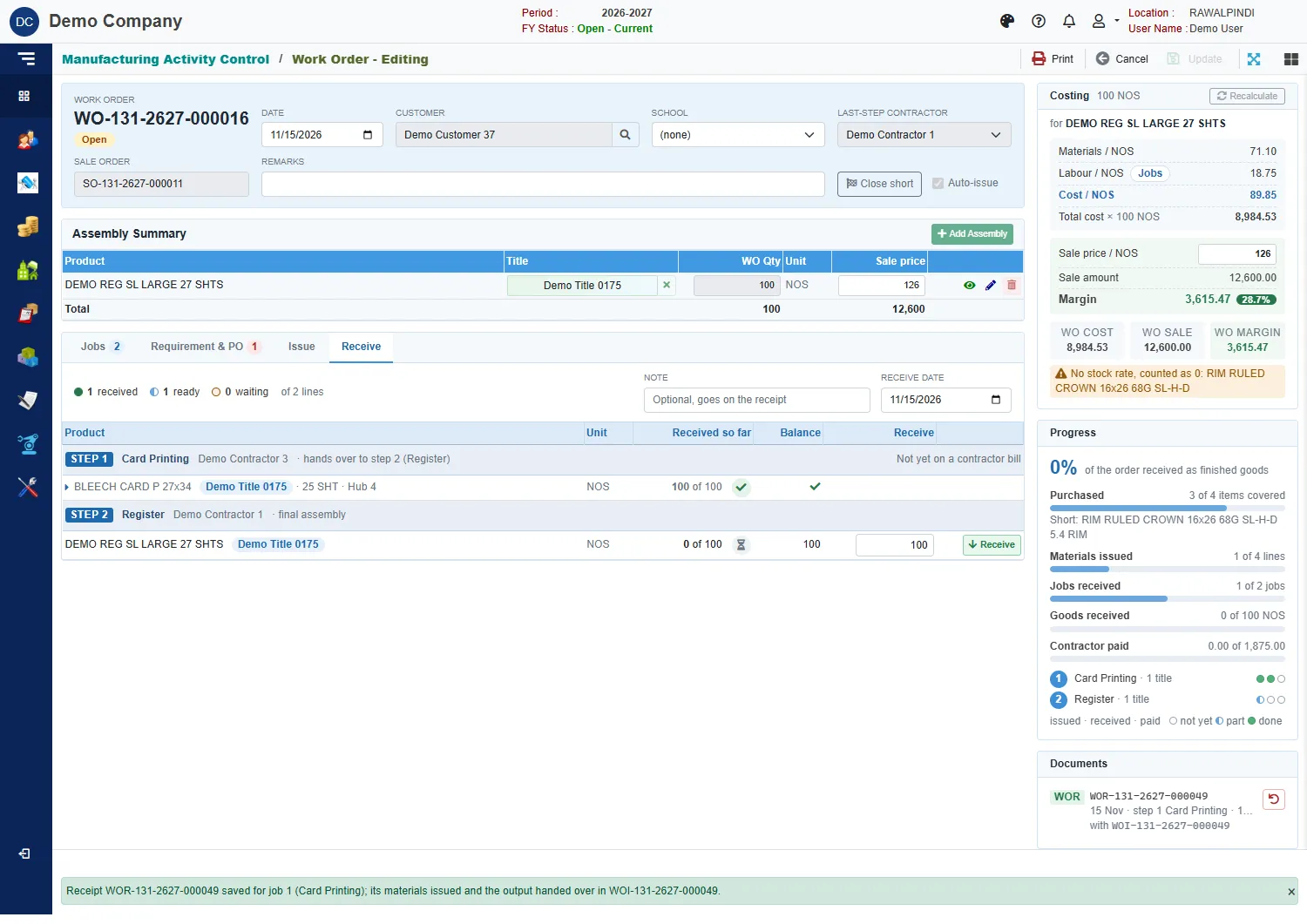
- Check the quantity in the Receive box. It starts at what is left.
- Set the Receive date and an optional Note.
- Click Receive on the line.
A green message confirms it, for example Receipt WOR-131-2627-000049 saved for job 1 (Card Printing); its materials issued and the output handed over in WOI-131-2627-000049.
The line then shows what has been received so far, for example 100 of 100. Once a step is received, the right-hand Progress and Documents cards update, and the step says whether it is on a contractor bill yet.
The last job
Receiving the last job puts the finished goods into stock and posts an accounting voucher with the WOR number. When everything is received, the order is complete.
A job that is waiting
A job cannot be received until the job before it has handed over enough. The message says, for example: Waits for job 2 (Card Lamination): 0 of 125 SHT handed over. Receive that job first. Receive the earlier job, then try again.
Not enough stock
If a job's materials are short when you receive, nothing is received and the message says what is missing:
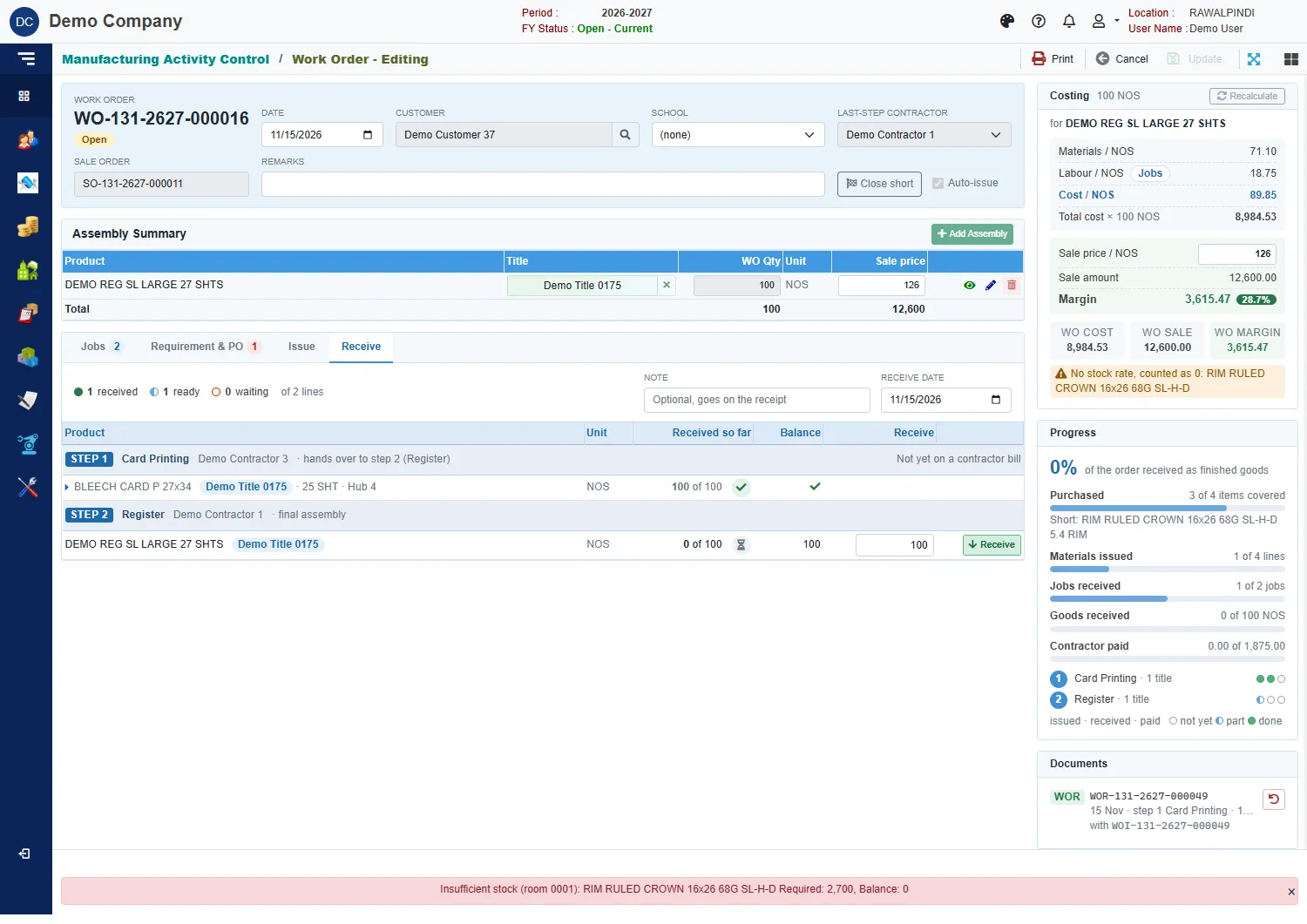
Receive or buy the missing stock, then receive the job again.
Messages you may see
| Message | What to do |
|---|---|
| Enter a quantity to receive. | Type the quantity in the Receive box. |
| Waits for job n (…): … handed over. Receive that job first. | Receive the earlier job first. |
| Insufficient stock (room …): item Required: …, Balance: … | Add the missing stock. |
Reverse an issue or a receipt
The Documents card lists every issue (WOI) and receipt (WOR) on the order, with its date. Click the reverse button beside one. A box asks you to confirm:
- Reverse issue … ? Its stock goes back to the room.
- Reverse receipt … ? Its stock and GL voucher are reversed …
A green message says the document has been reversed. Lines, contractors and labour cannot change on an order that has issues or receipts, so reverse them first when you need to change the order.
Close short
Use Close short in the header for an order that will not be completed. The order ends with what has been received, and nothing more can be issued or received until it is reopened. A box asks you to confirm and shows how much was received of how much was ordered.
A closed order keeps the cost it had. Click Reopen to issue or receive more.