When to use it
A work order prices each job from the rate card. Sometimes one order is paid differently: a rush job, a special paper, a rate agreed for this order only. The job's Labor button changes the labour of one job (or one part of a job) on this work order only. The rate card stays as it is.
You can:
- pay the job at another rate of the same contractor and kind of work,
- change the base rate,
- change the value of any extra,
- add an extra the rate does not have,
- write a note saying why.
Adjust a job
Open the work order and the Jobs tab.
Next to the rate name of the job, click Labor (the gear button).
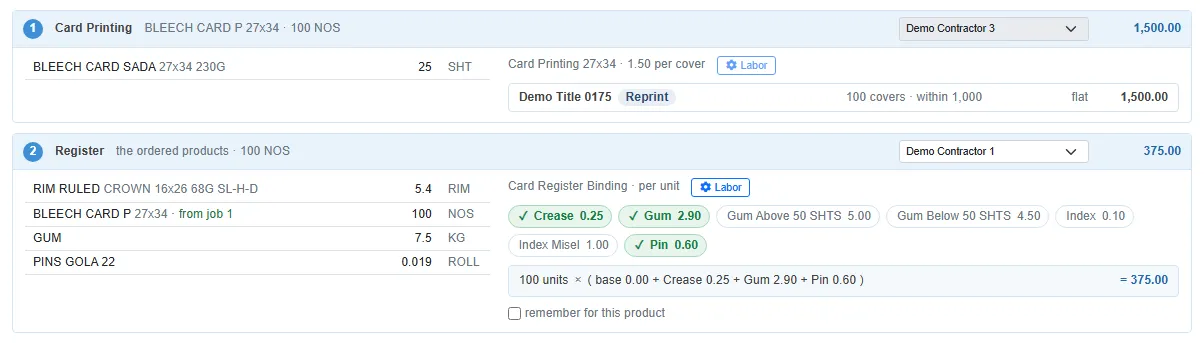
Each job has a Labor button; job 1 is received, so its button is greyed out A job priced in parts (a ruling job line by line, a binding job serving several products, card printing per card size) has a Labor button on each part. Click the one for the part you want.
The Labor window opens, titled with the job (and the part). You can move it and resize it, and the order behind it stays open. Change what you need:
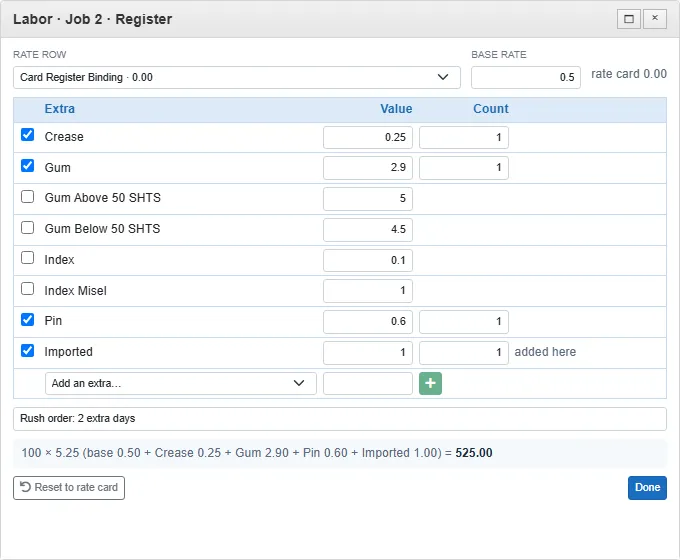
The Labor window: base rate 0.50 instead of 0.00, Imported added, a note, and the new sum Field What it does Rate row Another active rate of this contractor for this kind of work. Its extras replace the current ones, ticked by their rules; an extra you had ticked stays ticked if the new rate has it. Base rate The rate before extras, for this order. rate card 0.00 beside it shows what the rate card says. Extra tick and Value Tick or untick an extra, and change its value. rate card 0.60 shows a changed value's rate-card figure. Count How many times a ticked extra is paid, for example the number of indexes. Add an extra… Pick any extra for this kind of work, type its value and click the green +. It shows added here. Note Why this job is paid differently. It is shown on the job and on the contractor's payment voucher. The sum at the bottom of the window, and the chips and amount of the job behind it, change as you type. Clicking another job's Labor button shows that job in the window instead.
Click Done (or close the window), then Save labour at the bottom of the tab.
The job now shows Adjusted next to its amount, and the note under the rate name.

What adjusted means
- The job keeps its own figures. A later change on the rate card does not change it. A job that is not adjusted always follows the rate card.
- Reopening the order shows the same adjusted figures.
- The contractor's payment voucher and the job card (with Include Rate Card) show the stored figures with the tag Adjusted on the work order and the note.
- remember for this product still remembers only the ticks, not the adjusted values.
Go back to the rate card
Click Labor, then Reset to rate card, then Done and Save labour. The job is priced from the rate card again and the note is removed.
A job with no rate
If no rate of the contractor fits the job, the job says so and shows Pick a row. Click it and choose one of the contractor's rates for this kind of work to pay the job with it. The job is then adjusted.
When it can't be changed
Once a job has receipts, its labour has been posted to the contractor. Its Labor button is greyed out, like its contractor box. To change it, reverse the job's receipts first (see Issue and receive).
The Labor window changes this order only. If a rate is wrong for every order, correct it on the Labor page instead.