What a title is
A title is one customer's printed design for one school, and every stock item made for it is kept under that title. PrixERP does this with one rule: a variant belongs to one title.
A title sits under a school, and a school under a customer. If the same product and size is printed for two titles, each title gets its own variant, so their stock never mixes.
| Word | Meaning | Example |
|---|---|---|
| Customer | Who owns the title | Demo Book House |
| School | Who the title is printed for | Demo Public School |
| Title | The printed design | NBL-14 SHTS/EE |
| Variant | One product in one specification | 23x36 |
| Title's own variant | That specification, for that title only | 23x36 of NBL-14 SHTS/EE |
You do not create a title's variants by hand. PrixERP finds or makes them when you use the title on a Work Order or enter its opening balance.
Cards made for an order are used up by the next job, so they normally rest at zero. Finished goods and opening stock stay under the title until used or delivered. If a title already has cards in stock, the order uses them before printing more.
1. Create the title
Create the customer's school once, then add a title under it. Creating a title makes no stock and no variants yet.
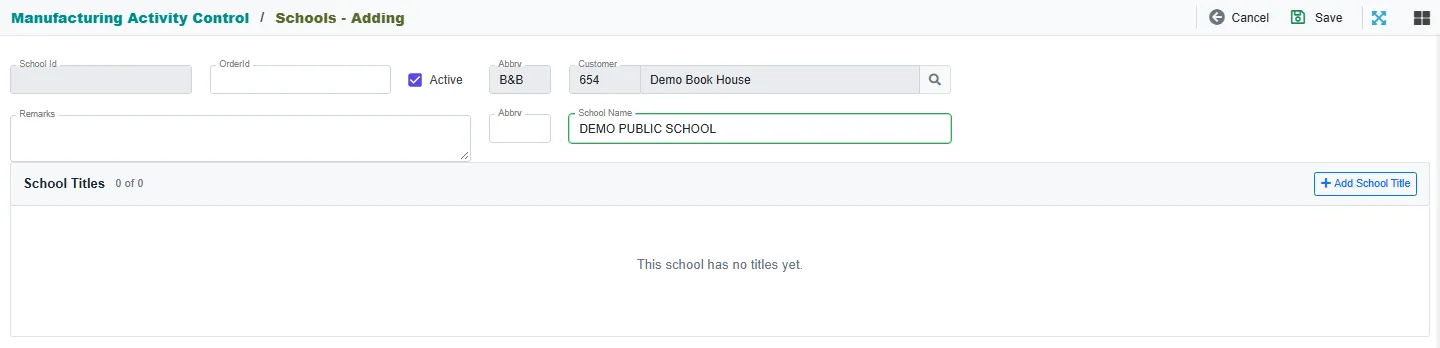
Add the school
- Go to Manufacturing Activity Control > Setup Forms > Schools.
- Click Add School.
- Click the search icon beside Customer and pick the customer.
- Type the School Name.
- Click Save at the top right.
Add the title
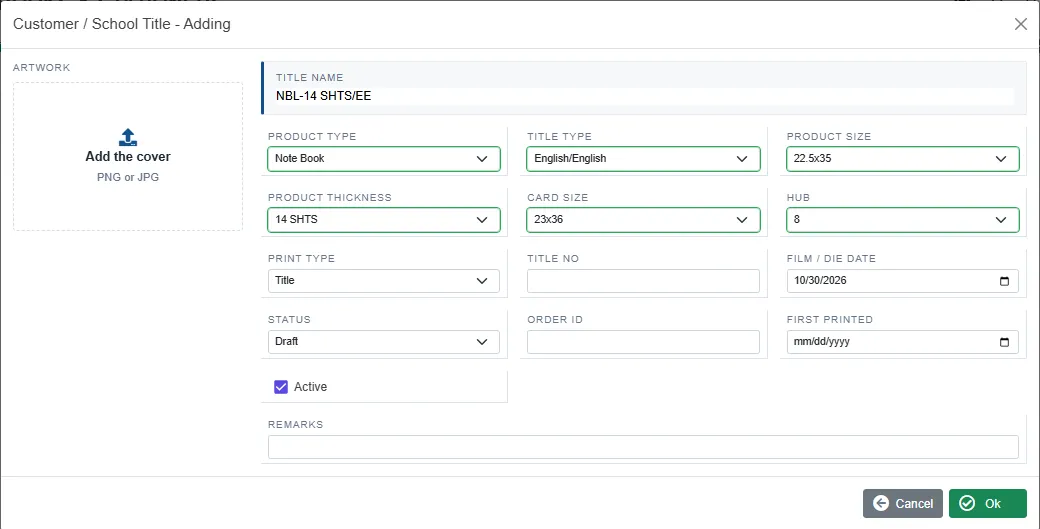
- Open the school with its pencil icon.
- Click Add School Title.
- Fill in Product type, Title type, Product size, Product thickness, Card size and Hub. PrixERP builds the Title name from these.
- Add the cover under Artwork if you have it. It is optional.
- Click Ok.
- Click Update at the top right. The title is not saved until you do this.
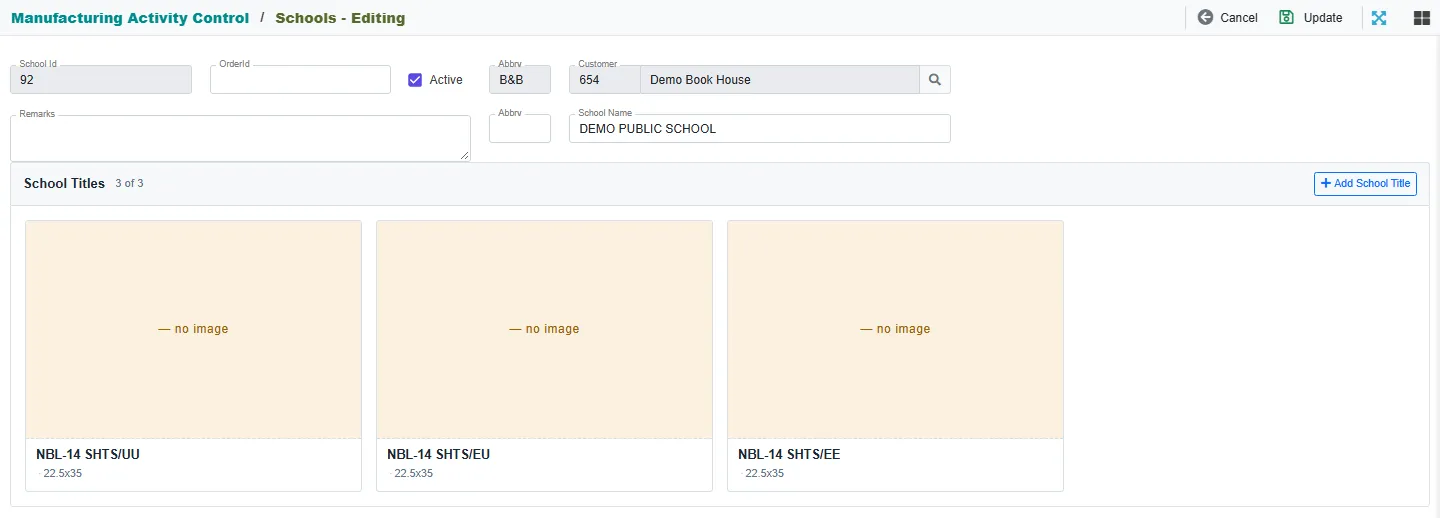
You can also add a title while making a Work Order: the title picker has its own Add School Title button.
2. Put the title on a Work Order
Pick the title on the order line and save: PrixERP moves the line to that title's own variant, creating it the first time and reusing it after that.
- Go to Manufacturing Activity Control > Forms > Work Order and click Add Work Order.
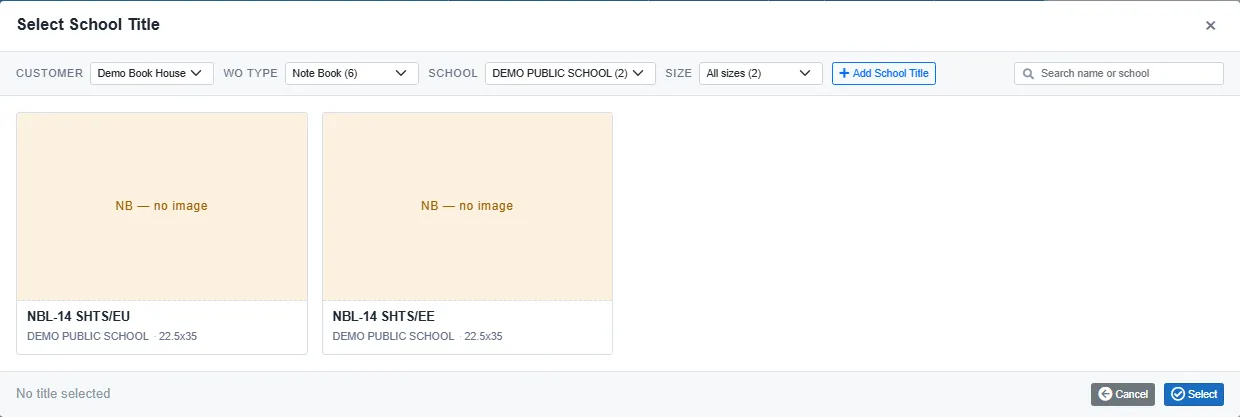
- Set the Customer and School on the order. Cancel the product picker first if it opens. The title picker only lists this customer's titles.
- Click Add Assembly, pick the product, and find the variant.
- Type the Order Qty, click + Add, then click Done.
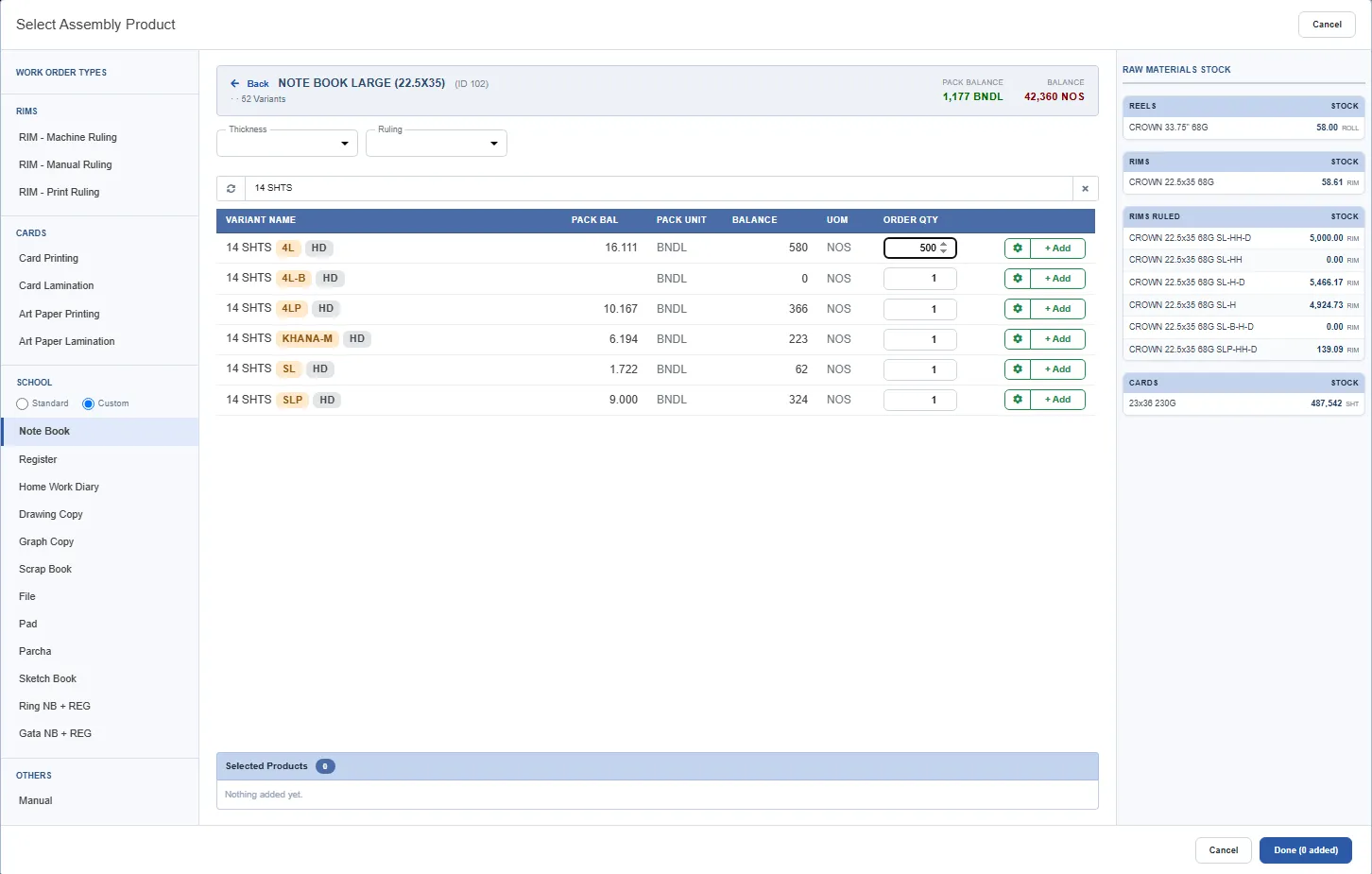
- In the Title column, click Add Title, or click the title already there to change it.
- Click the title's tile, then Select.
- Click Save.
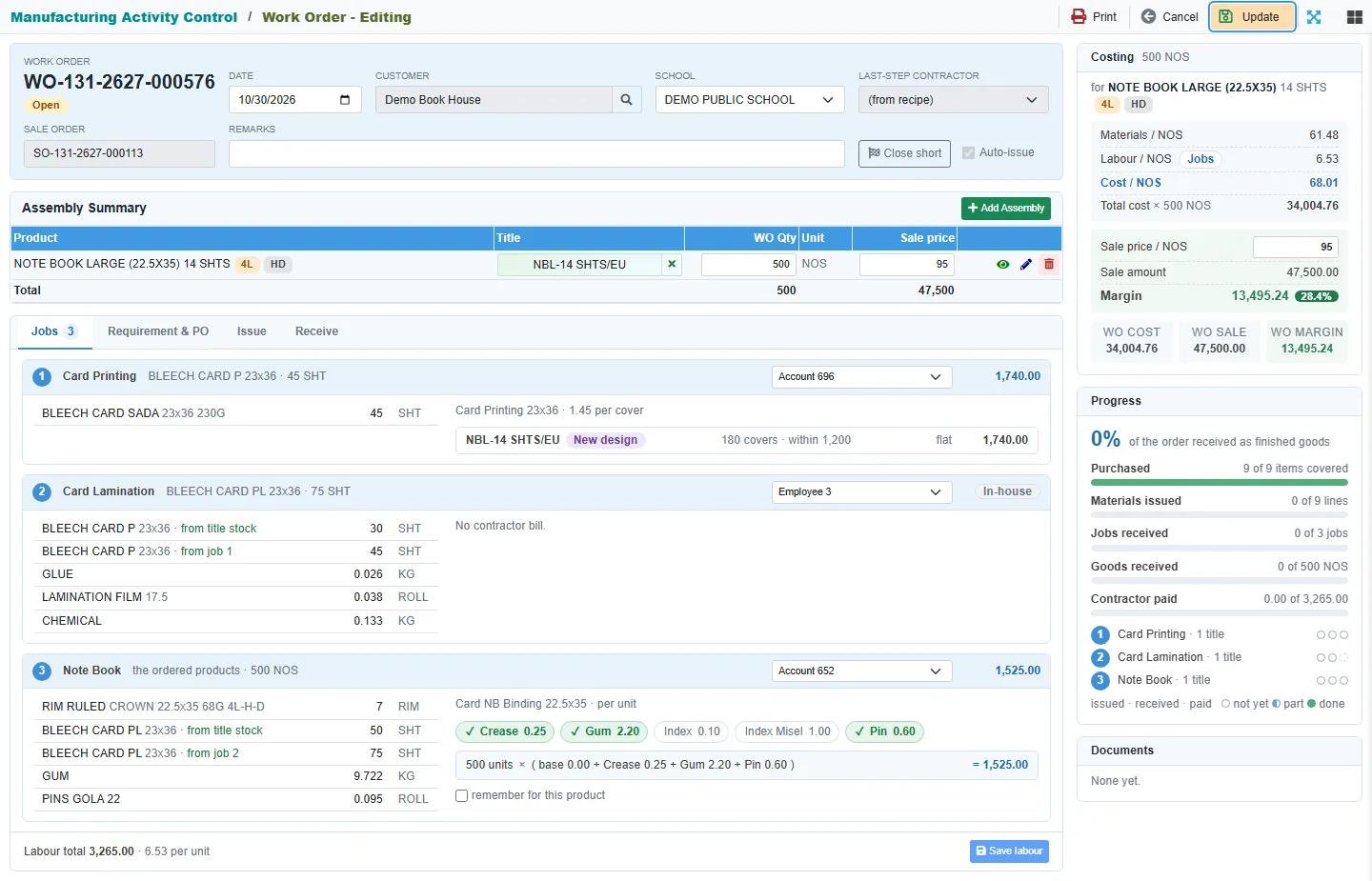
The saved order shows the title on the line and the jobs it needs. Here the note book needs two card jobs before its own job.
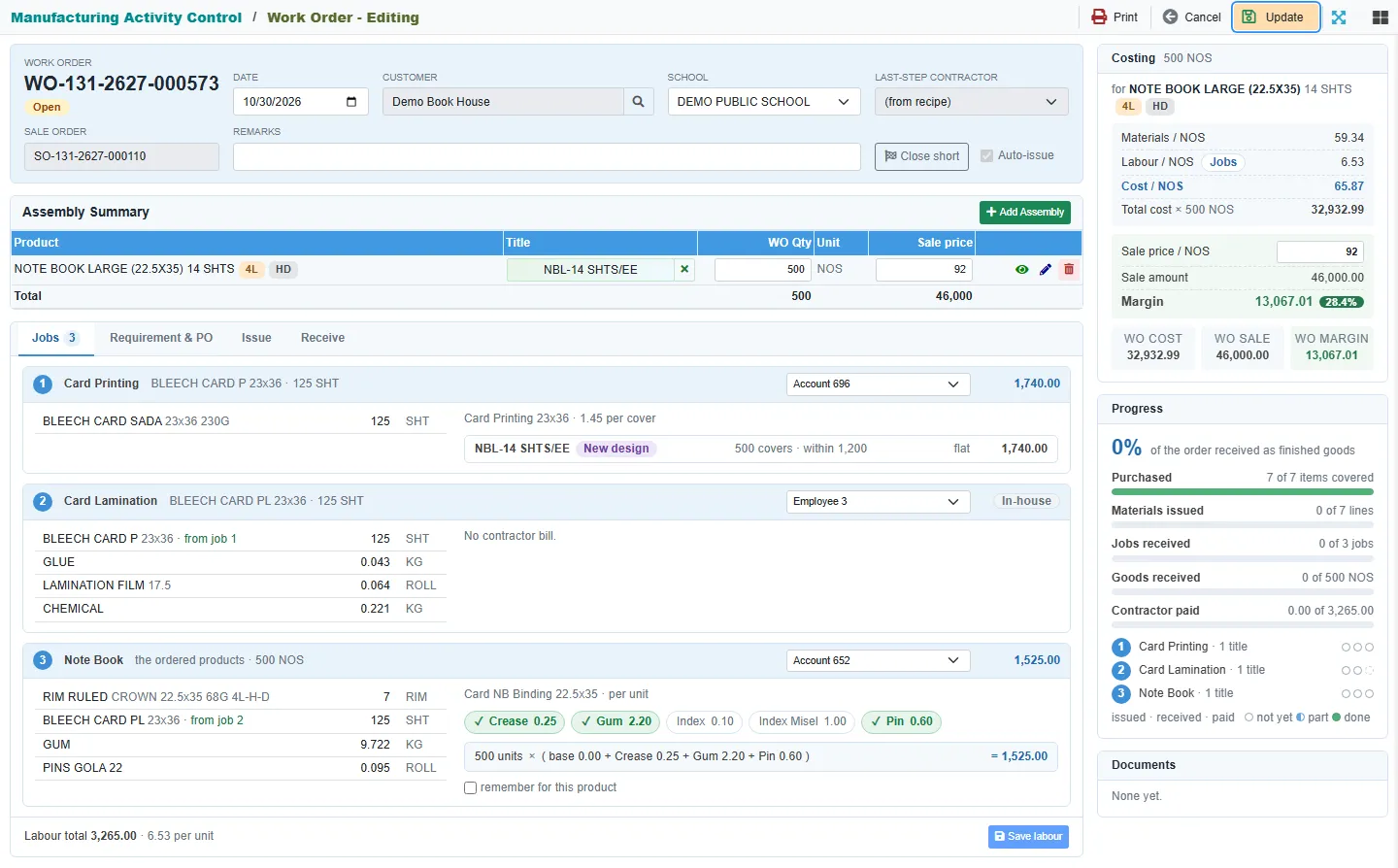
A product marked Title required cannot be saved on a Simple Flow order without a title.
3. How the title reaches the card
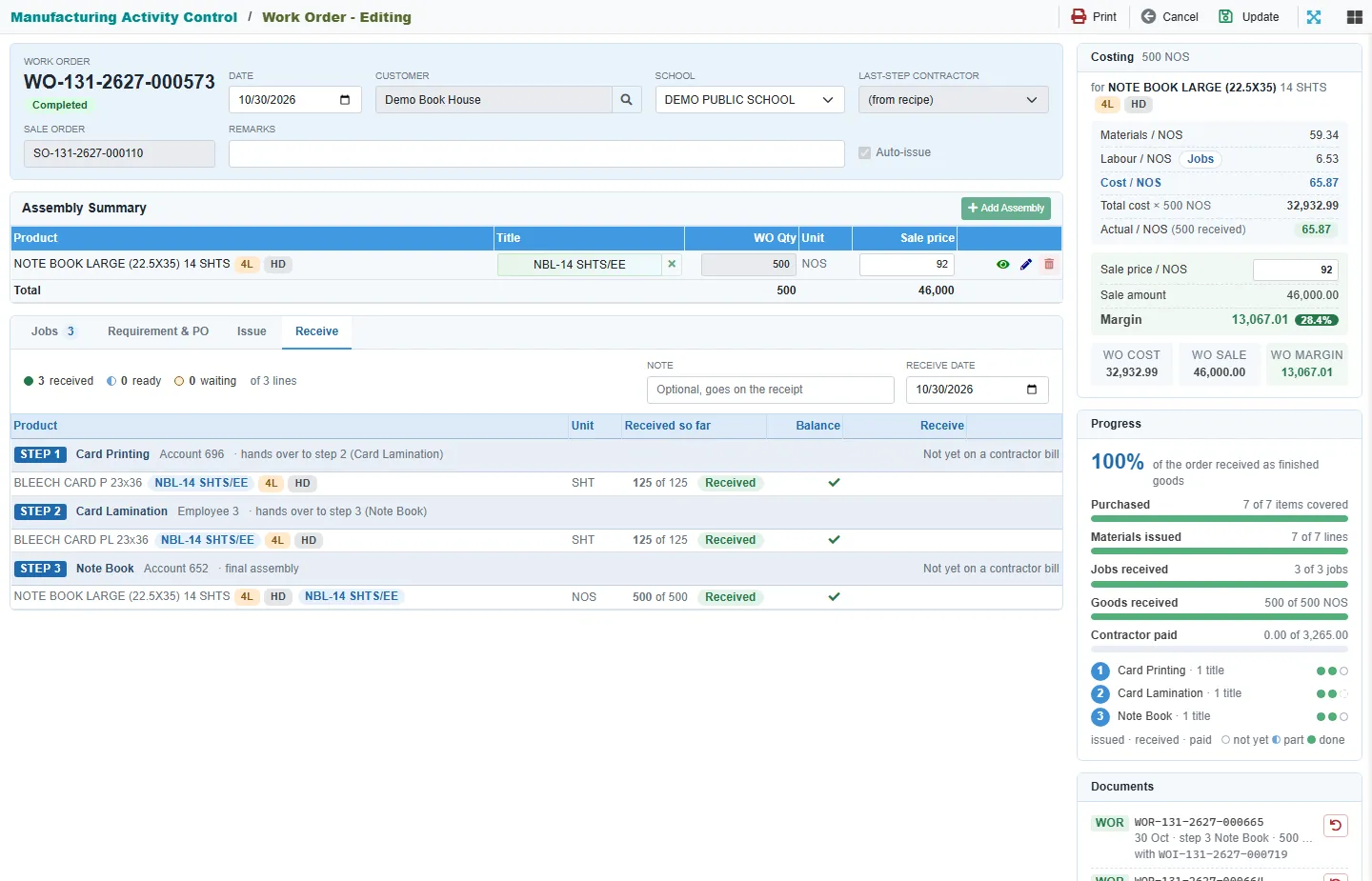
When you receive a card job, the printed card goes into stock on the title's own card variant and is handed to the next job in the same step. So card stock under the title goes up and straight back to zero.
- Open the order and click the Receive tab.
- Check the quantity on the first step that shows a Receive button.
- Click Receive. Later steps show Waits for step ... until the step before them is received.
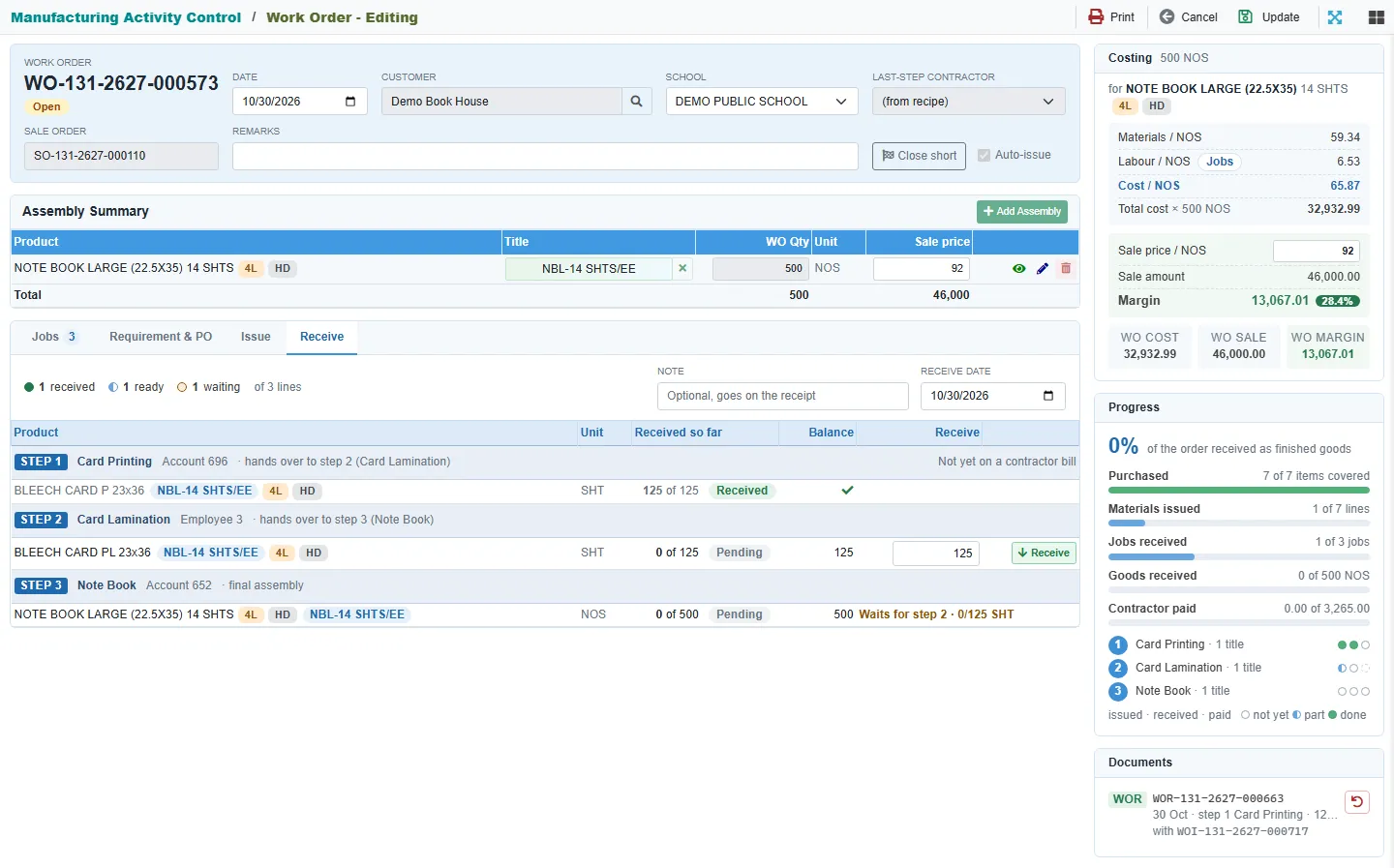
This is what each step did in the 500 note book example:
| Step | Into the title's stock | Handed to the next step | Title's balance after |
|---|---|---|---|
| 1 Card Printing | 125 BLEECH CARD P 23x36 | 125 | 0 |
| 2 Card Lamination | 125 BLEECH CARD PL 23x36 | 125 | 0 |
| 3 Note Book | 500 NOTE BOOK LARGE 14 SHTS 4L | None, this is the final product | 500 |
With Auto-issue on, each receipt also issues that job's own materials, such as blank card, film and glue. These have no title. The cost travels with the card: in this example card P cost 53.24 and card PL 60.89 per sheet.
On receipts and issues you will still see the size, such as 23x36, because the document follows the job. The stock movement and the title reports show the title.
To undo a receipt, delete it in Receive Products (WO). This reverses the receipt, the hand-over and the issued materials together.
If the title already has cards in stock
The order uses them first and only makes what is short. You do nothing extra: PrixERP checks when you add the title and again when you save. With enough stock there is no printing or lamination job and no card labour. The note book job takes the cards, marked from title stock.
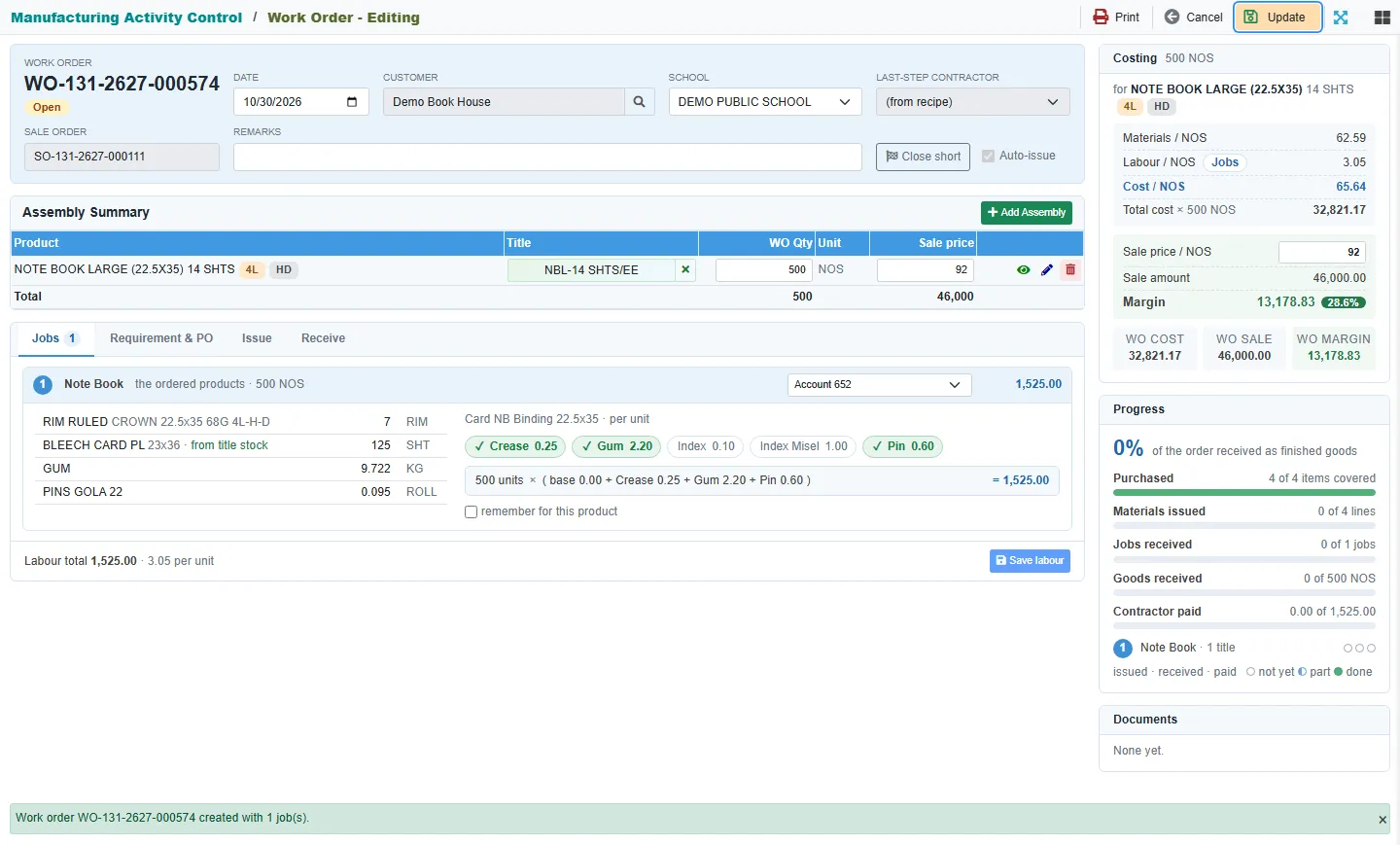
With only some stock, the jobs shrink to the shortage. It checks laminated cards first, then printed cards. This order needed 125 laminated cards and the title held 50 laminated and 30 printed, so it laminates 75 and prints only 45.
Stock planned for another open order is not offered again. If the stock is short when you receive, because it was used elsewhere or sits in another stock room, the receipt stops and names the item. Save the order again before anything is issued or received, and it will make the shortage instead.
4. How the title reaches the final product
Receiving the last step puts the finished goods into stock on the title's own variant, and they stay there until delivered.
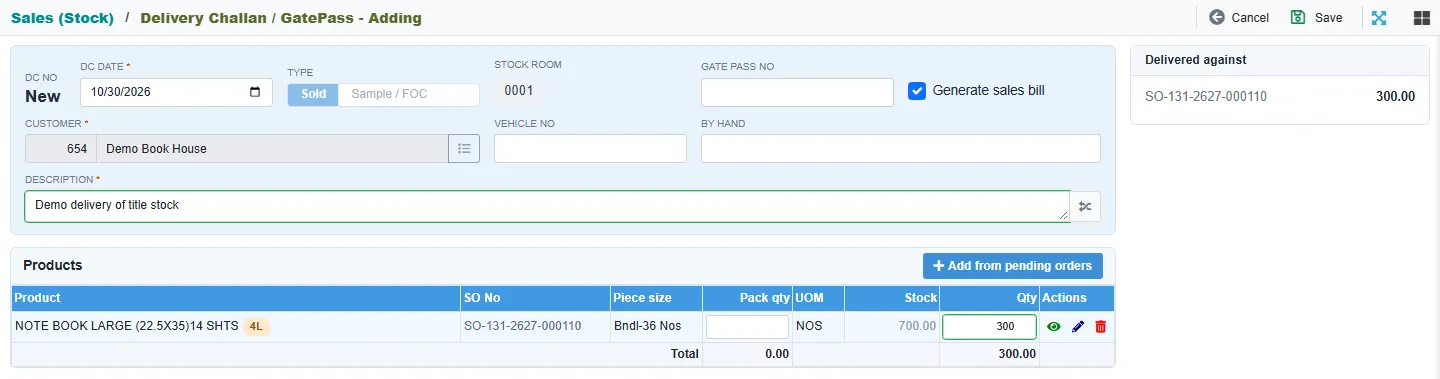
The Sale Order made with the Work Order uses the same variant, so a delivery takes this title's stock and no other.
To deliver
- Go to Sales (Stock) > Delivery Challan / GatePass and click Add Delivery Challan.
- In Add from pending orders, click the customer, tick the line, and click Add selected.
- Check the Stock column. It shows this title's stock.
- Type the Qty and the Description, then click Save.
5. Add opening balance for a title
Enter the stock a title held before work started in this system, and it joins that title's stock on its own variant. PrixERP dates every opening balance on the first day of the first fiscal year: 1 Jul 2025.
When the title has no variant yet
- Go to Inventory Control > Setup Forms > Opening Balance.
- Search for the product and click its row.
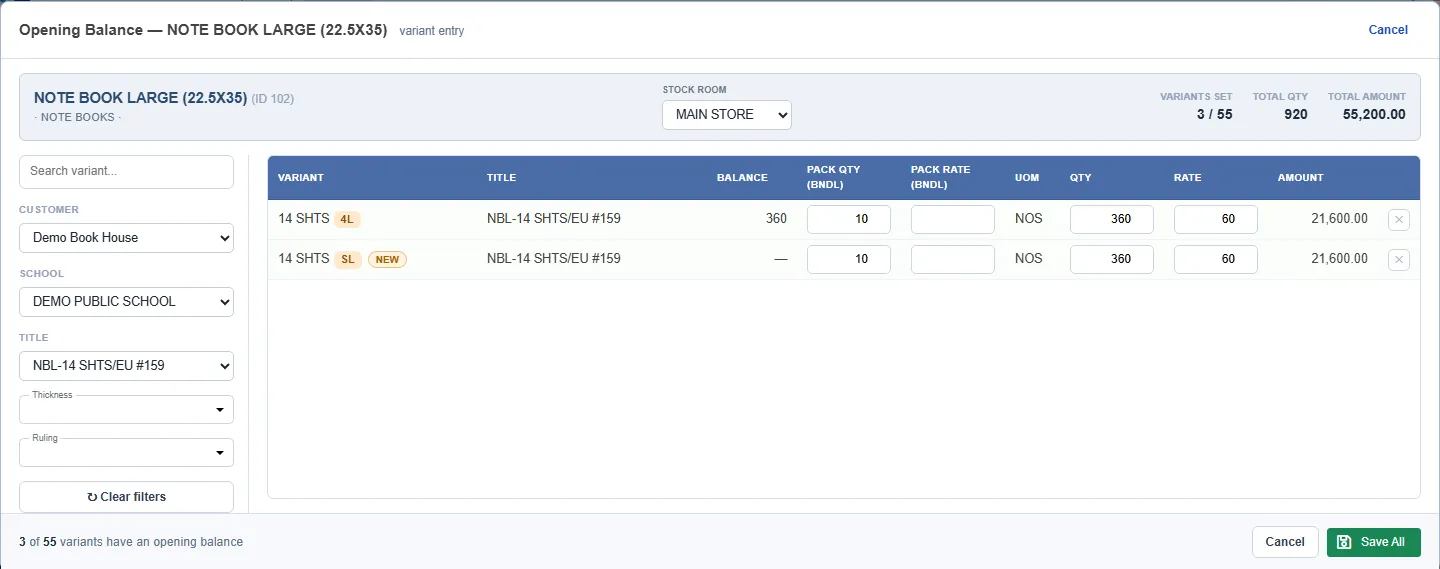
- On the left, pick the Customer, School and Title.
- Pick each attribute, such as Thickness and Ruling, or Card Size for a card.
- Click + Generate & Add.
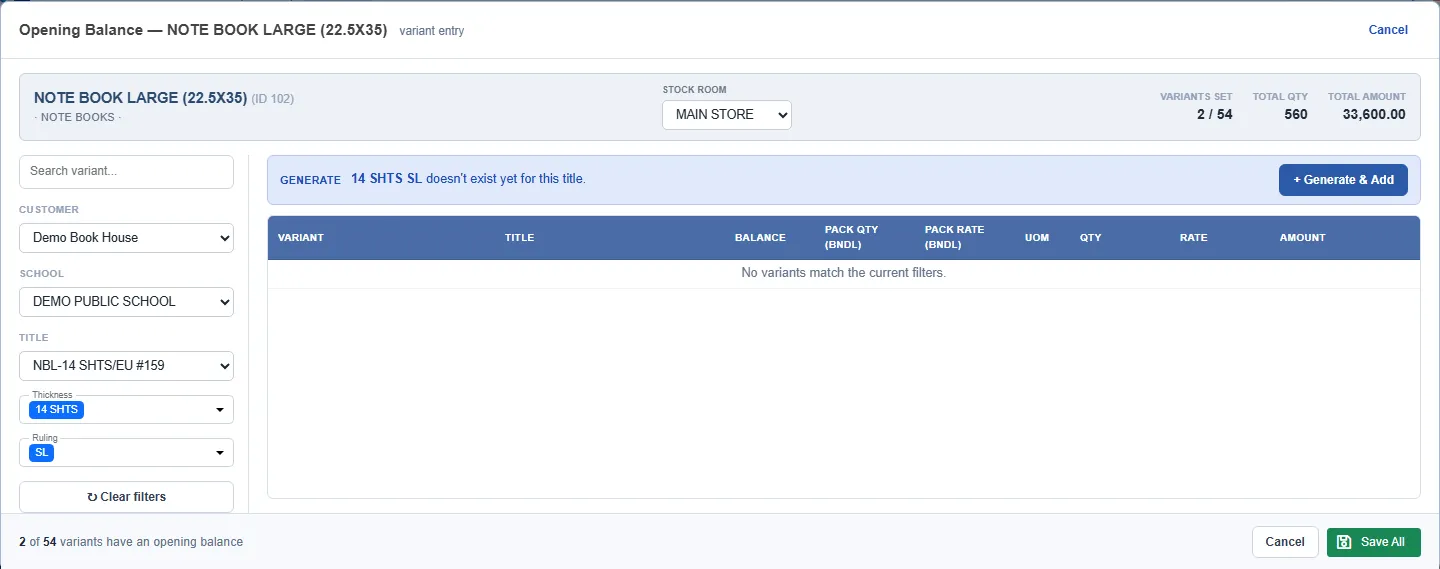
- Type the Qty and Rate. If the product has a pack unit, you can type Pack Qty and the Qty fills in: 10 bundles of 36 made 360.
- Click Save All. The variant is created only now.
When the title already has a variant
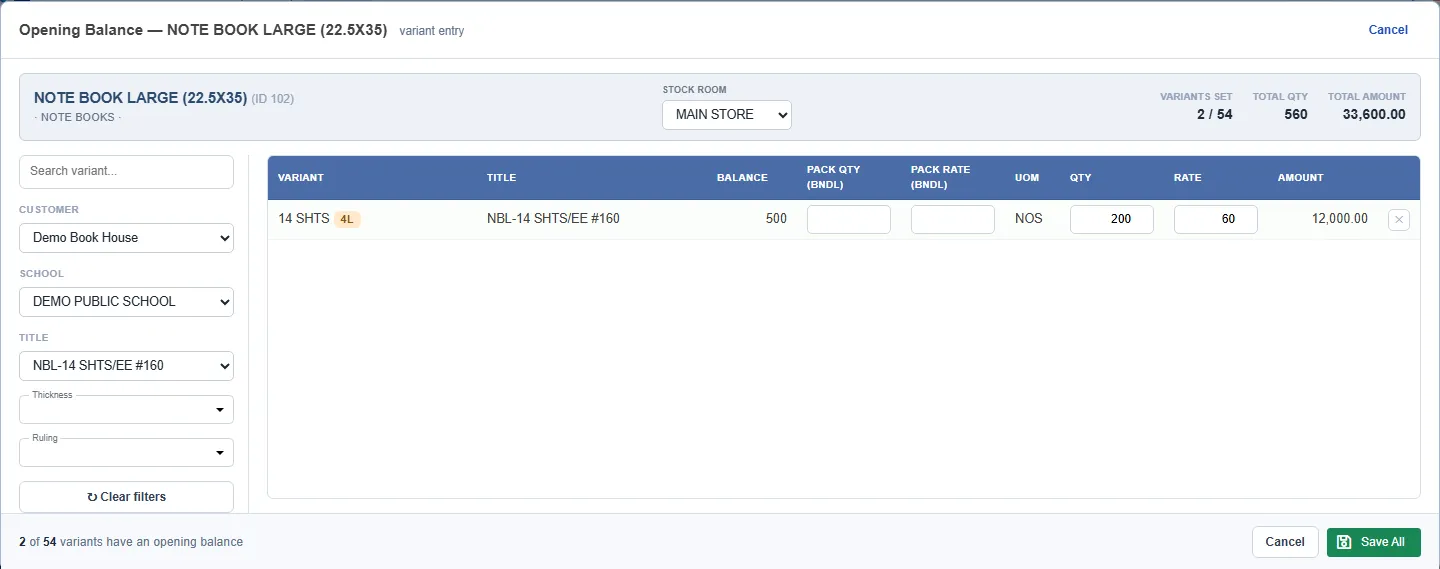
Pick the title, and its rows appear. Type the Qty and Rate on the row and click Save All.
To change or clear a balance
- Change: type the new Qty or Rate and click Save All. It replaces the old figure.
- Clear one row: set Qty to 0, or click the x on the row, then click Save All.
- Clear a whole product in that stock room: click the red bin on the product's row in the list.
- PrixERP refuses a change that would make stock negative, because that stock has already been used.
Both Qty and Rate are needed. A row saved with one of them blank is cleared.
Stock with no title
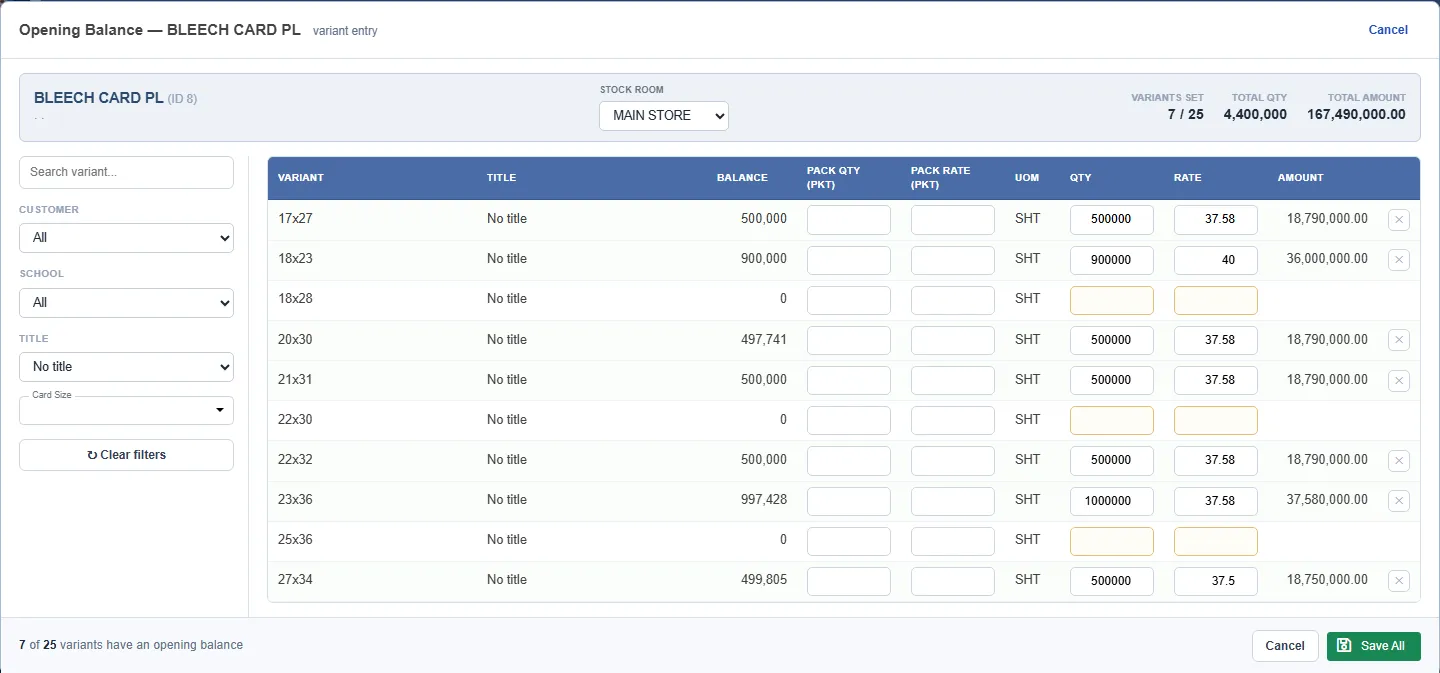
Pick No title in the Title list to see and edit rows that belong to no title, such as plain card stock by size.
Changing an opening balance recalculates the average cost of later issues and deliveries of that variant. It posts no GL voucher.
6. See stock against titles
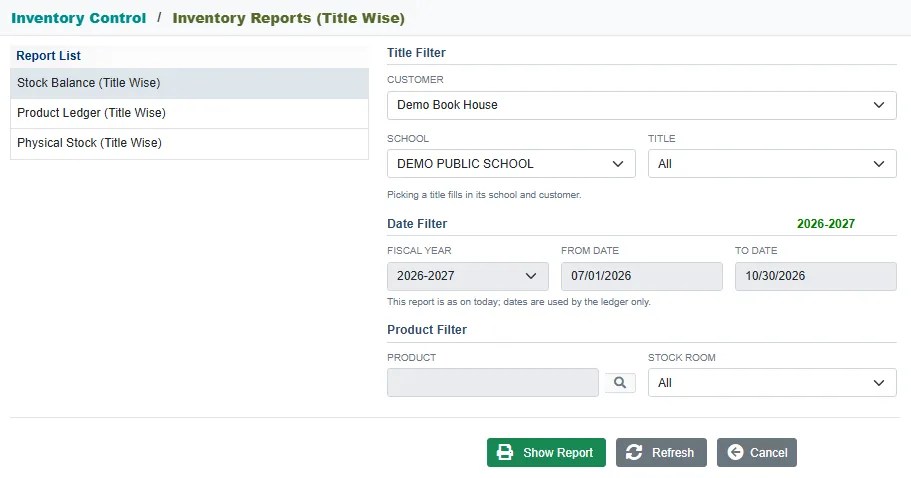
Three reports show stock by title, and all open from Inventory Control > Reports > Inventory Reports (Title Wise).
- Click the report on the left.
- Pick the Customer, School and Title. Leave them on All to see everything. Picking a title fills in its school and customer.
- Click Show Report.
| Report | Use it to | Dates |
|---|---|---|
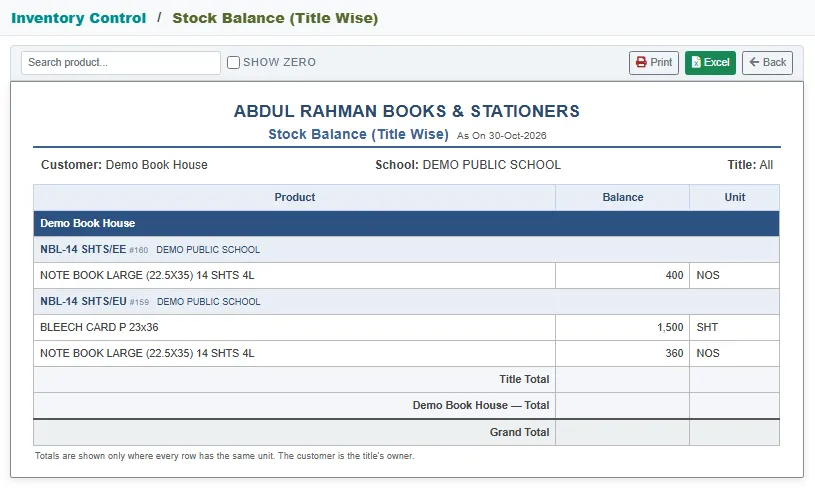
| Stock Balance (Title Wise) | See what each title holds now | As on today |
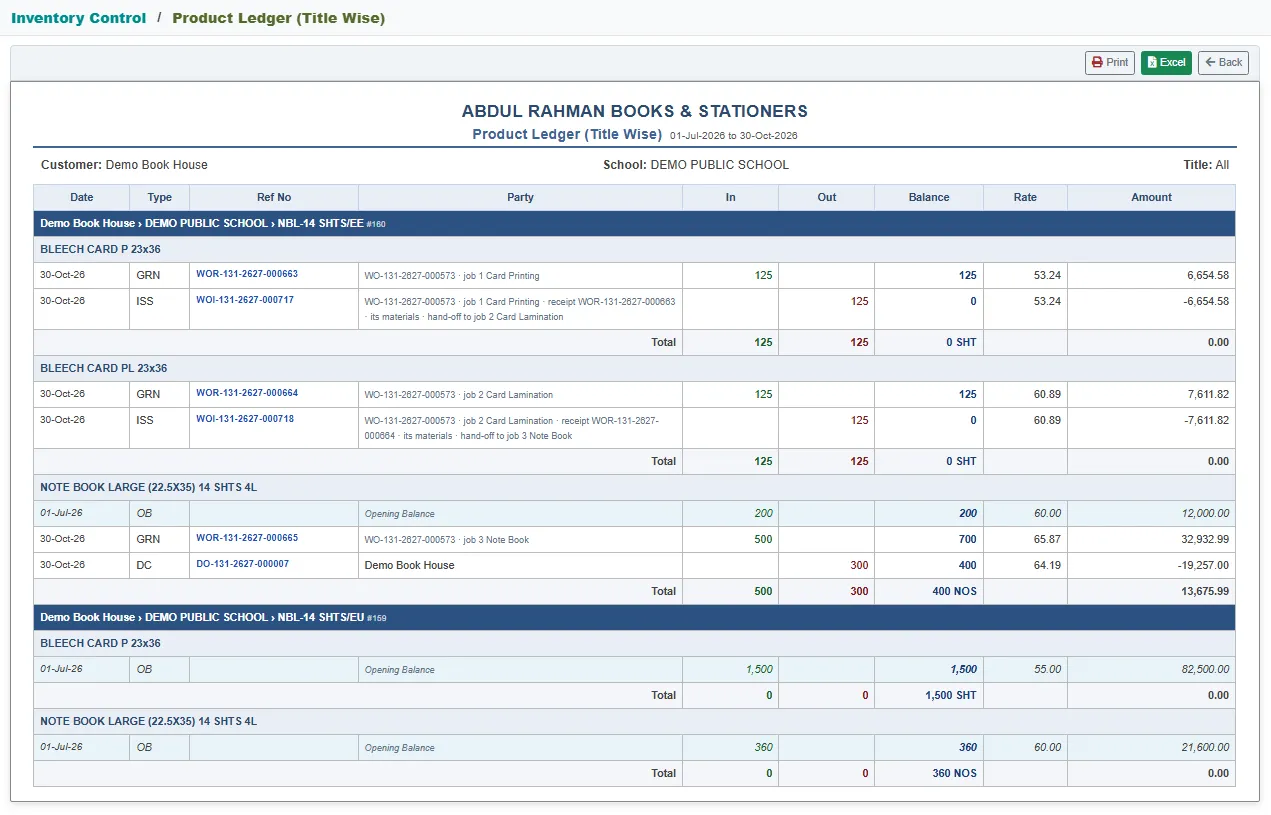
| Product Ledger (Title Wise) | See every movement of a title's stock | Pick the period |
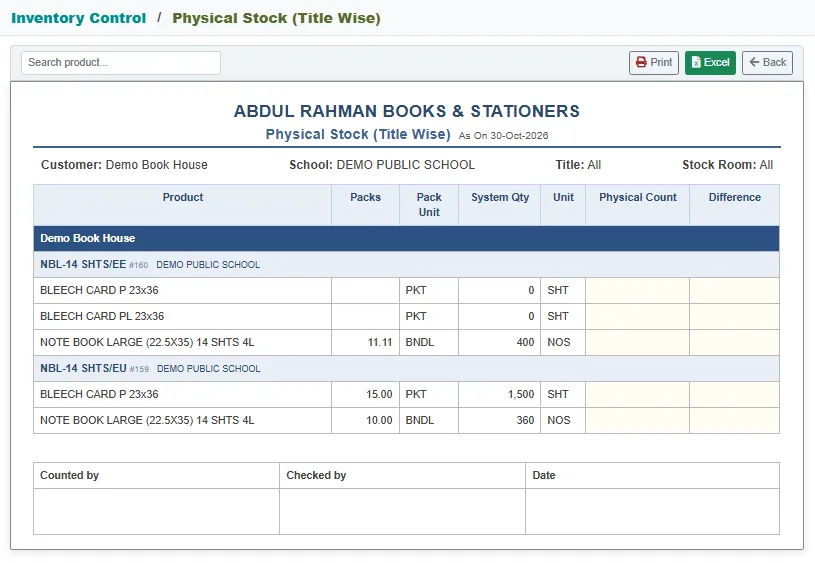
| Physical Stock (Title Wise) | Print a count sheet by title | As on today |
Stock Balance hides zero balances unless you tick Show Zero. Card variants that were only handed over show 0, so they stay hidden.
Product Ledger shows opening stock as an OB row at the start of the period you pick, then each receipt, hand-over and delivery with its running balance.
Physical Stock lists every variant of the title, including those at zero, with blank columns to fill in after counting.
Common questions
| Question | Answer |
|---|---|
| Two titles have the same name. Which is which? | Check the number after the name, such as #160. Each title has its own number. |
| Why are there many variants with the same size? | Each title has its own. The Title column on the Opening Balance screen shows whose each one is. |
| Will a Work Order use a title's opening card stock? | Yes. An order uses the title's card stock first, including opening stock, and prints only what is short. |
| Why can't I enter a title on a product with no variants? | Products with no variants use the normal Opening Balance entry, with no title. |
| I can't see Inventory Reports (Title Wise). | Ask your administrator to give your role access to it. |
| Why does the ledger show opening stock on 1 Jul 2026, not 1 Jul 2025? | The OB row is the balance brought forward to the start of the period you picked. |