What it is for
The opening balance of an account is what it holds on the first day of the fiscal year: the bank balance, what customers owe, what you owe suppliers, the capital. Every report starts from these figures.
For the stock you hold, use the inventory opening balance; this screen is for the accounts.
The total of all the opening debits must equal the total of all the opening credits.
The list
Open General Ledger and click Opening Balances.
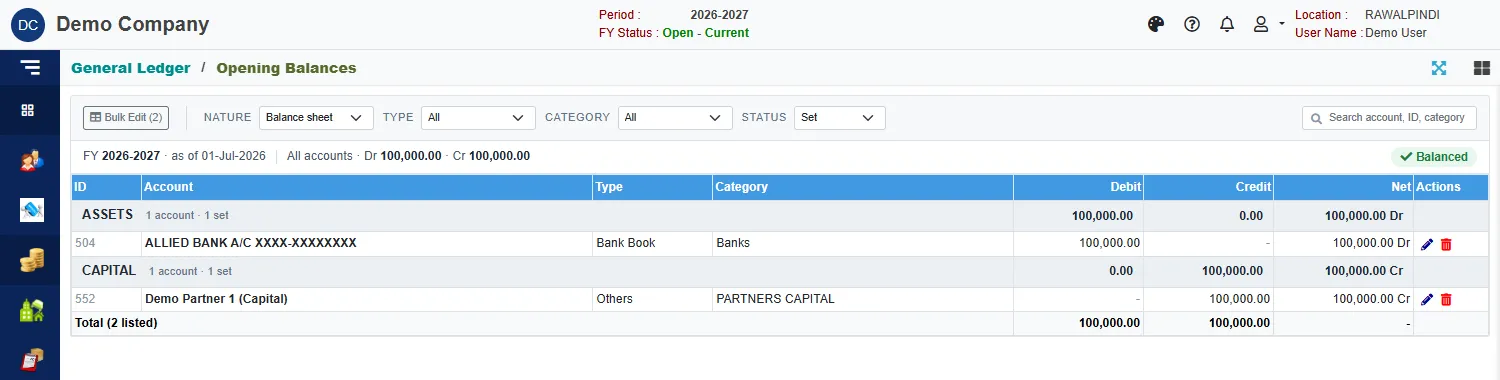
Above the list:
- Nature, Type, Category and Status narrow the accounts. Nature starts on Balance sheet, because the other accounts (revenue and expense) start the year at zero. Status shows the accounts that are Set, or Not set.
- The line under the filters gives the fiscal year, the date the balances are as of, and the total Dr and Cr of all accounts. It reads Balanced when they are equal, or Difference … Dr/Cr when they are not.
The accounts are grouped by nature, with the number that are set and their totals. Each row shows the ID, account, type, category, Debit, Credit and Net.
Set one account
Click Edit on the row, or double-click it.
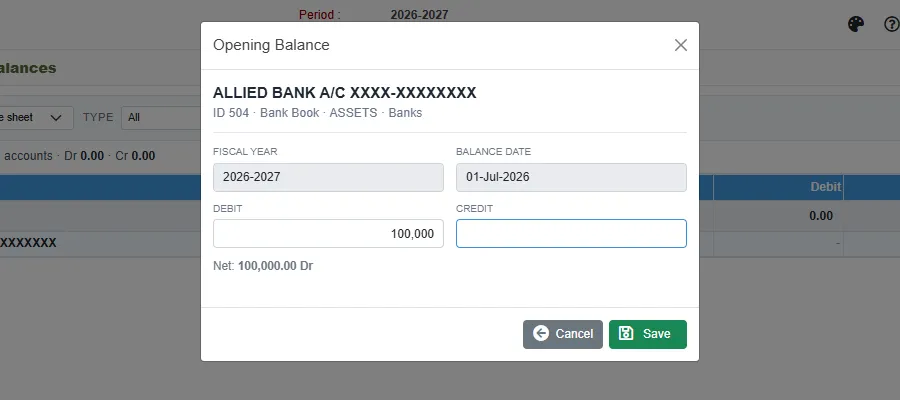
Type the amount in Debit or in Credit, and click Save. The line Net under the boxes shows what the account will start with. Entering an amount on one side clears the other.
To remove an opening balance, click Delete on the row and confirm. The account goes back to zero.
Set many accounts in a spreadsheet
Click Bulk Edit at the left of the bar. The number in brackets is how many accounts the list shows now, so narrow the list first if you want fewer.
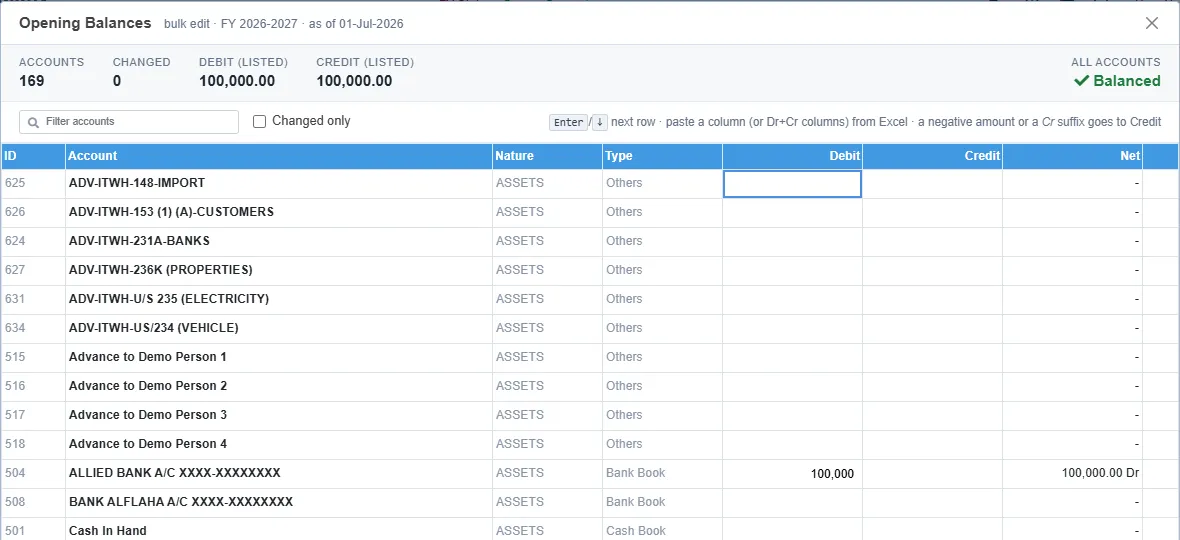
The window lists the accounts with a Debit and a Credit box for each. At the top are the number of accounts, how many you have Changed, and the totals.
- Click a box and type. Enter or the down arrow moves to the next row.
- Paste from Excel: copy a column of amounts (or a Debit and a Credit column side by side) and paste it into the first box. The amounts fill down from there.
- A negative amount, or one ending in Cr, goes to Credit.
- Tick Changed only to review what you have entered. The small arrow on a row undoes that row, and Revert all undoes everything.
- Filter accounts finds an account by name.
Click Save. A green message says how many opening balances were saved.
Check that it balances
The figure All accounts at the top of the window and the list gives the total debit and credit of every account, not just those on screen. Aim for Balanced. If it shows a difference, the books will not agree until you find it. The usual cause is a missing account or an amount on the wrong side.
Later years
When you save the first year, the figures carry forward to any later fiscal years that already exist. For a year that follows, the opening balances come from the closing of the year before.
Messages you may see
| Message | What to do |
|---|---|
| Enter a number. | A box holds something that is not an amount. |
| Not a number (on a row) | The same, in the bulk window. Correct that box. |
| Opening Debit and Credit must be equal (on Difference) | Find the missing or wrong amount. |
Related
- Accounts, customers and suppliers
- Account reports: the Trial Balance shows the opening column.