What it is for
Every voucher posts to accounts. Customers, suppliers, contractors, cash and bank accounts, expenses and incomes are all accounts, kept in one list: the Chart of Accounts. The sales and purchase screens pick their customers and suppliers from it.
Five menu entries, one list
On the General Ledger page, the Setup Forms group has five entries that open the same list:
| Entry | Shows | A new account starts as |
|---|---|---|
| Charts of Accounts | Every account. | Nothing preset. |
| Customers | Accounts of type Customer. | Type Customer, account note 0003. |
| Suppliers / Vendors | Accounts of type Supplier. | Type Supplier, account note 0005. |
| Contractors | Accounts of type Contractor. | Type Contractor, account note 0006. |
| Expenses | Expense accounts. | Type Others, account note 0019. |
The last four are a shortcut: the list is already narrowed, and Add Account fills in the type, nature, category and note for you.
The list
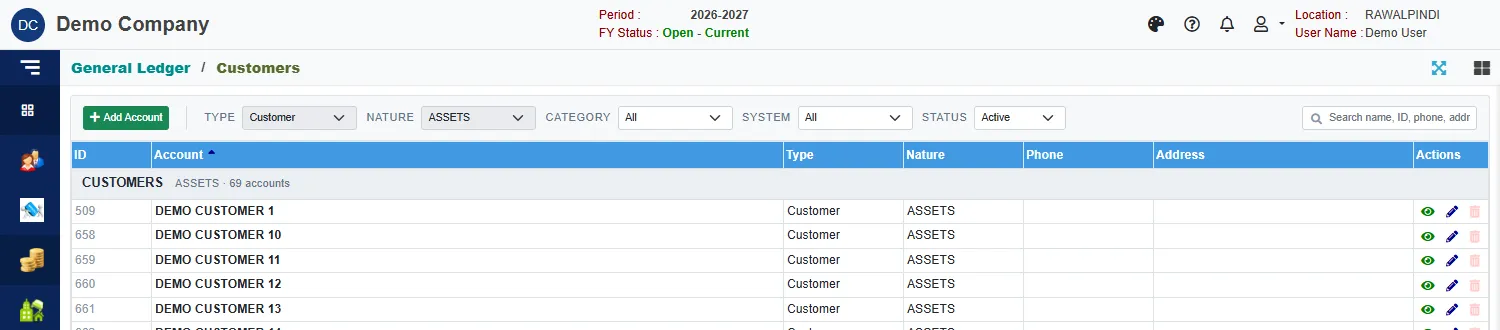
Accounts are grouped by category, with the count of each group. For each account the list shows the ID, name, type, nature, phone and address. The icons are View, Edit and Delete.
Narrow the list with Type, Nature, Category, System and Status (it starts on Active), or search by name, ID, phone or address.
Accounts marked system are greyed. The software uses them for its own postings, for example Stocks In Hand or Cash In Hand in the sales and purchase vouchers. You can view them but not edit or delete them.
Add an account
Click the green Add Account.
Fill in the top of the form:
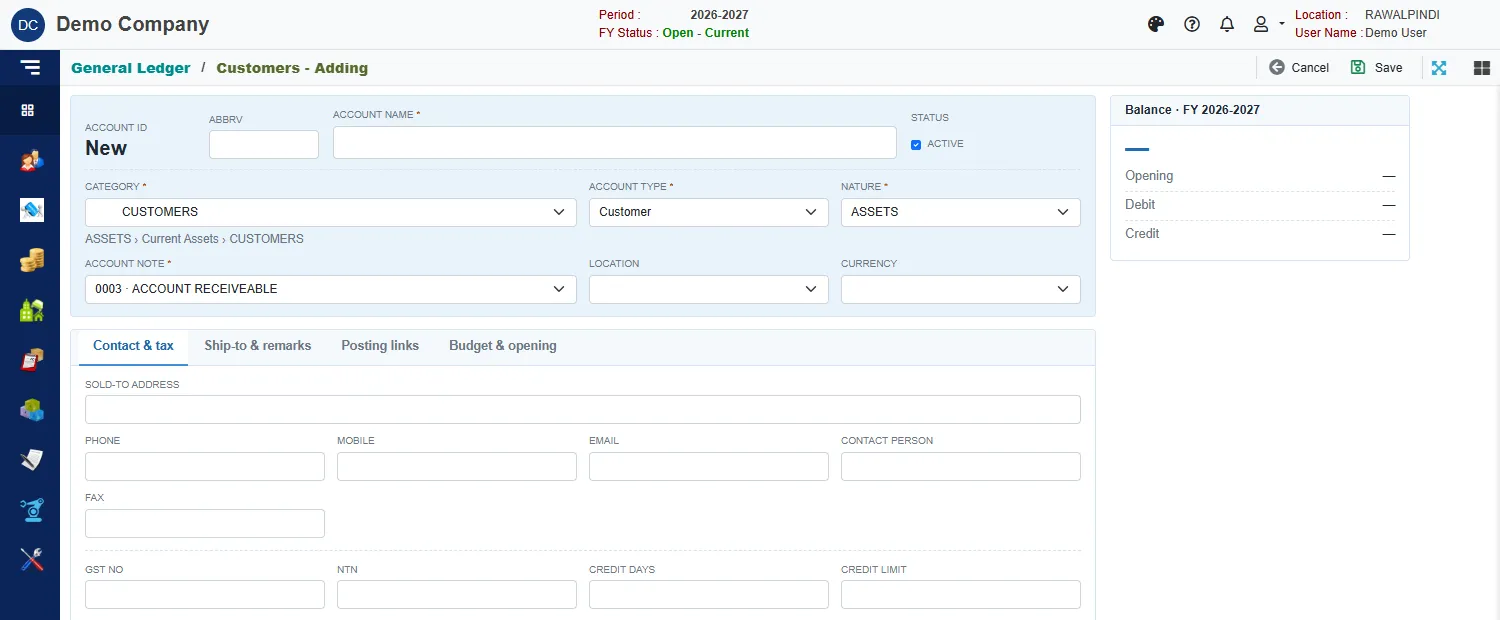
A new customer account Field What to enter Account name Required. It is shown in capitals. Abbrv A short name, if you use one. Status Active accounts can be used on vouchers. Clear it to retire an account. Category Required. Where the account sits in the category tree. The path is shown under the box. Account type Required. Customer, Supplier, Contractor, Cash Book (cash accounts), Bank Book (bank accounts) or Others. The type decides where the account is offered: customers on sales documents, suppliers on purchase documents. Nature Required. Assets, Liabilities, Capital, Revenue or Expense. Account note Required. The line of the financial statements the account is reported under. See Notes and categories. Location and Currency Optional. Set the currency for an account kept in a foreign currency. Fill in the tabs below as needed:
Tab What is in it Contact & tax Sold-to address, Phone, Mobile, Email, Contact person, Fax, GST no, NTN, Credit days, Credit limit and Agent / salesman. Ship-to & remarks Up to five lines of Ship-to address, and Remarks. Posting links Book account, Related account, Related tax account and Tax account. These tell the software how related postings go. Leave them empty unless your accountant has told you what to set. Budget & opening A budget amount for each month of the year, and Opening debit and Opening credit. To set the opening balance of many accounts at once, use Opening Balances. Click Save.
A green message confirms it.
See an account's balance
Open an account with View or Edit. The card Balance on the right shows the figure for the current fiscal year: the Opening balance, the total Debit and Credit, and the closing balance with Dr or Cr. The card Record shows whether it is a system account, and when and by whom it was last changed.
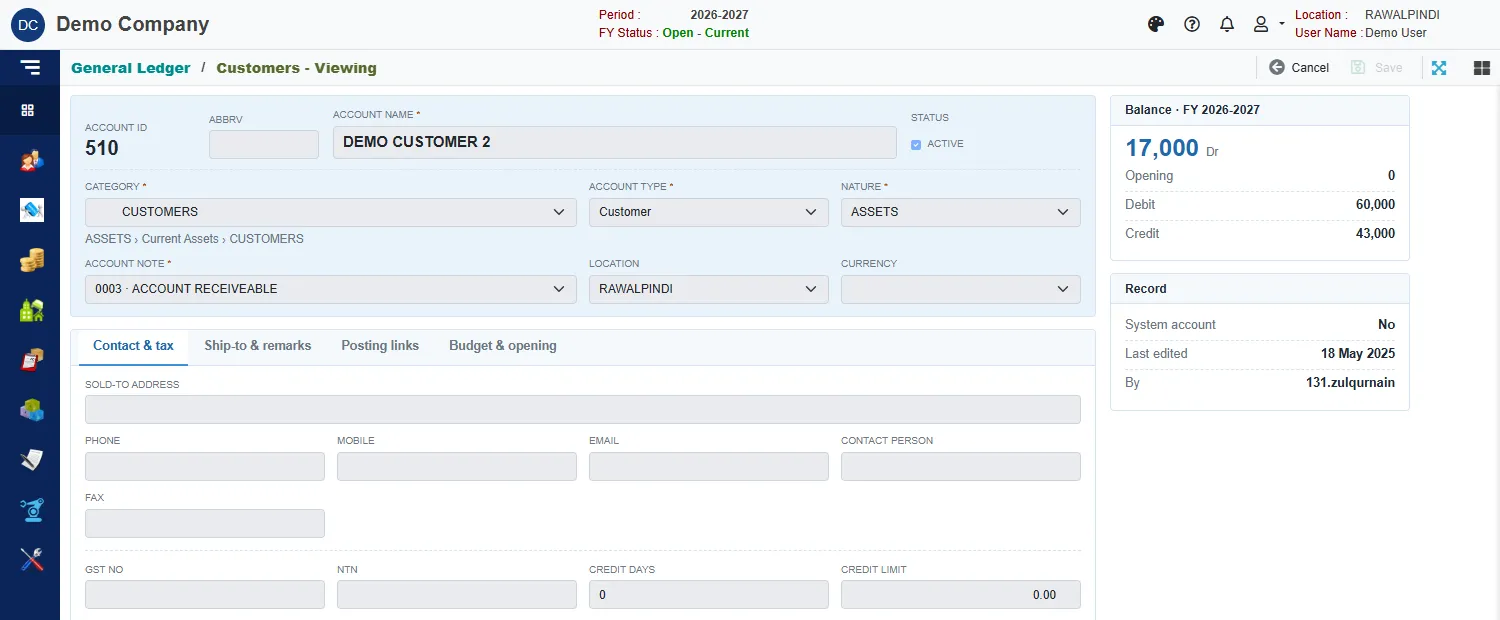
For the entries behind these figures, open the General Ledger report for the account.
Delete an account
Click Delete on the row and confirm. An account that has been used cannot be deleted: you get You can not delete Account. It is being used in other Forms/Reports. Clear Active on it instead. An account that has child accounts cannot be deleted either.
Messages you may see
| Message | What to do |
|---|---|
| Fill in the required fields (marked *). | Account name, category, type, nature and account note are all required. |
| Opps! Nothing to save | You have not changed anything. |
| You can not delete Account. It is being used in other Forms/Reports | Clear Active instead. |