Two groupings
Every account belongs to one category and one note.
| Grouping | Used for |
|---|---|
| Category | The tree of the chart of accounts, for example Assets > Current Assets > Banks. The trial balance and the chart of accounts report group by it. |
| Account note | A line of the financial statements, for example Cash at banks or Account payable. The Notes Account and Fund Flow reports group by it. |
Both lists are set up once. You rarely change them.
Account notes
Open General Ledger and click Account Notes.
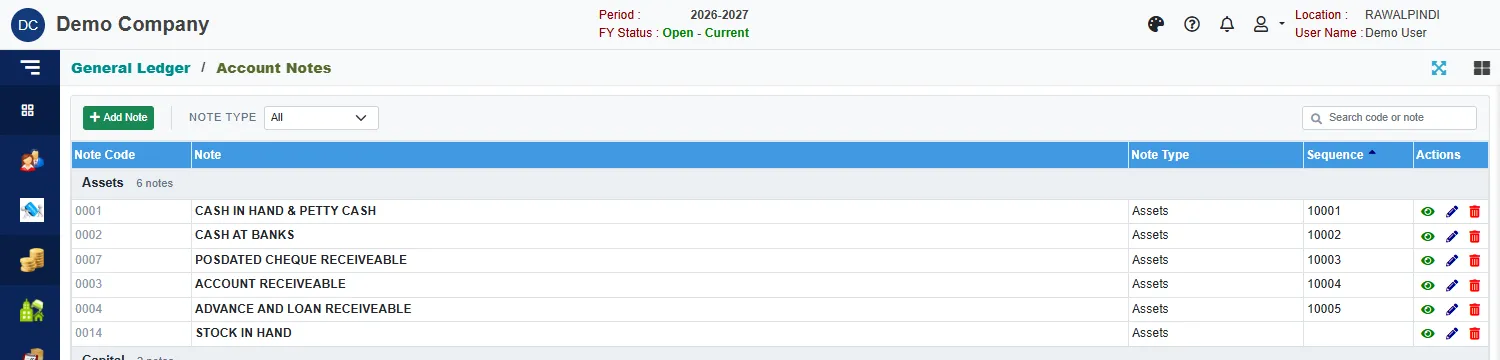
Notes are grouped by Note Type (Assets, Capital, Current Assets, Drawing, Equities, Liabilities, Revenue and so on). Each row shows the Note Code, the Note, the type and the Sequence, which sets the order in the reports. Filter by Note Type or search by code or note.
Add a note
Click the green Add Note.
In the window, type the Note, pick the Note Type and enter the Sequence. The Note Id is given when you save.
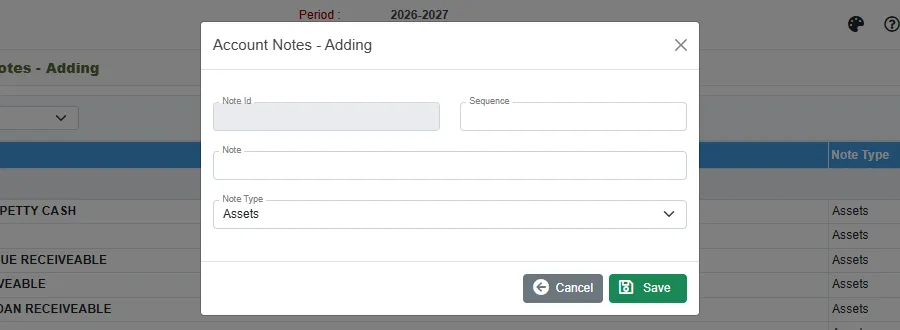
A new note Click Save.
To change a note, click Edit. A note that an account uses cannot be deleted: you get You can not delete Note. It is being used in Account Master.
Account categories
Open General Ledger and click Account Category.
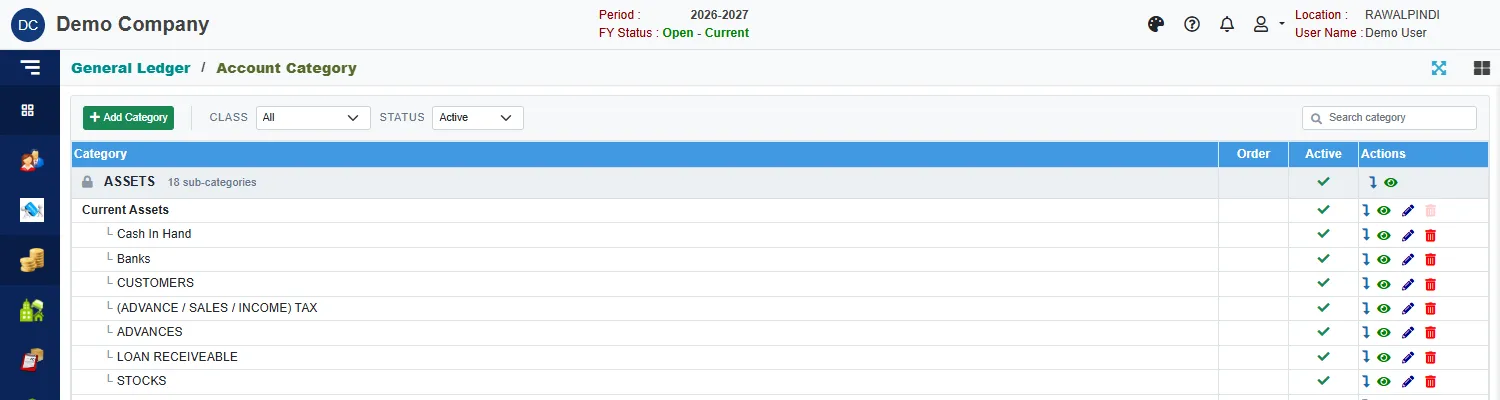
The categories form a tree under fixed top levels such as ASSETS and LIABILITIES. These top levels are marked with a padlock and cannot be changed or deleted. Under them are the categories, and under those the sub-categories. Each row shows its Order and whether it is Active.
Use Class to look at one top level and Status to show active or inactive categories.
Add a category
Click the green Add Category, or the arrow button on a row to add a sub-category under it.
In the window, pick the Parent category. The path is shown under the box.
Type the Category name and, if you want, the Order. Leave Active ticked.
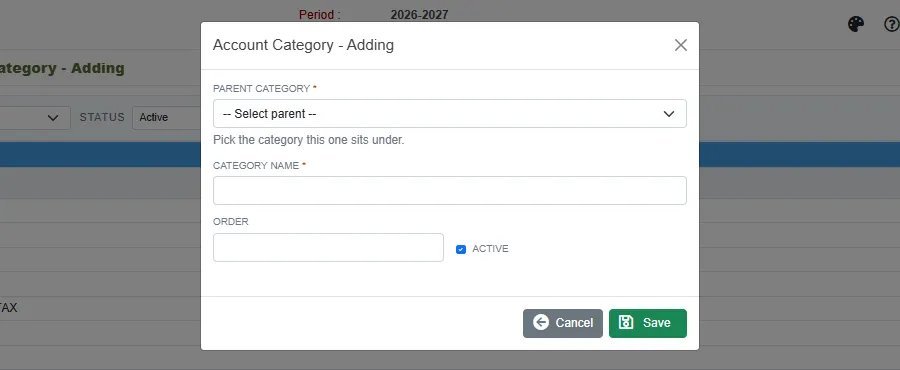
A new category Click Save.
You cannot add a new top level: you always pick a parent.
Delete a category
Click Delete and confirm. These are refused:
| Message | Why |
|---|---|
| You can not delete a root level category | The top levels are fixed. |
| You can not delete Category having Child Category | Delete or move the sub-categories first. |
| You can not delete category. It is being used in Account Master | An account is in it. Move the accounts first. |
Clear Active to retire a category without deleting it.
Messages you may see
| Message | What to do |
|---|---|
| Select a parent category. New root level categories can not be added. | Pick a parent in the window. |
| Nothing to save. | You have not changed anything. |