What it is for
Voucher Audit is the check between entering a voucher and relying on it. A voucher goes through three states:
| State | Meaning |
|---|---|
| Pending | Entered, not yet checked. |
| Audited | A supervisor has checked it against its documents. |
| Posted | An approver has approved it. The voucher is locked. |
Vouchers from the cash, bank, journal and note screens, and from sales and purchase bills and returns, all come here. Vouchers made by a work order receive or payment are posted automatically and do not appear.
Who can do what
What you can do depends on the permissions on this form, which your administrator sets:
| You have | You can |
|---|---|
| View only | Look at the vouchers and their status. |
| Add permission (supervisor) | Audit pending vouchers. |
| Edit permission (approver) | Audit, post, send back and un-post. |
Buttons you may not use are not shown.
The list
Open General Ledger and click Voucher Audit.
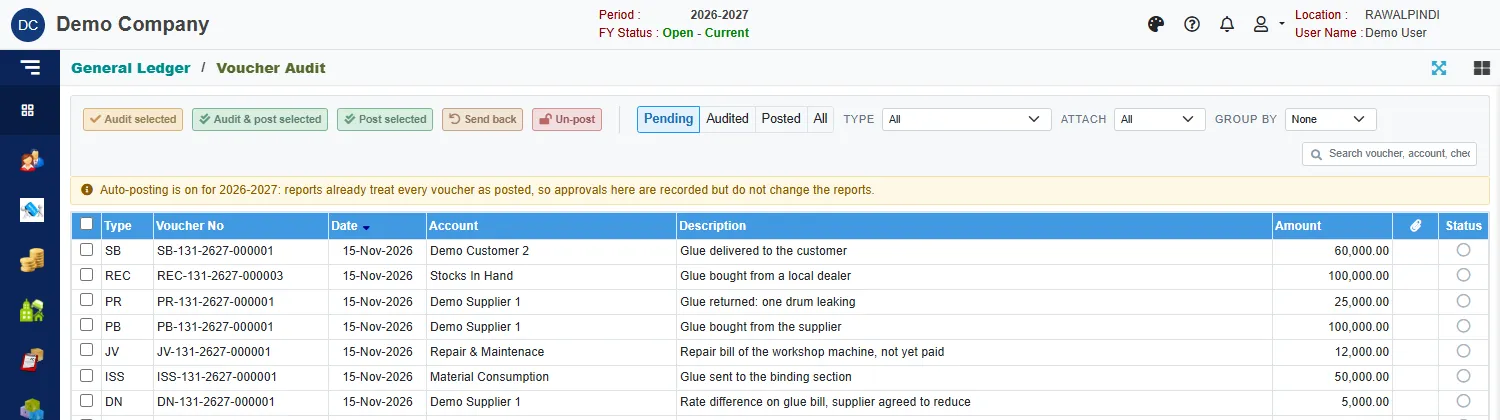
- The tabs Pending, Audited, Posted and All pick the state. The list opens on Pending.
- Type narrows it to one kind of voucher, Attach to those with or without attached documents, and Group by groups by type or date. The search box finds a voucher by number, account, cheque number, description or amount.
- Each row shows the Type, Voucher No, date, account, description and amount. A tick in the paperclip column means documents are attached. The last column is the state: an empty circle for pending, a tick for audited, a double tick for posted. Hold the pointer over it to see who did it and when.
The note Auto-posting is on for … above the list means your company has switched on auto-posting for the year. The reports already treat every voucher as posted, so what you do here is recorded but does not change the reports.
Review a voucher
Click a row. The voucher opens on a full page, in place of the list.
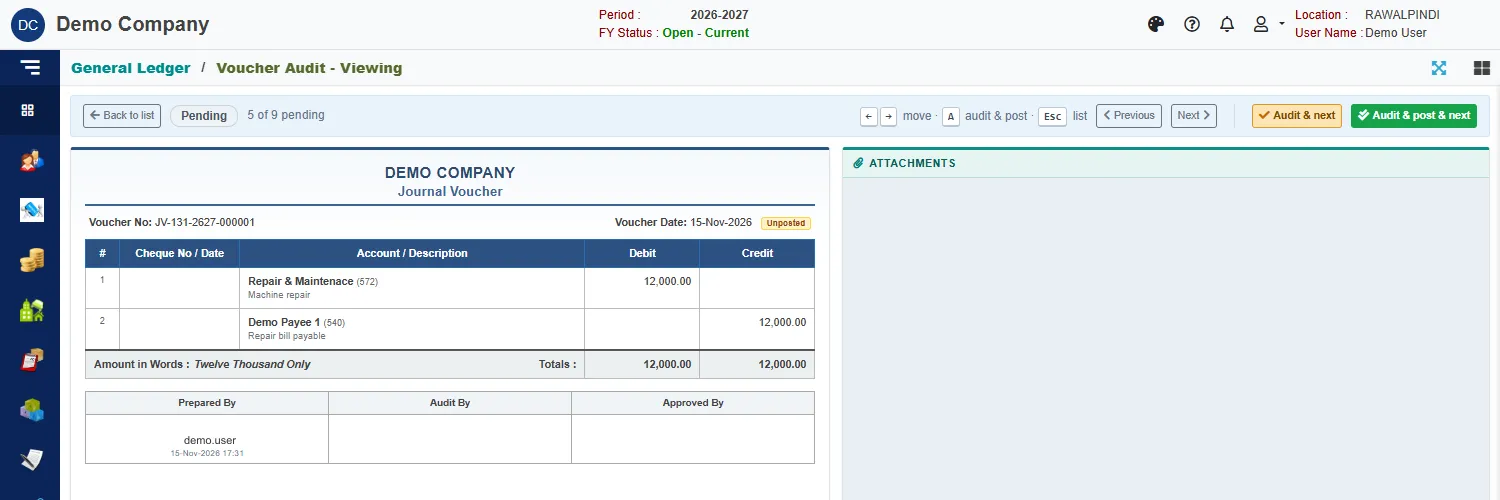
On the left is the voucher as it prints, with the signature boxes Prepared By, Audit By and Approved By. On the right are the attached documents, such as the supplier's invoice, so you can compare them with the entries.
| Button | What it does |
|---|---|
| Audit & next | Marks the voucher audited and opens the next one. |
| Audit & post & next | For an approver: audits and posts in one step, then opens the next one. |
| Post & next, Send back, Un-post | Appear for an approver, on a voucher in the right state. |
| Previous, Next | Move through the vouchers of the list without acting. |
| Back to list | Return to the list. It keeps your tab and filters. |
The keys work too: the left and right arrows move, A does the main action, and Esc goes back to the list.
Work through several at once
On the list, tick the vouchers (the box in the header ticks everything shown), then click:
| Button | For vouchers that are | What it does |
|---|---|---|
| Audit selected | Pending | Marks them audited. |
| Audit & post selected | Pending | Audits and posts them. |
| Post selected | Audited | Posts them. |
| Send back | Audited | Returns them to the supervisor, as pending. |
| Un-post | Posted | Takes them back to audited, so they can be edited again. |
A green message tells you how many were done.
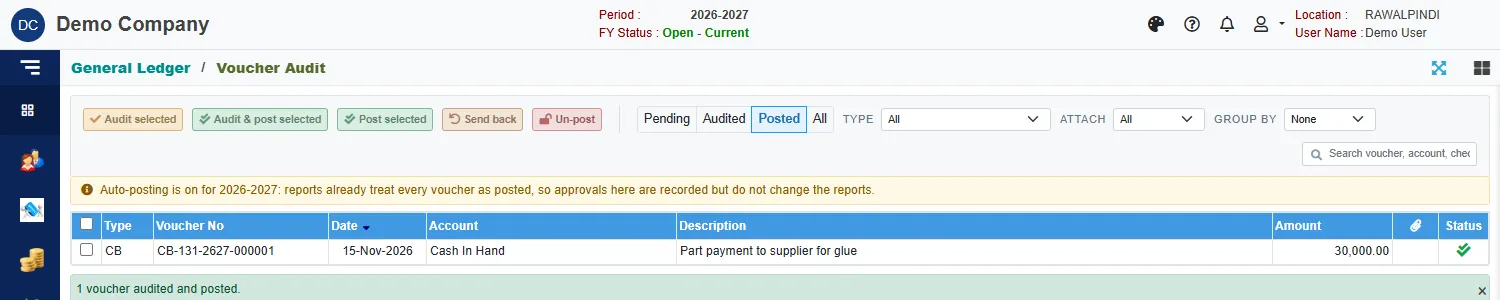
Posted vouchers are locked
A posted voucher cannot be changed or deleted, here or from the screen that made it. You get the message Voucher … is posted … Ask the approver to un-post it (Voucher Audit) before changing or deleting this document. The approver clicks Un-post, you make the change, and the voucher goes through audit again.
Changing a voucher that was audited sends it back to Pending.