What it is for
Opening Balance records the stock you already held on the day you started using PrixERP: how much of each product you had, and what it cost per unit. Every later receipt and issue builds on it.
Enter opening stock once, in the first fiscal year you used PrixERP. Do not enter it again in later years: the balance carries on from the first year.
The list
Open Inventory Control, then Opening Balance under Setup Forms.
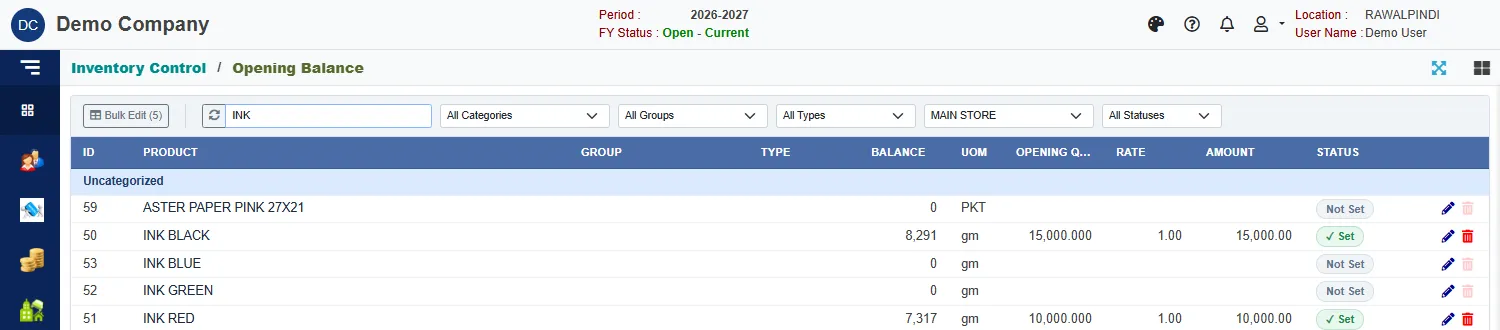
Each row is a product. The columns show:
| Column | Meaning |
|---|---|
| Balance | The stock the product has now. |
| Opening Qty, Rate, Amount | The opening balance you entered. Amount is quantity times rate. Products with variants show varies for the rate. |
| Status | Set once an opening balance is entered, n / m Set when only some variants have one, and Not Set when none has. |
Use the filters to find what you need: the search box and the refresh button that clears all filters, Category, Group, Type, Stock room and Status. The opening balance is kept for one stock room at a time, so check the stock room before you enter figures.
Enter an opening balance for one product
- Click the product's row.
- In Opening Balance Entry, enter the Pack qty and Pack rate in the product's pack unit, or enter Qty and Rate directly in the stock unit. The other pair fills itself in, and Amount shows the value.
- Click Update.
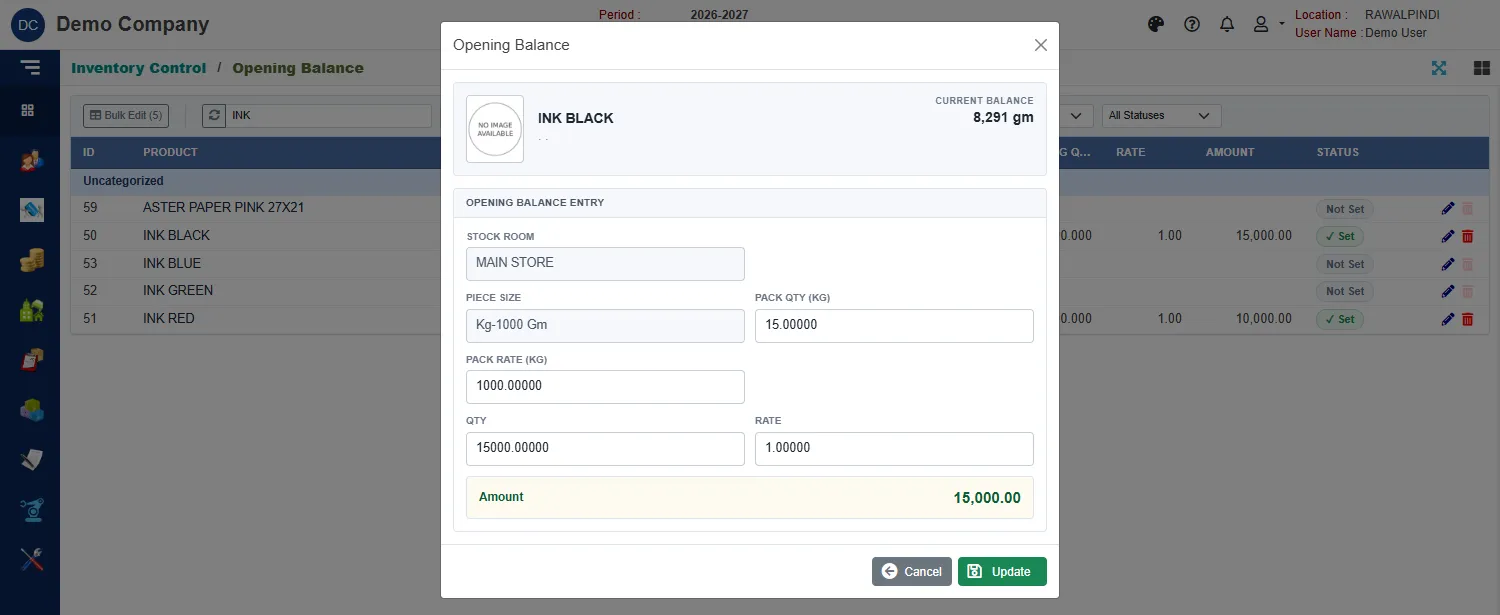
The window shows the product's Current balance at the top, so you can see what the stock is now beside what you are entering as the opening figure.
Products with variants
Click the product's row to open the variant entry window. It lists every variant, with its present Balance and boxes for Pack qty, Pack rate, Qty and Rate.
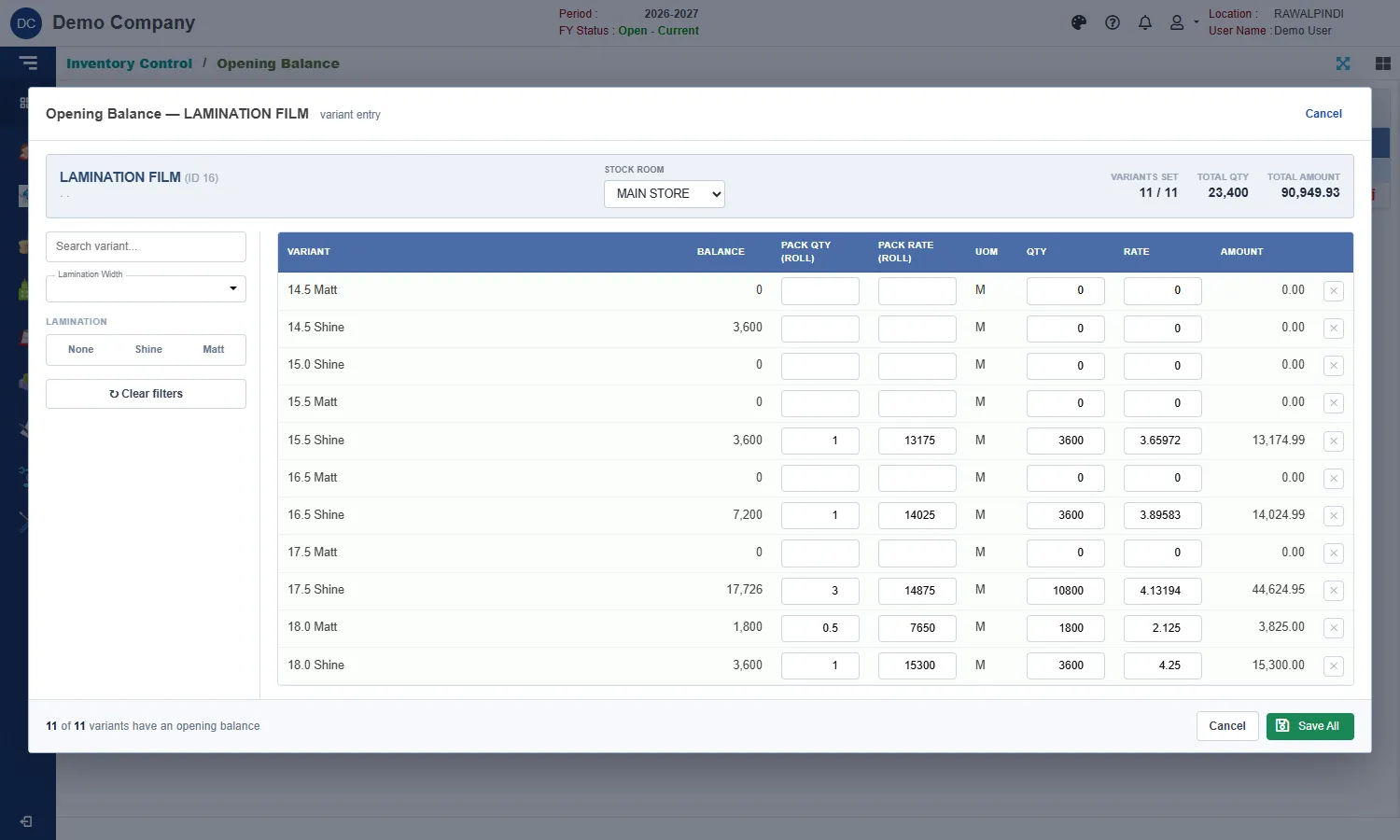
- The header shows how many variants are set, the total quantity and the total amount.
- Use the search box and the attribute filters on the left to find a variant. Clear filters shows them all again.
- Fill in the variants you have stock of and click Save All. Only the rows you changed are saved.
- The small × at the end of a row clears that variant's opening balance.
Products that are printed per school title ask for the title as well. See Titles: from Work Order to stock.
Bulk edit
To enter many simple products quickly, click Bulk Edit at the top left. It lists the products currently shown in the list (those without variants), like a spreadsheet.
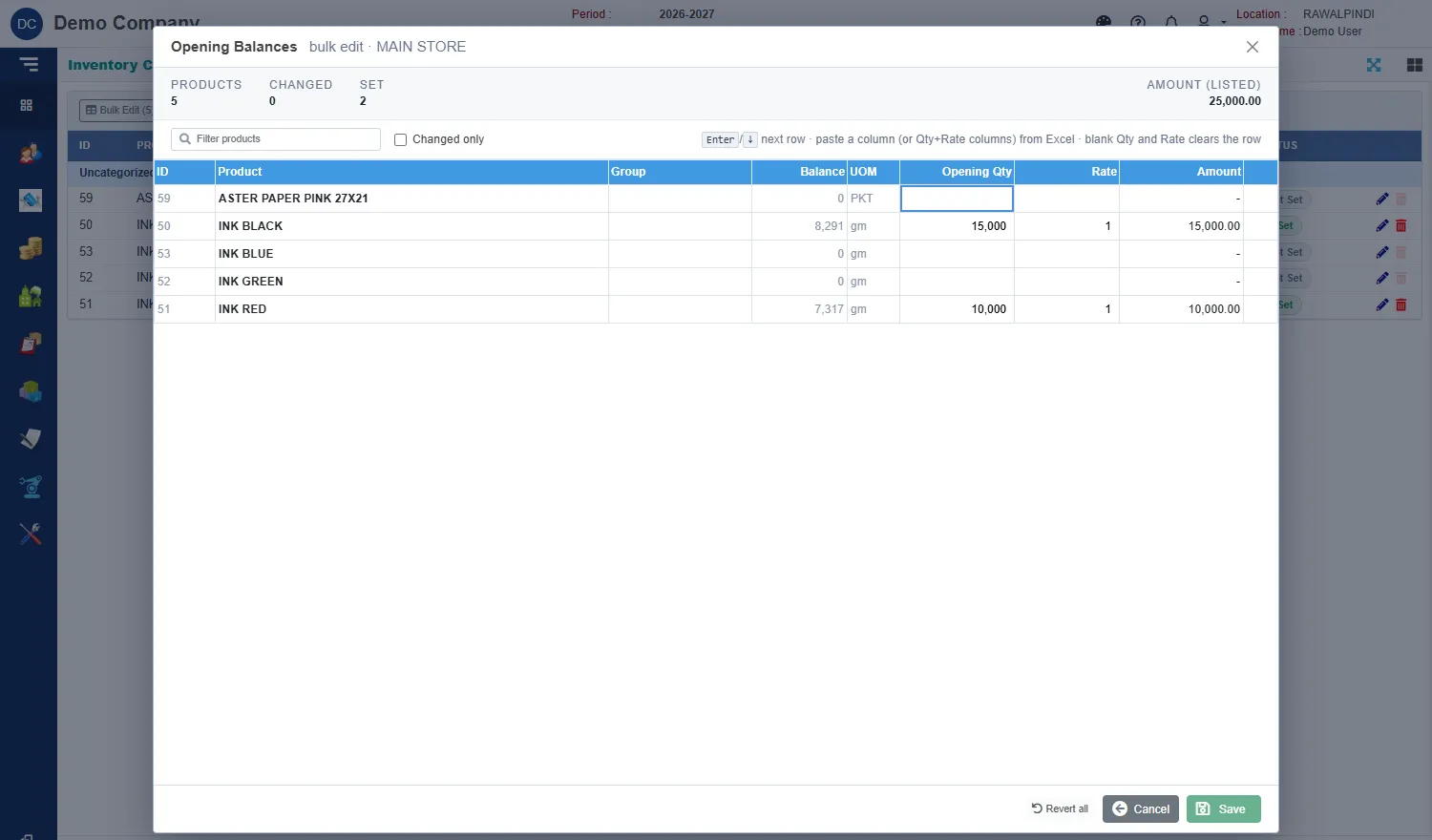
- Type the Opening Qty and Rate. Press Enter or the down arrow to go to the next row.
- You can paste a column of quantities, or quantity and rate columns, from Excel.
- Tick Changed only to see only the rows you have changed.
- Leave Qty and Rate blank to clear that row.
- Revert all undoes your changes. Click Save when you are done.
Bulk Edit is greyed out when your role may not edit lines, or when no simple product is listed.
Clear an opening balance
Use the bin at the end of a row. It is available only for products that have an opening balance. For a product with variants it clears every variant in that stock room. A box asks you to confirm.
Clearing opening stock can be refused if later issues would then leave the stock below zero. Receive or adjust stock first, or change the later documents.
Who can use it
Entering and changing opening balances needs the permission to edit lines, and clearing needs the permission to delete lines. Without them the rows open read-only.
Related
- Product Master creates the products and variants you list here.
- Titles: from Work Order to stock explains opening balances by title.