What it is for
Use Inventory Adjustment to correct your stock after a physical count when you find more on the shelf than the system shows.
This screen only adds stock. It accepts quantities above zero and refuses anything else with Qty must be greater than zero. To take stock out, use Product Issue.
An adjustment does not post an accounting voucher, so the list has no Voucher button for it.
Enter an adjustment
- Go to Inventory Control and click Inventory Adjustment.
- Click the green Add Adjustment.
- Check the Date. It must fall inside the fiscal year.
- Type a Description that says why, for example Stock count: 2 kg of glue found over. It is required.
- Click Add products. In the window, click + Add on each product, then Done. Products with variants show Select: click it, then add the variant.
- Enter the Pack qty on the line. Qty fills itself in the product's unit.
- Click Save at the top right.
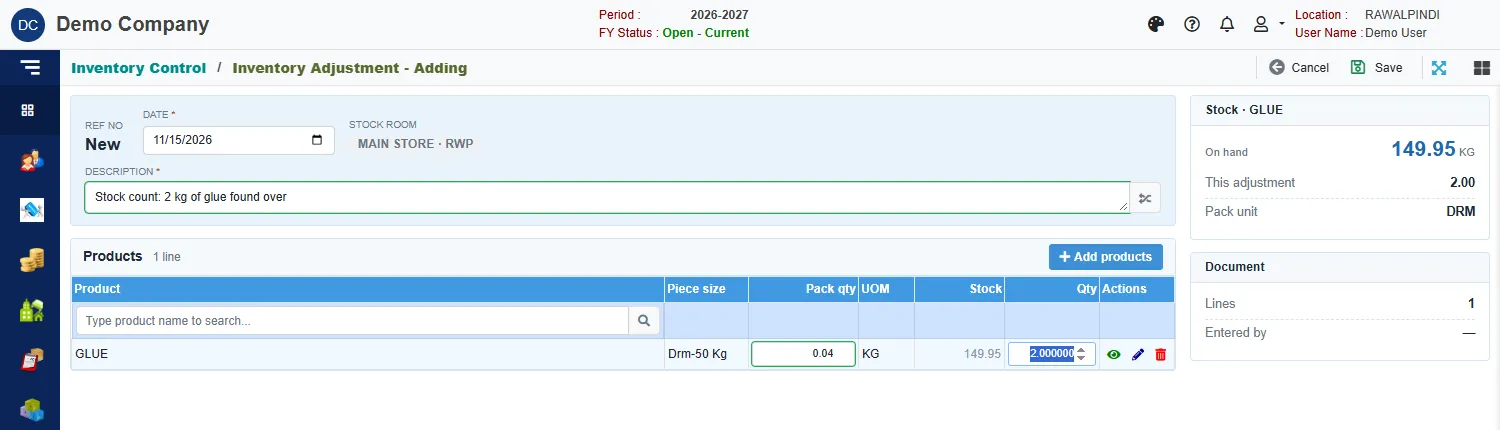
The Stock card on the right shows the product's quantity On hand and what This adjustment adds. A green message confirms the save, and the list shows the adjustment with its lines.

Fields
| Field | What to enter |
|---|---|
| Ref No | Filled in when you save, for example ADJ-131-2627-000001. |
| Date | The date of the count. Inside the fiscal year. |
| Stock room | Shown for information. It is your own stock room. |
| Description | Required. Say why you are adjusting. |
| Pack qty | Number of packs, in the product's pack unit. |
| Qty | The quantity in the stock unit. Filled in from the pack quantity. It must be above zero. |
Change or delete an adjustment
Use the pencil or bin icon on the list. Deleting an adjustment takes its stock back out.
Messages you may see
| Message | What to do |
|---|---|
| Product/Item is required | Add at least one product. |
| Item is already added … | The same product and variant is already on the adjustment. |
| Qty must be greater than zero | Enter a quantity above zero. |
| PackQty must be greater than zero | Enter a pack quantity above zero, or clear it. |
Related
- Product Issue takes stock out.
- Product Receive puts in stock that arrives.