What it is for
Use Product Issue to take stock out of your stock room by hand: materials sent to a section, items used in the office, or goods written out for any reason that has no document of its own.
Stock that leaves for a customer goes out on the Sales screens, and materials for a work order go out on the work order's own issue. They reduce the same stock.
Enter an issue
- Go to Inventory Control and click Product Issue.
- Click the green Add Issue.
- Check the Date. It must fall inside the fiscal year.
- Type a Description, for example where the material is going. It is required.
- Click Add products. In the window, click + Add on each product, then Done. Products with variants show Select: click it, then add the variant.
- Enter the Pack qty on the line: how many packs you are taking out. Qty fills itself in the product's unit. You can type in the line itself, or click the pencil to use the line window.
- Click Save at the top right.
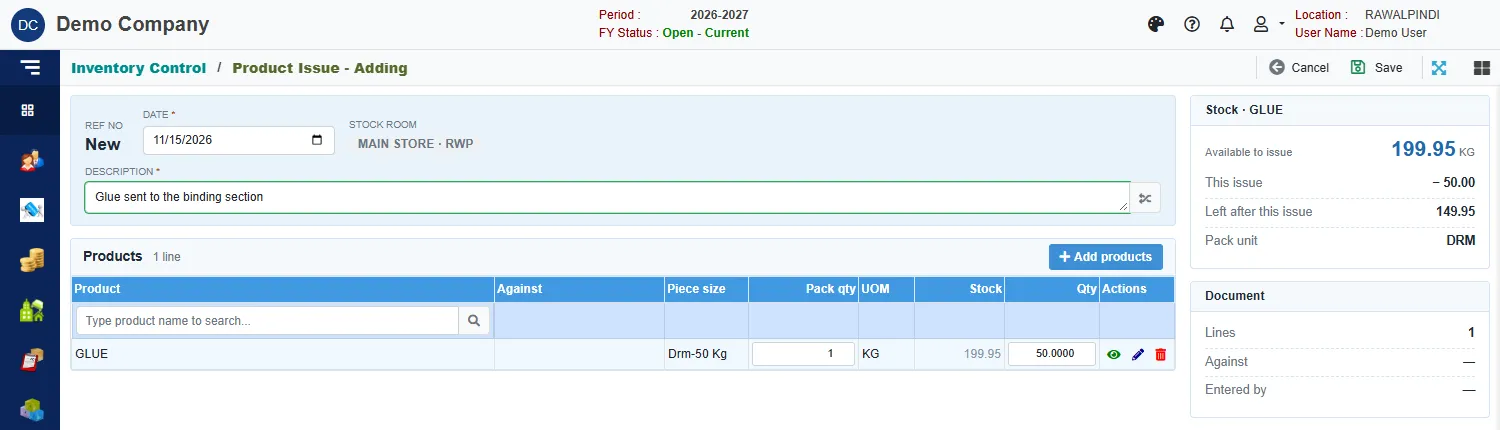
The right-hand cards help you check your work:
- Stock shows what is Available to issue, what This issue takes, and what is Left after this issue.
- Document shows the number of lines and who entered it. Against shows a demand number when a line belongs to one. You cannot type it here.
You cannot issue more than you have
The quantity on a line cannot be more than the stock available. If it is, the line window stops you and says how much there is:
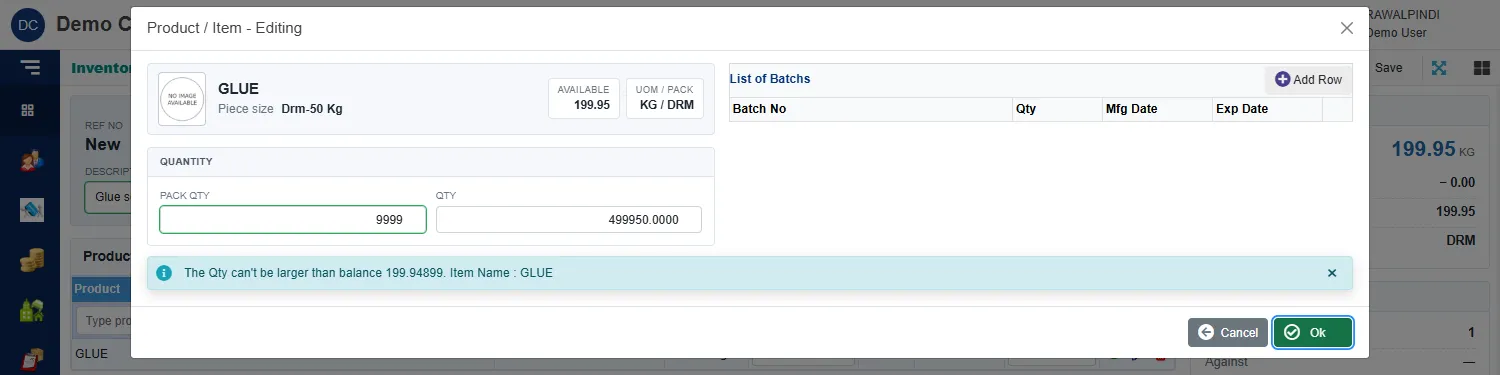
Reduce the quantity, or receive more stock first (see Product Receive).
Fields
| Field | What to enter |
|---|---|
| Ref No | Filled in when you save, for example ISS-131-2627-000001. |
| Date | The date the stock left. Inside the fiscal year. |
| Stock room | Shown for information. It is your own stock room. |
| Description | Required. The button beside it copies the selected product's name. |
| Pack qty | Number of packs, in the product's pack unit. |
| Qty | The quantity in the stock unit. Filled in from the pack quantity. Above zero, and not more than the stock available. |
Batches
Products that are tracked by batch have a List of Batchs in the line window. Click Add Row and enter the batch number, quantity, manufacturing date and expiry date. The expiry date must be after the manufacturing date, and the batch quantities together cannot be more than the line quantity.
What saving does
- Takes the quantity out of the stock room.
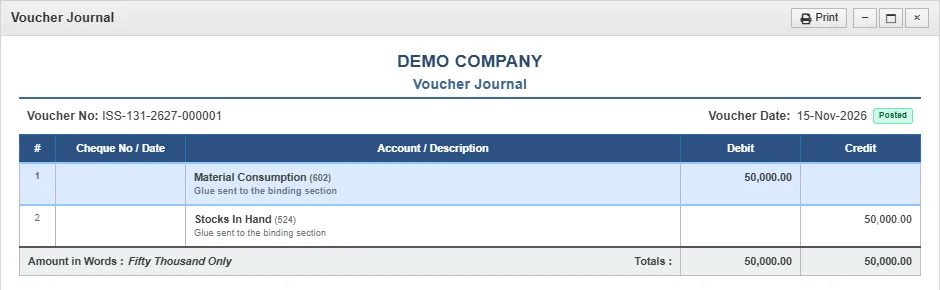
- Posts an accounting voucher with the same number as the issue. In the example below it debits Material Consumption and credits Stocks In Hand, at the product's average cost: 50 kg at 1,000 a kg is 50,000. Select the issue and click Voucher to see yours.
Change or delete an issue
Use the pencil or bin icon on the list. Deleting an issue puts its stock back and cancels its voucher.
Messages you may see
| Message | What to do |
|---|---|
| Product/Item is required | Add at least one product. |
| Item is already added … | The same product and variant is already on the issue. Change its quantity instead. |
| Qty must be greater than zero | Enter a quantity on the line. |
| The Qty can't be larger than balance … | You asked for more than is in stock. The message shows the balance. |
| The PackQty can't be larger than Pack balance … | The same check, counted in packs. |
| The Total batch Qty … can't be larger than product/item qty … | The batches add up to more than the line quantity. |
Related
- Product Receive puts stock in.
- Entering and changing documents explains the form in general.