What it is for
Use Product Receive to add stock to your stock room by hand. Typical cases are goods that arrive without a purchase order, free samples, and stock you find that was never entered.
Goods that come in against a purchase order are received on the Purchase screens instead. They update the same stock.
Before you start
- The product must exist in Product Master and be active.
- Your user must have a stock room. The receipt goes into it.
- For a product that has never had stock, you will need to enter a rate once (see How a receipt is valued).
Enter a receipt
Go to Inventory Control and click Product Receive.
Click the green Add Receipt.

The list of receipts, with one receipt's lines open Check the Date. It must fall inside the fiscal year.
Type a Description, for example where the goods came from. It is required.
Click Add products. In the window, click + Add on each product, then Done. Products with variants show Select: click it, then add the variant.
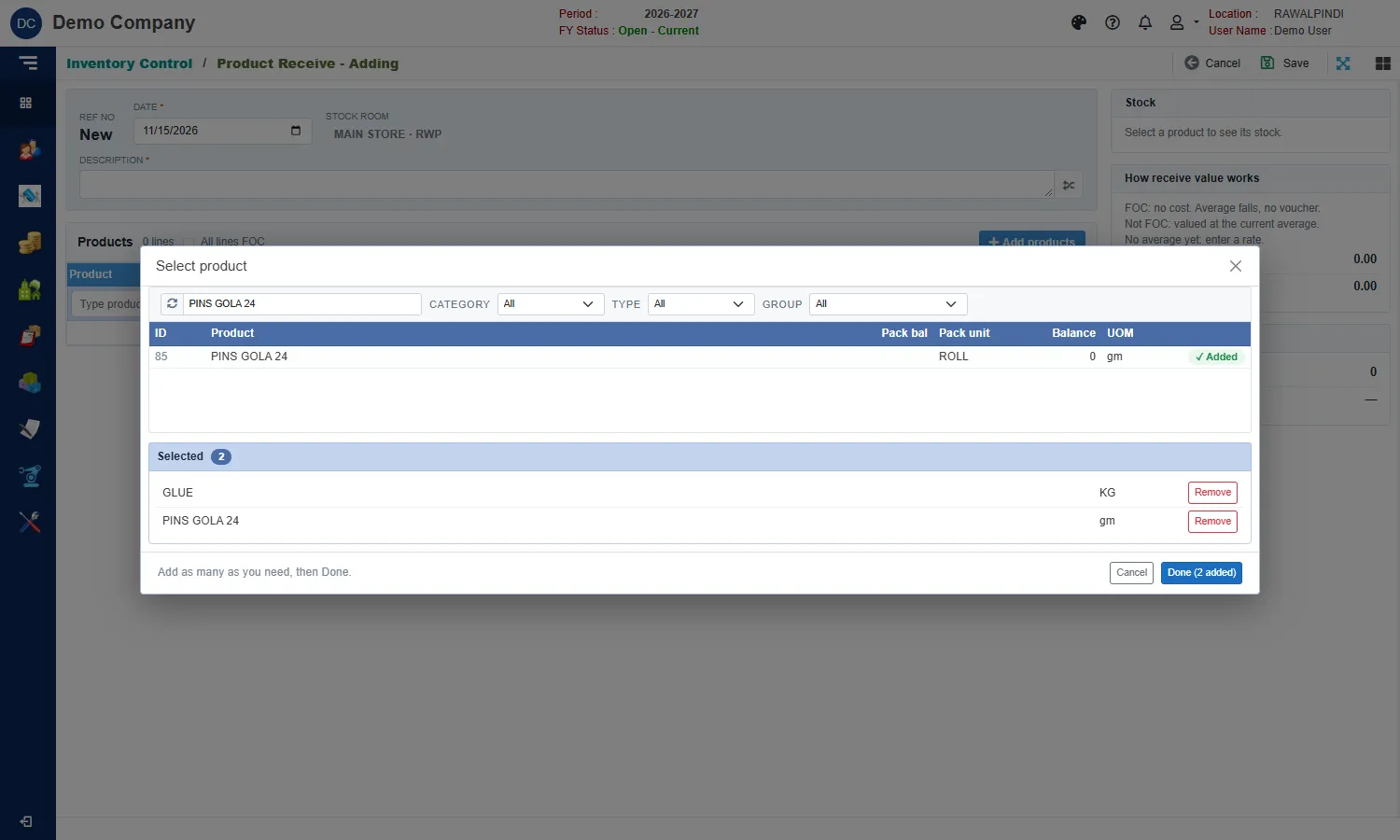
Choosing products Click the pencil at the end of a line. Enter the Pack qty: how many packs you received. Qty fills itself in the product's unit.
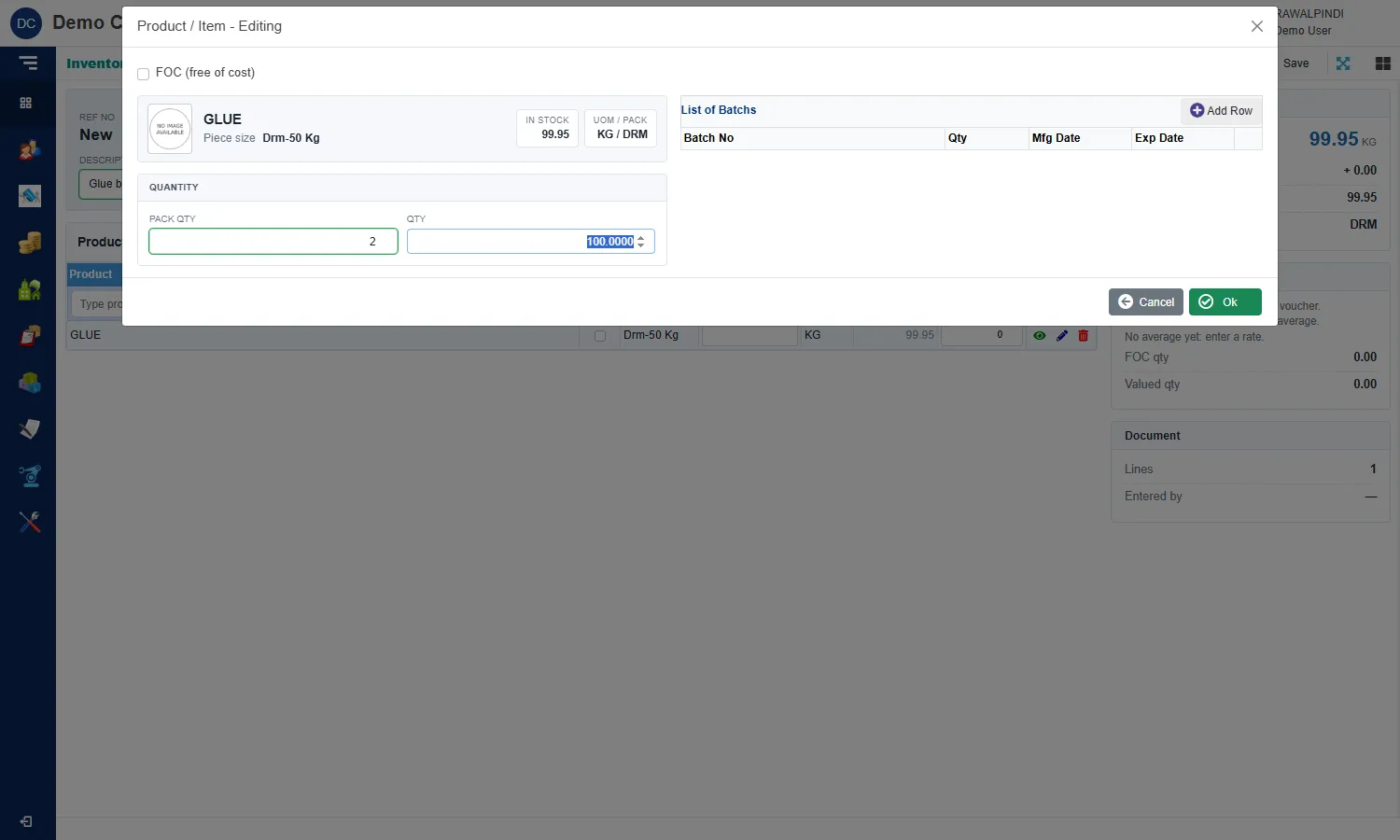
The line window For example, 2 drums of glue at 50 kg a drum give Qty 100 KG.
Click Ok, then Save at the top right.
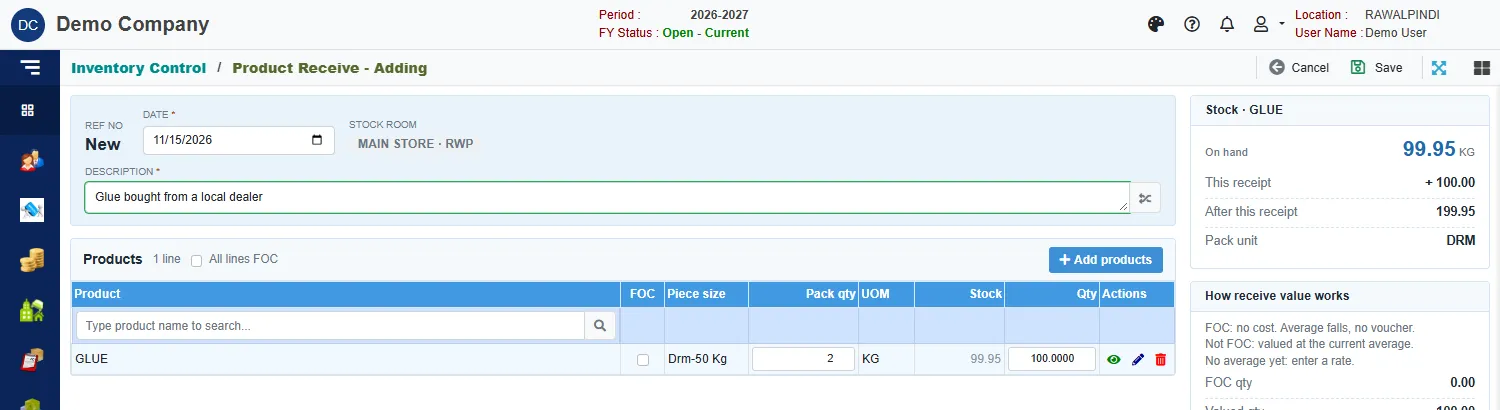
The right-hand cards help you check your work:
- Stock shows the product's quantity On hand, what This receipt adds, and the balance After this receipt.
- How receive value works adds up the free-of-cost and valued quantities.
- Document shows the number of lines.
Fields
| Field | What to enter |
|---|---|
| Ref No | Filled in when you save, for example REC-131-2627-000003. |
| Date | The date goods came in. Inside the fiscal year. |
| Stock room | Shown for information. It is your own stock room. |
| Description | Required. The button beside it copies the selected product's name. |
| FOC | Tick when the goods were free of charge. |
| Pack qty | Number of packs, in the product's pack unit. |
| Qty | The quantity in the stock unit. Filled in from the pack quantity. It must be above zero. |
How a receipt is valued
- Not FOC: valued at the product's current average cost. No rate is needed.
- FOC: has no cost. The average cost falls because the same value now covers more units, and no accounting voucher is posted for those lines.
- No average cost yet (a product that has never had stock): you must enter a rate, or tick FOC. Otherwise Save stops with No average cost yet. Enter a rate or tick FOC.
Rates and amounts are shown only to users who may see prices. If you cannot see them and Save asks for a rate, ask someone who can.
Batches
Products that are tracked by batch have a List of Batchs in the line window. Click Add Row and enter, for each batch:
- Batch No
- Qty
- Mfg Date and Exp Date
The expiry date must be after the manufacturing date, and the batch quantities together cannot be more than the line quantity.
What saving does
- Adds the quantity to the stock room.
- Posts an accounting voucher with the same number as the receipt. In the example below it debits Stocks In Hand and credits Material Consumption. Select the receipt and click Voucher to see yours.
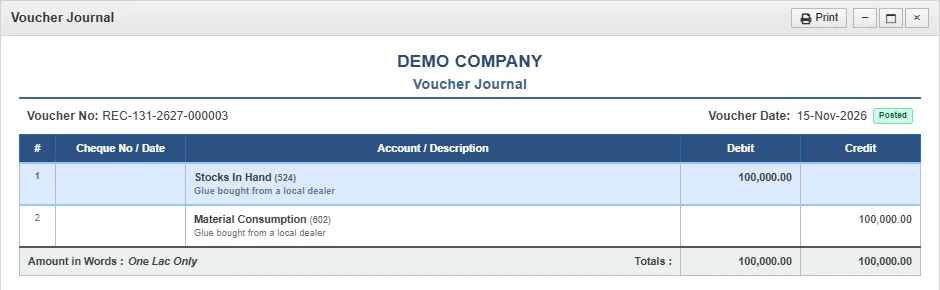
Change or delete a receipt
Use the pencil or bin icon on the list. Deleting a receipt takes its stock back out and cancels its voucher.
Messages you may see
| Message | What to do |
|---|---|
| Product/Item is required | Add at least one product. |
| Item is already added … | The same product and variant is already on the receipt. Change its quantity instead. |
| Qty must be greater than zero | Enter a quantity on the line. |
| PackQty must be greater than zero | Enter a pack quantity above zero, or clear it. |
| No average cost yet. Enter a rate or tick FOC. | The product has no stock history. Enter a rate or tick FOC. |
| The Total batch Qty … can't be larger than product/item qty … | The batches add up to more than the line quantity. |
Related
- Entering and changing documents explains the form in general.
- Lists (index pages) explains the buttons above the list.