Where it is
Open the employee from the employee list. The Pay section and the Allowances, Deductions and Leaves tables are in the middle of the record. Payroll reads them every month when it makes the payslip. See Payslips.
Pay
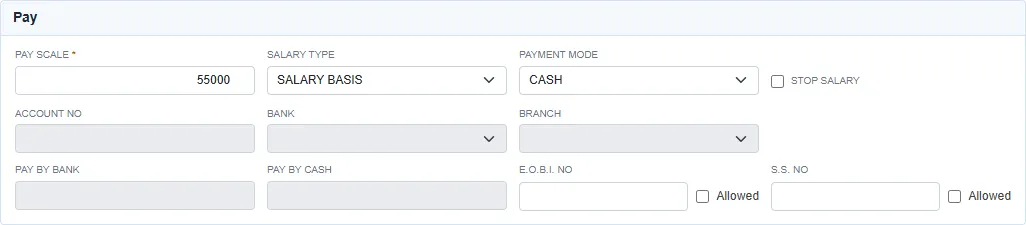
| Field | What to enter |
|---|---|
| Pay scale | Required. The monthly gross salary. The allowances should add up to it. |
| Salary type | SALARY BASIS (a monthly salary) or DAILY BASIS. |
| Payment mode | CASH or BANK: how the net salary is paid. |
| Stop salary | Ticked for you when the employee leaves. Generate PaySlip goes by the employee's Status, not by this box. |
| Account no, Bank, Branch | Open for BANK. The branch list follows the bank you choose. Banks and branches come from the Bank setup list. |
| E.O.B.I. no, S.S. no | The E.O.B.I. and social security numbers. Tick Allowed beside each one for an employee who is registered. |
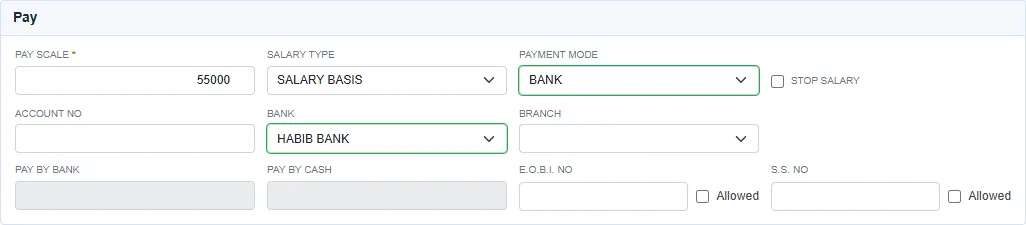
For BANK, Save asks for all three: Bank account is required, Bank is required and Bank branch is required.
SPLIT (Cash & Bank) is no longer offered. An employee who is already on split pay keeps it and shows it in the list. Pay by bank and Pay by cash then open: type the bank part and the cash part is worked out for you. Together they must equal the pay scale, or Save gives Pay through Bank and Cash must be a equal to Pay Scale.
Allowances
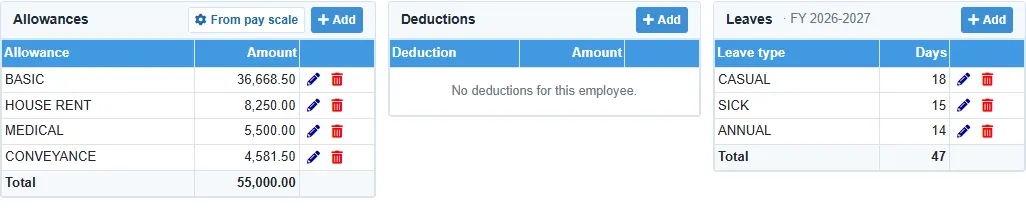
Each allowance is one line of pay on the payslip: basic, house rent, medical, conveyance and so on. The allowance types come from Payroll. See Payroll setup lists.
From pay scale fills the table for you:
- Every allowance type with a Default % gets a line of pay scale × default %. With default percentages that add up to 100, the lines add up to the pay scale.
- It also fills the Leaves table for the fiscal year of the joining date: CASUAL and ANNUAL, cut down for the part of the year after the joining date.
- It needs the Pay scale and the Joining date first. It works only while the table is empty: otherwise you get PayScale Allowances Already Generated.
Add adds one allowance by hand.
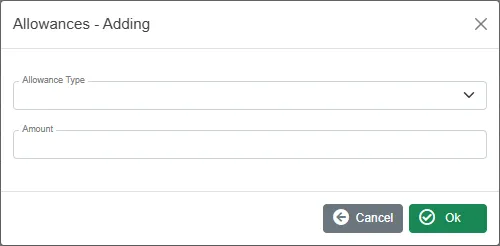
Choose the Allowance Type and type the Amount. On a line made by From pay scale only the amount can be changed.
The Monthly salary card on the right compares the total with the pay scale. It shows a green tick when they are equal, and the difference in red when they are not. Fix the lines until they agree.
- An employee needs at least one allowance. Save gives Allowances : one item/row required.
- The same allowance type twice gives Allowances must be unique.
Deductions
Deductions are fixed amounts taken from the salary every month. Absences, advance and loan instalments are not entered here: the payslip works them out from attendance, advances and loans.
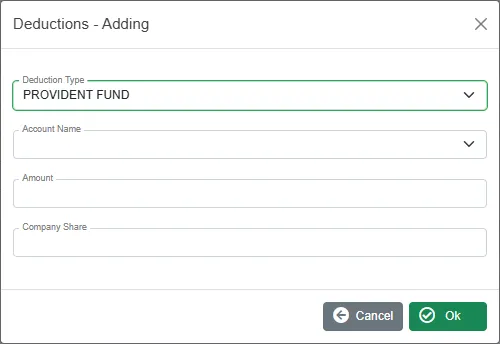
Click Add, choose the Deduction Type and type the Amount. For PROVIDENT FUND, also choose the provident fund Account Name and type the Company Share. The same deduction type twice gives Deductions must be unique.
Leaves
The Leaves table holds the leave days the employee is allowed in the current fiscal year (shown beside the title, for example FY 2026-2027). Leave Entry and the payslip show the days taken out of these allowed days.
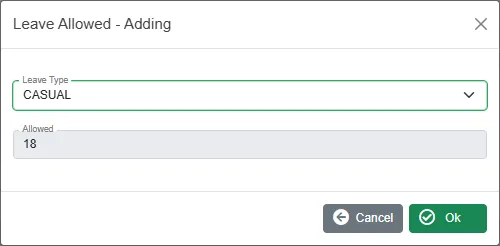
- Add offers CASUAL and ANNUAL. Allowed is the full number of days a year for that leave type, from Leave Types, and cannot be typed over.
- At the start of a new fiscal year the table is empty. The empty table shows the previous year's leaves and a Copy from button that adds them again for the new year.
- The same leave type twice gives Leaves must be unique.
When the changes are saved
New and changed lines are saved when you click Save (or Update) on the employee. Delete on a line that is already saved removes it as soon as you confirm.
When salaries go up for many employees at once, use Pay Scale Increments in Payroll rather than changing each record. Approving an increment updates the pay scale and rewrites the allowances for you.