What these lists are
Four short lists feed the payroll. Set them up once and revisit them when something changes, for example each year for the holidays. They are on the Setup Forms group of the Payroll page. Each opens as a list; click Add to enter a new row, and View, Edit or Delete on a row.
Gazetted Days (holidays)
Open Payroll and click Gazetted Days.
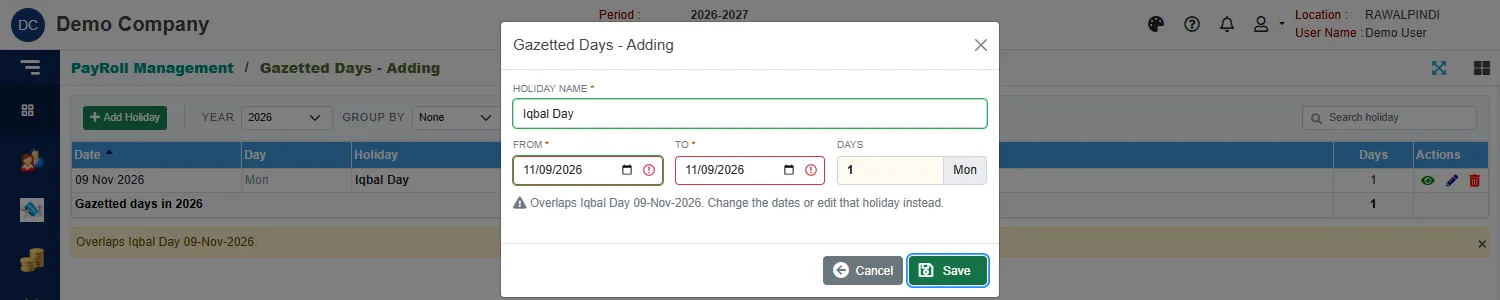
Each row is a holiday with its date, the day of the week, its name and how many days it lasts. Use Year to look at another year.
To add one, click the green Add Holiday.
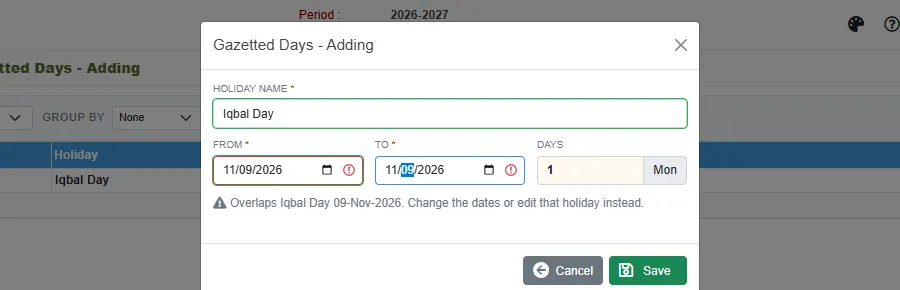
Type the Holiday name, then the From and To dates. Days is worked out, and the box beside it shows the weekday. For a one-day holiday set both dates the same.
- A holiday is a paid day off. The payslip counts it under Holidays, and the attendance reports show it.
- Sundays are already a day off, so you do not enter them.
- Two holidays may not overlap. You get Overlaps … (the other holiday and its dates). To date can not be before From date is refused too.
Leave Types
Open Leave Types.
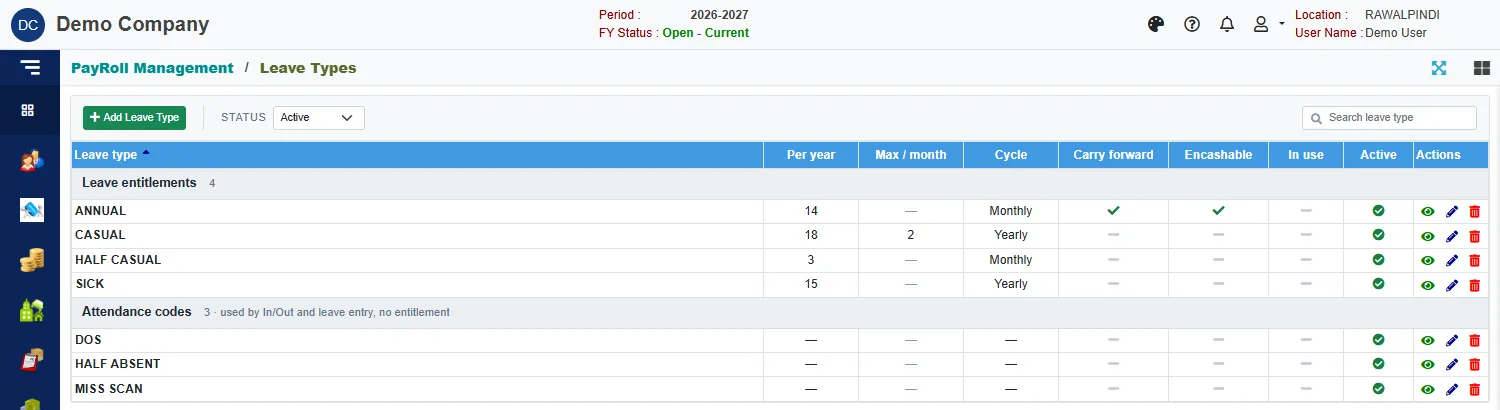
The list has two groups:
- Leave entitlements: the leaves an employee has a right to, such as ANNUAL, CASUAL, SICK and HALF CASUAL. For each, the list shows the days Per year, the most that can be taken in one month (Max / month), the Cycle, and whether unused days Carry forward or are Encashable.
- Attendance codes: DOS, HALF ABSENT and MISS SCAN. They have no entitlement. In/Out and the leave entry use them.
In use shows whether anything uses the leave type. Click Add Leave Type to enter one.
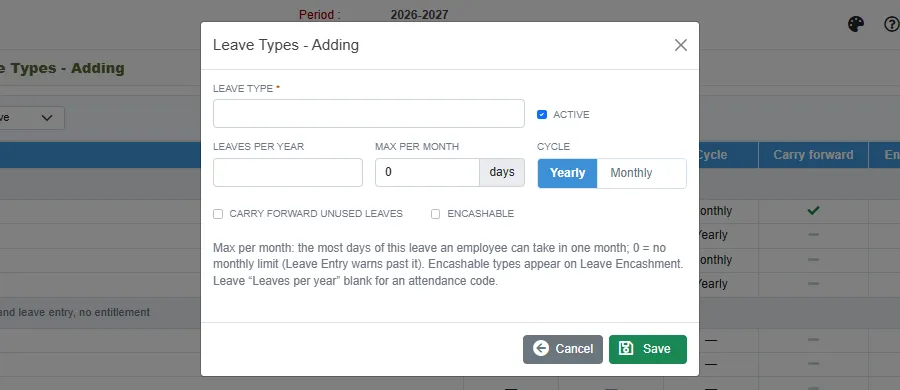
| Field | What to enter |
|---|---|
| Leave type | Required. The name. |
| Active | Clear it to stop the type being used. |
| Leaves per year | The days an employee gets in a year. Leave it blank for an attendance code. |
| Max per month | The most days of this leave that one employee can take in a month. 0 means no limit. Leave Entry warns when a leave goes past it. |
| Cycle | Yearly or Monthly: how often the entitlement starts again. |
| Carry forward unused leaves | Tick it for leave that moves to the next year. |
| Encashable | Tick it for leave that can be paid in cash. Only these appear in Leave Encashment. |
A leave type that an employee or a leave allowance uses cannot be deleted. You get You can not delete Leave Type. It is being used in Employee Master or Leave Allowed.
Allowance Types
Open Allowance Types.
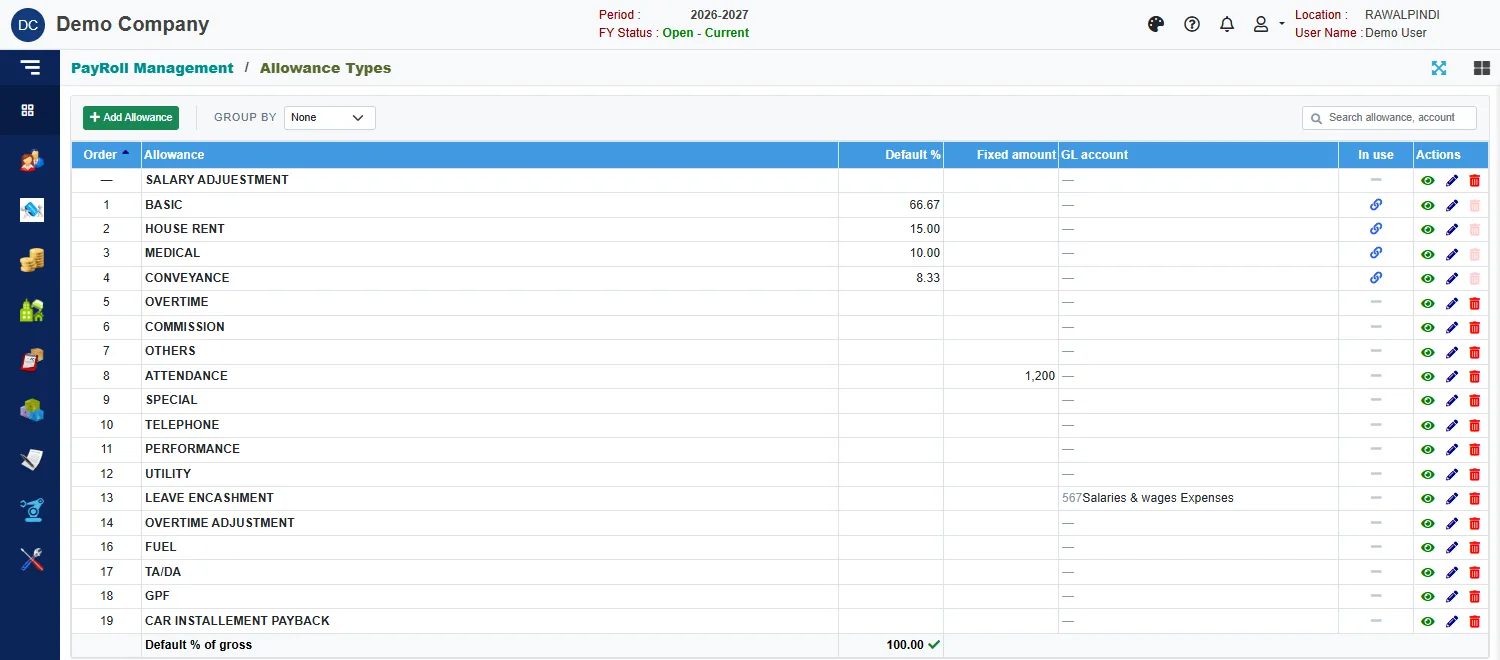
An allowance type is a line of pay on the payslip: BASIC, HOUSE RENT, MEDICAL, CONVEYANCE, OVERTIME, FUEL and so on. The list shows its Order on the payslip, its Default % of the gross salary, a Fixed amount if it has one, and its GL account.
The link icon in In use marks an allowance that employees already have in their pay structure. It can be edited, but not deleted.
The last row, Default % of gross, adds up the percentages. It shows a green tick at 100: the percentage allowances together make up the whole salary. If it does not add up to 100, an amber warning shows.
Click Add Allowance to enter one.
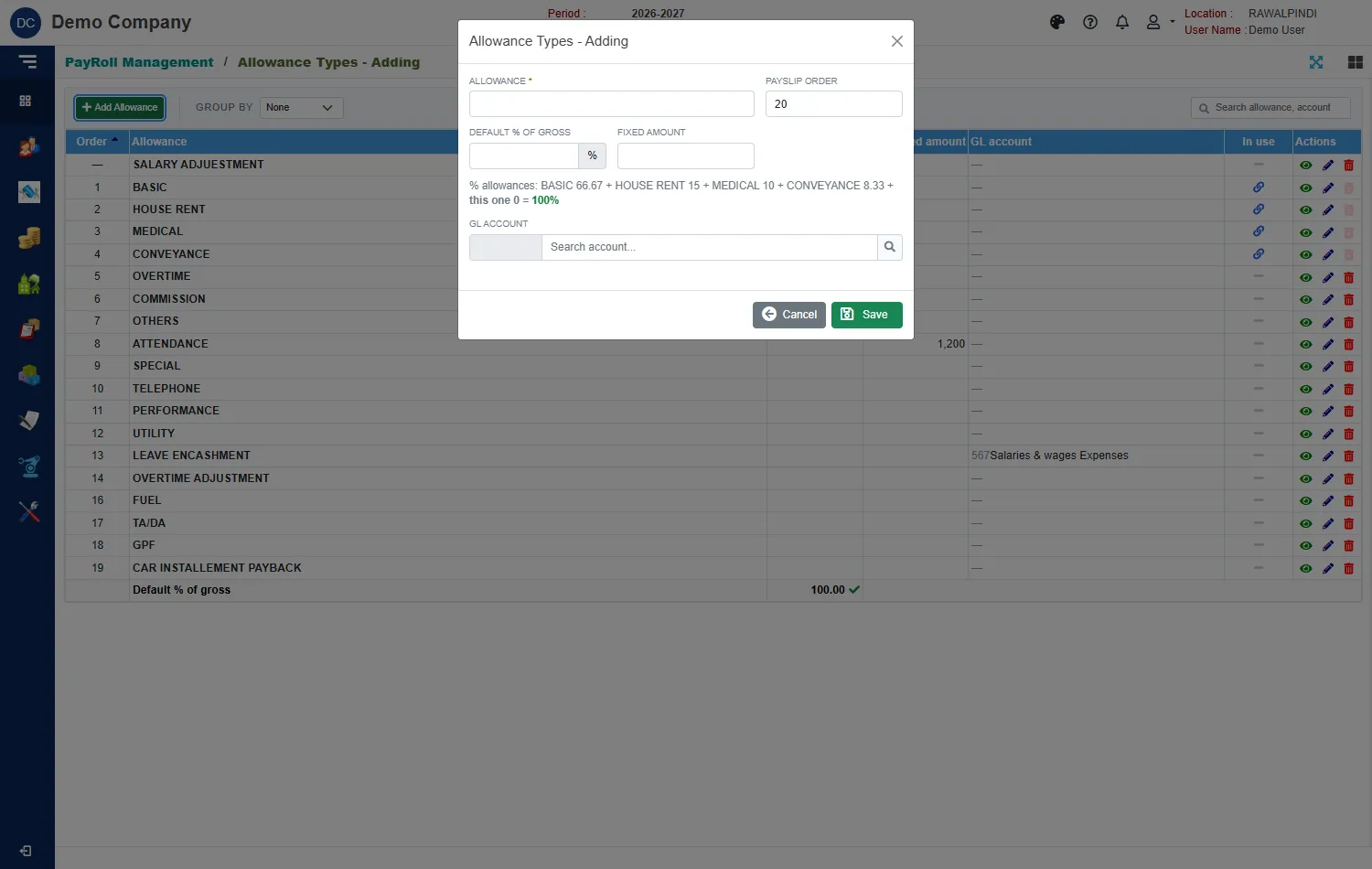
| Field | What to enter |
|---|---|
| Allowance | Required. The name. |
| Payslip order | The position on the payslip. |
| Default % of gross | The share of the salary this allowance is, from 0 to 99.99. Leave it blank if it is not a percentage. |
| Fixed amount | A fixed amount, if it has one. It cannot be negative. |
| GL account | The account the allowance posts to. |
While you type the percentage, a line under the boxes shows the percentage allowances added up, and warns when the total is not 100.
Deduction Types
Open Deduction Types.
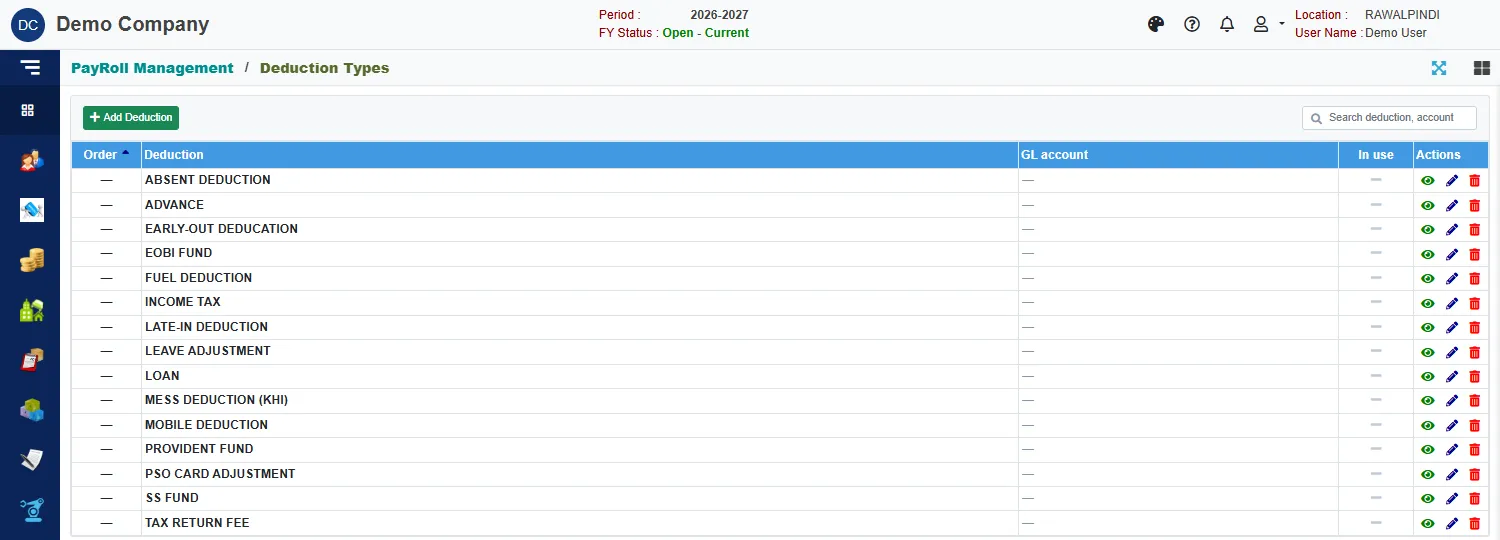
A deduction type is a line taken off the pay: ADVANCE, LOAN, INCOME TAX, PROVIDENT FUND and so on. The list shows the Order and the GL account. Click Add Deduction and type the Deduction, its Payslip order and its GL account.
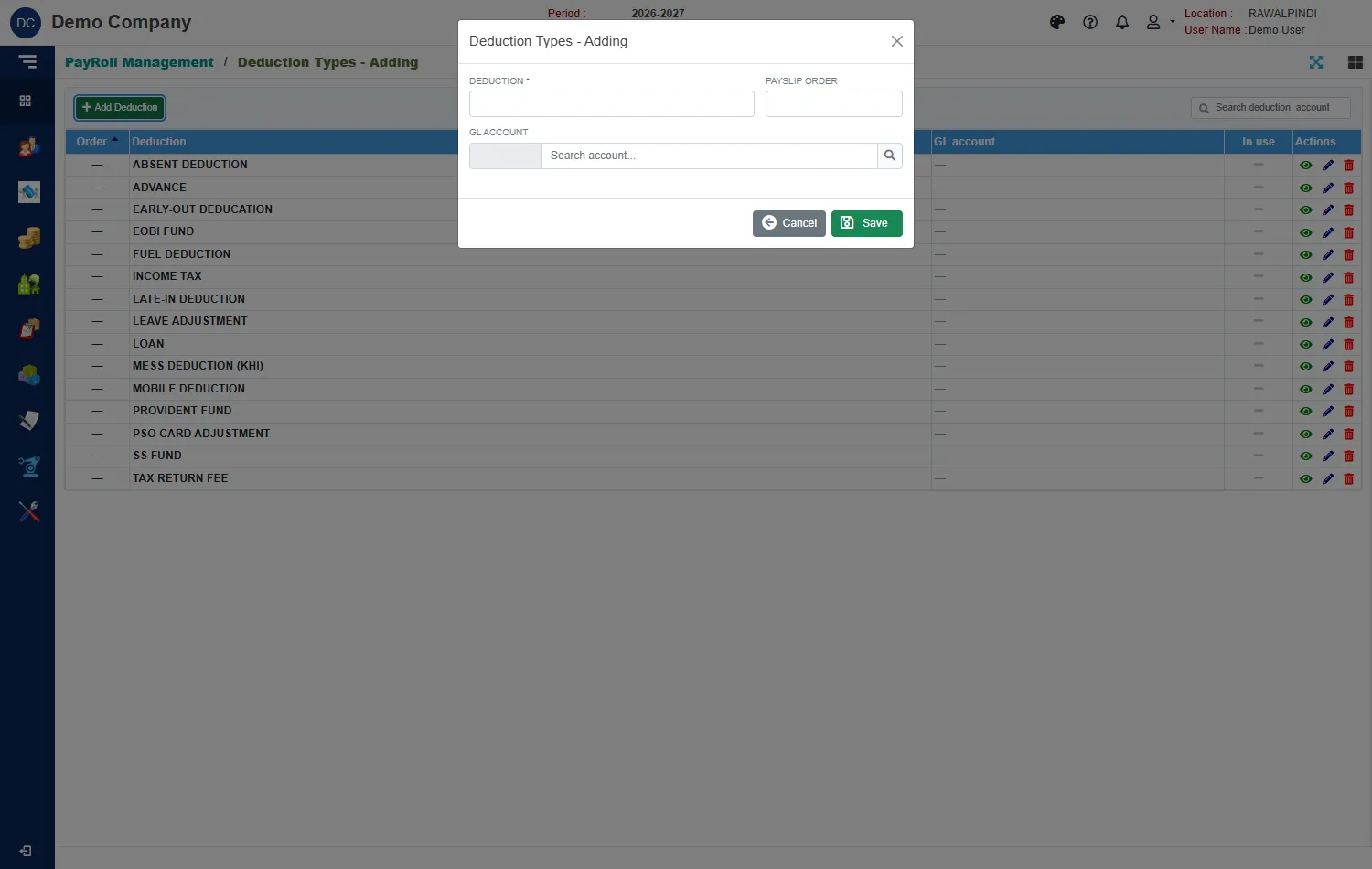
A deduction type that employees use cannot be deleted: You can not delete deduction Type. It is being used in Employee Master Pay Deductions.
Messages you may see
| Message | What to do |
|---|---|
| Overlaps … | The new holiday overlaps an existing one. Change the dates. |
| Leaves can not be negative. | Enter 0 or more in Leaves per year and Max per month. |
| Default % must be between 0 and 99.99. | Correct the percentage. |
| Fixed amount can not be negative. | Correct the amount. |
| Account … is not in the chart of accounts. Pick another or clear it. | The GL account was removed. Pick another. |
| Nothing to save. | You have not changed anything. |