What it is for
A leave entry records days when an employee was away: casual, sick or annual leave, or an absence. The payslip counts leave as paid days. An absence is deducted from the pay.
You can also create entries from In/Out, when you mark a day with no scan.
The list
Open Payroll and click Leave Entry.
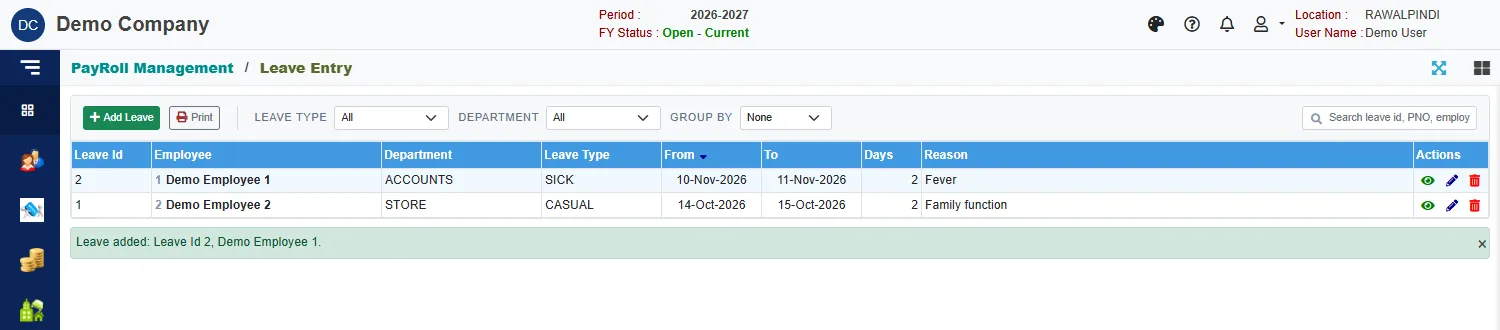
Each row shows the Leave Id, the employee, the department, the Leave Type, the From and To dates, the Days and the Reason. Narrow it with Leave Type, Department and Group by, or search by leave id, PNO or name. Print prints the leave list.
Enter a leave
Click the green Add Leave.
The window Select Employee opens. Narrow it with the search box, Department, Designation or Type. Click a row, then Ok (or double-click the row).
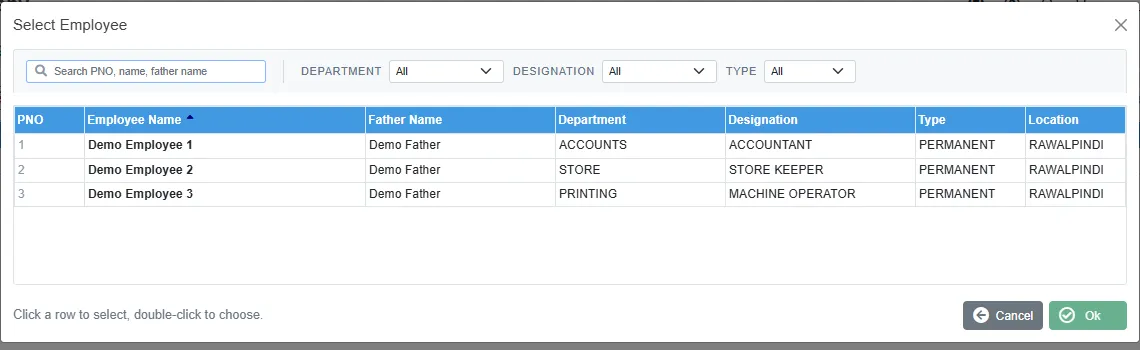
Choosing the employee Fill in the leave:
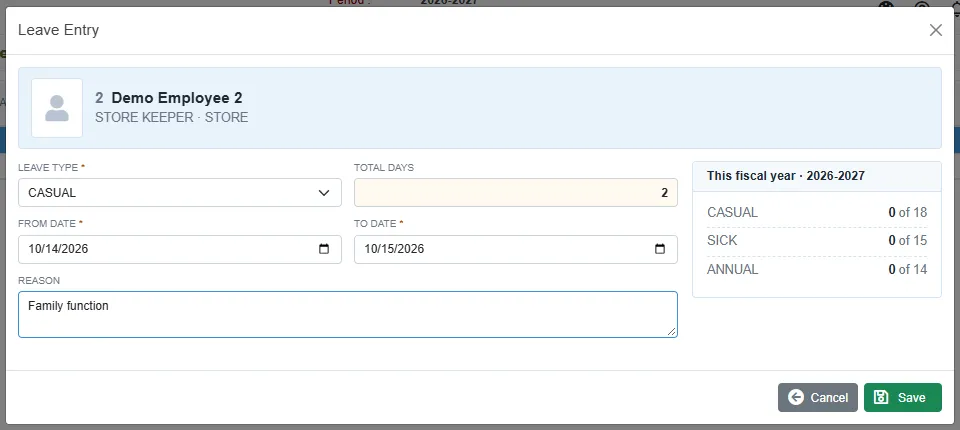
A casual leave Field What to enter Leave type Required. From date and To date Required. For one day, set both the same. Total days is worked out. With intimation Shown for the leave type ABSENT. Tick it if the employee told you in advance. Reason Why. Click Save.
The card on the right, This fiscal year, shows for each leave type how many days the employee has taken of how many are allowed. In the example the employee has taken 0 of 18 casual days before this leave.
How the days are counted
- Total days counts every calendar day from the first to the last, Sundays and holidays included.
- A leave of HALF ABSENT or HALF CASUAL on a single day counts half a day.
- An ABSENT without intimation counts one extra day.
- A leave can be at most 90 days.
If the leave type has a Max per month (see Payroll setup lists) and the leave goes past it, an amber warning shows under the dates.
Messages you may see
| Message | What to do |
|---|---|
| Leave type is required | Pick a leave type. |
| From and To dates are required | Fill in both dates. |
| To date can not be before From date | Correct the dates. |
| Employee is present on … | The employee scanned on that day. Leave cannot be entered for a day they came to work, except a half absent. |
| Leave already exists from … to … | The employee already has a leave on some of these days. Change the dates, or edit the first leave. |
| A leave can not be longer than 90 days. | Split it. |
| Miss scan is entered on the In/Out screen … | Use In/Out to add the missing scans. |
Related
- In/Out and In/Out exceptions
- Leave Encashment
- Generate PaySlip
- Payroll reports: the Leave Detail report lists the leaves of a period.