What it is for
Generate PaySlip turns a month of attendance, leave, overtime, advances and loans into a payslip for each employee, and posts the accounting voucher. Do it after the month ends, and after you have dealt with the days that had no scan in In/Out.
The list
Open Payroll and click Generate PaySlip.
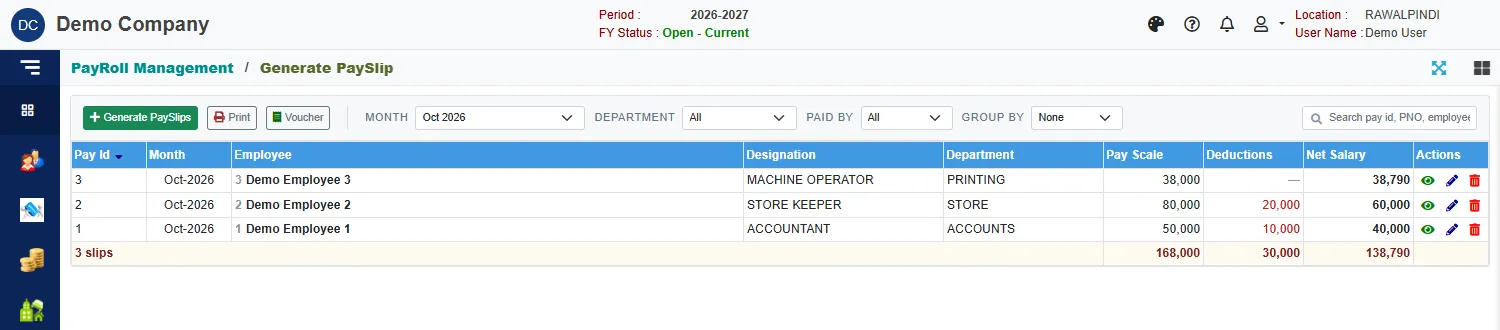
Each row shows the Pay Id, the Month, the employee, designation, department, Pay Scale, the Deductions (in red) and the Net Salary. The foot adds up the slips. Month starts on the latest month that has slips. Department, Paid by (cash or bank) and Group by narrow and group the list, and the search box finds a slip.
The buttons above the list act on the selected slip:
- Print prints its PaySlip Detail. With no slip selected it prints the month's slips.
- Voucher shows its accounting voucher.
On a row, the icons are View, Edit and Delete.
Generate the month's payslips
Click the green Generate PaySlips.
The month starts on the previous month. Use the arrows beside it to move. The tiles under the month show its Days, Sundays, Holidays and Working days.
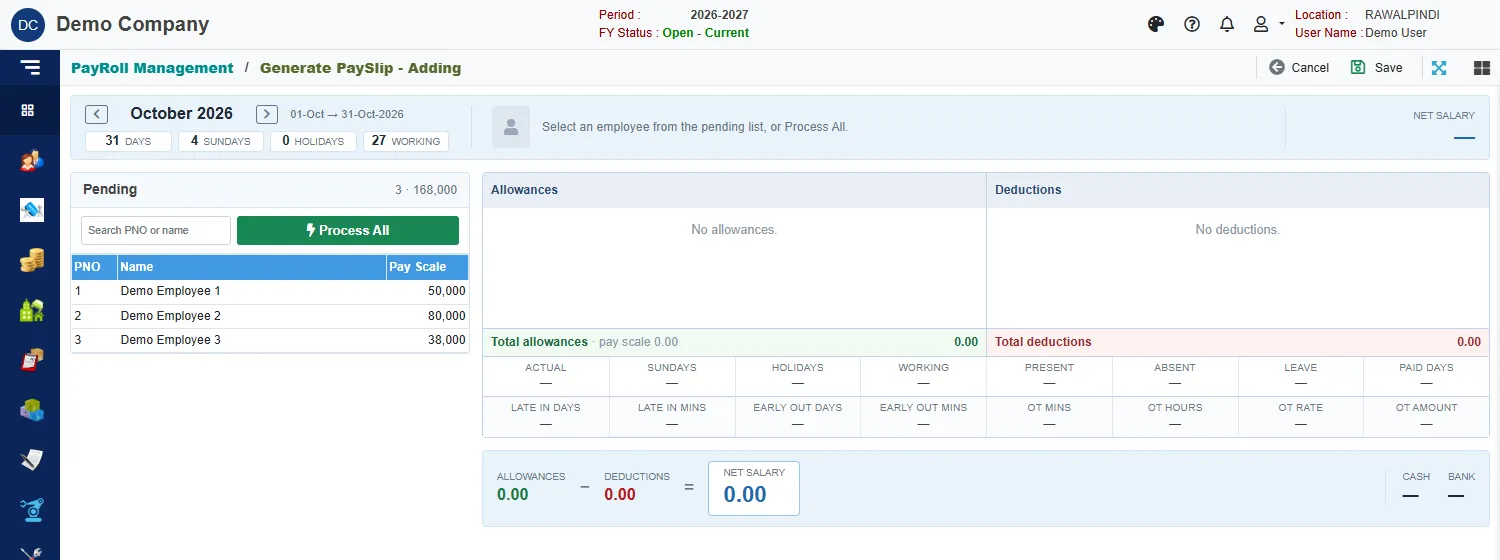
The generate screen with nothing selected The list Pending on the left holds the employees who do not yet have a slip for the month, with their pay scale and the total.
Click an employee to see their slip before it is saved.
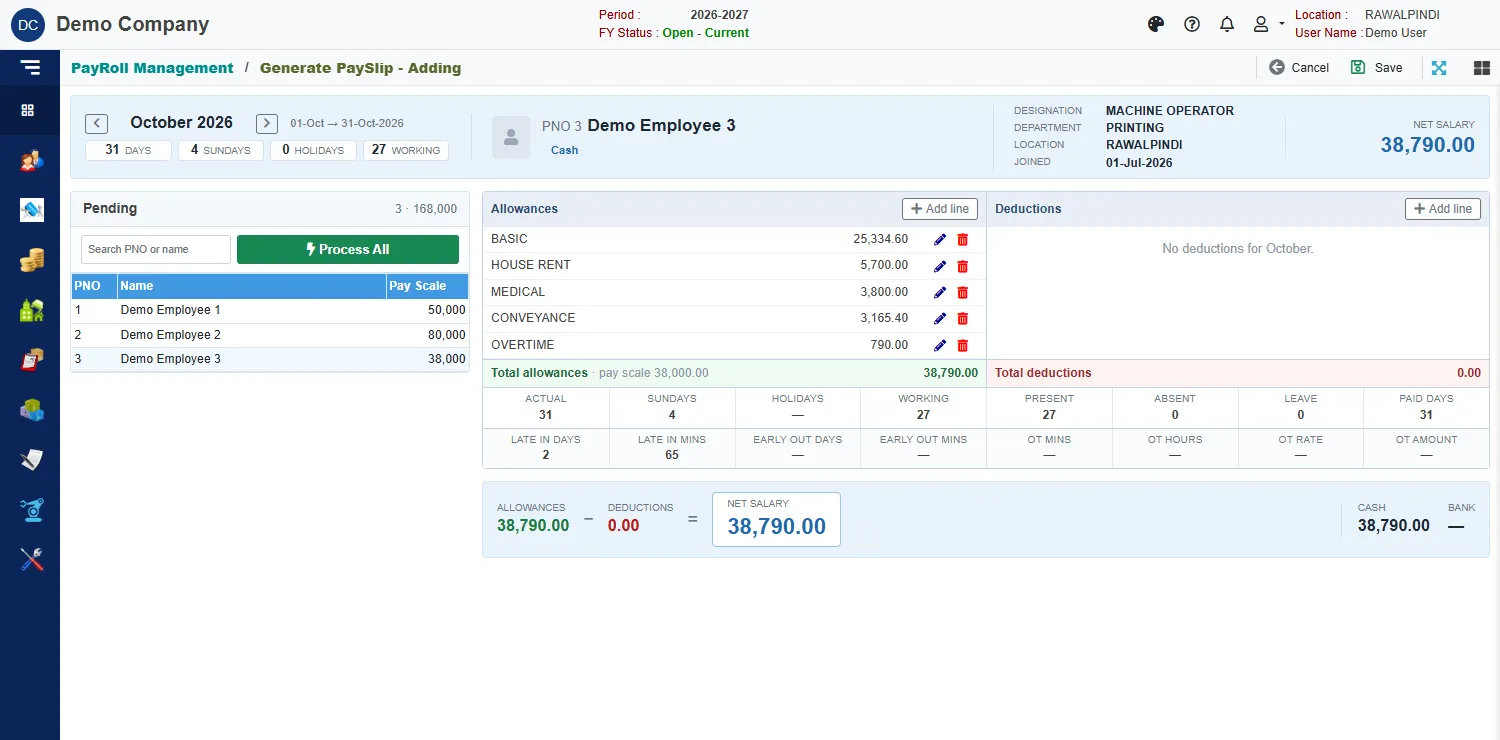
The slip of an employee with overtime Either click Save at the top to save the slip you are looking at, or click Process All to generate and save a slip for every pending employee.
When it is done, the list Pending reads Every employee has a slip for October 2026. A green message says how many slips were generated.
Read a slip
The top shows the employee, their designation, department, location and joining date, and the Net salary.
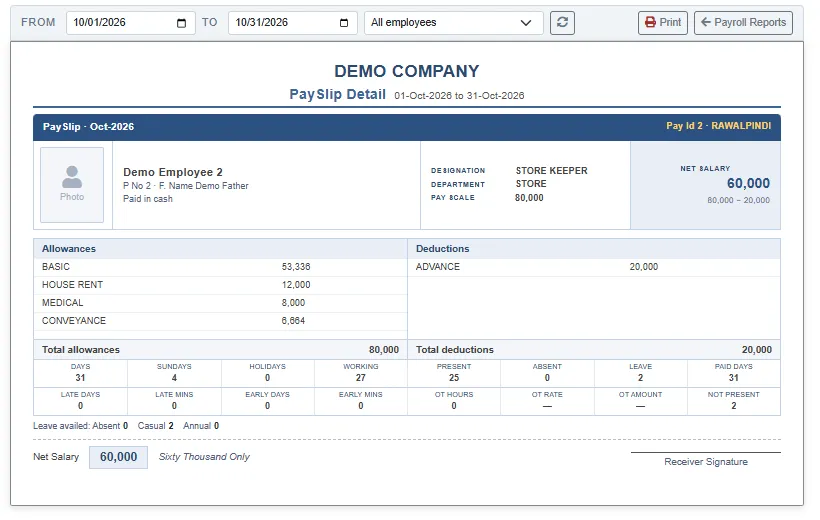
The two tables are the Allowances (what is paid) and the Deductions (what is taken off), each with its total.
| Allowance or deduction | Where it comes from |
|---|---|
| BASIC, HOUSE RENT, MEDICAL, CONVEYANCE and the other allowances | The employee's pay structure. |
| OVERTIME | The overtime entries of the month. |
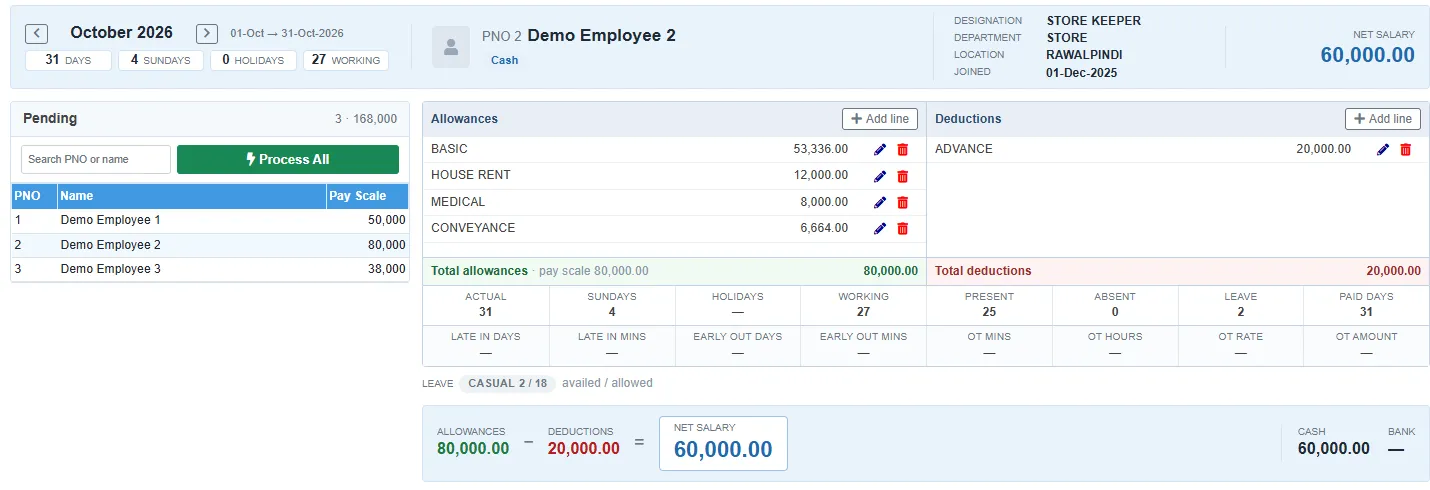
| ADVANCE | What is still owed on advances. |
| LOAN-P | The month's loan instalment. |
| Absent days, and deductions that the employee has by their pay structure | Absences from Leave Entry, and the employee's own deductions. |
An employee with an advance to recover shows it as a deduction:
Under the tables, the attendance figures:
| Figure | Meaning |
|---|---|
| Actual | Days in the month. |
| Sundays, Holidays, Working | The days off and the days to work. |
| Present, Absent, Leave | What the employee did. Leave is the days of paid leave. |
| Paid days | Days in the month less the absent days. |
| Late in and Early out | The days and the minutes. |
| OT mins, OT hours, OT rate, OT amount | Overtime worked out from the machine scans. Overtime you enter yourself shows as the OVERTIME allowance, not here. |
A line with the leave types shows, for each, the days availed / allowed: CASUAL 2 / 18.
The bar at the bottom works out Allowances − Deductions = Net salary, and shows how it is paid: Cash and Bank.
Change a slip before you save it
On the slip, the pencil on a line changes its amount, the bin removes it, and Add line adds an allowance or a deduction. The net salary follows. Use this for something particular to one employee, such as a bonus.
Save a slip
Whichever way you save it, each slip must pass these checks. Process All skips a failing employee and carries on with the rest. The skipped employee is tagged Skipped in the list, and the tag explains why when you hold the pointer over it. A message at the end says how many were generated and how many skipped.
| Message | What to do |
|---|---|
| Select an employee from the pending list | Click an employee first. |
| PaySlip cannot be generated. Employee PayScale not defined | The employee has no pay scale. Set it on their record. |
| PaySlip cannot be generated. Employee does not have attendance | A machine-attendance employee has no scans in the month. Enter the attendance in In/Out. |
| … SalaryMode is not defined | The employee's record does not say whether they are paid cash or bank. |
| Pay Through Bank is required / Pay Through Cash is required | The employee is paid in two parts. Enter both amounts. |
| Pay through Bank and Cash must be a equal to NetSalary | The cash and the bank amounts must add up to the net salary. |
| Allowances : one item/row required | A slip needs at least one allowance. |
| Allowances must be unique / Deductions must be unique | The same type is on the slip twice. |
The voucher
A saved slip is posted. Select it and click Voucher:
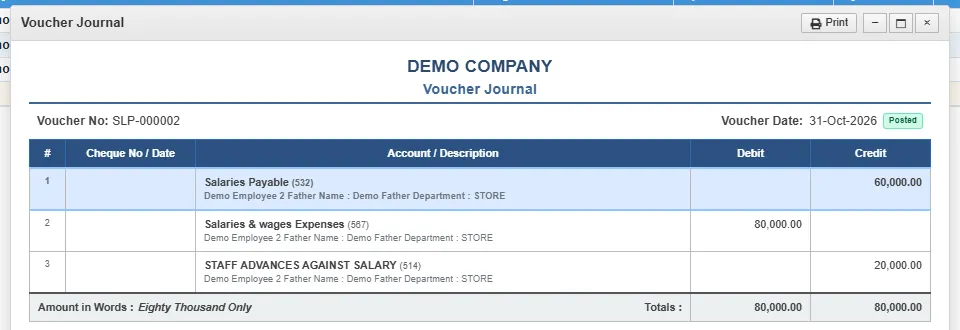
The voucher debits the salaries expense for the gross, credits the salaries payable for the net salary, and credits the advance (or loan) account for what was recovered.
Print a slip
Select the slip and click Print. The PaySlip Detail shows the allowances, the deductions, the attendance figures and the net salary, with a place for the receiver's signature.
Change or delete a slip
Click Edit on a row to open a saved slip. The month is locked; you can change its lines. Delete removes the slip and cancels its voucher. An advance or loan instalment it had recovered becomes due again.
Related
- Payroll: how the month's pay is worked out
- Payroll reports: the payslip list and the bank deposit list.
- Advances and Loans