What it is for
Leave encashment pays an employee for leave they did not take. Only leave types marked Encashable in Payroll setup lists qualify, for example annual leave. One voucher can pay several employees at once.
The list
Open Payroll and click Leave Encashment.

Each row shows the Voucher No, the date, the Leave Year paid for, the account it was Paid from, how many Employees and the Amount. Fiscal Year shows another year's vouchers. Print prints the selected voucher's sheet.
Pay an encashment
Click the green Add Encashment.
Check the Ref date, and pick the Paid from (cash / bank) account.
Click Add Employees. The window lists the employees who can be paid.
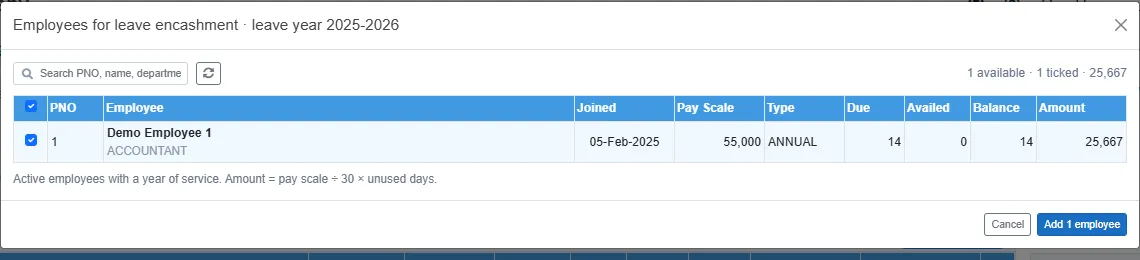
Employees who can be paid It shows only active employees with a year of service. Each row gives the Pay Scale, the Due days, the days Availed, the Balance and the Amount. The heading says the leave year, here 2025-2026. Tick the employees, then click Add n employees.
Check the lines:
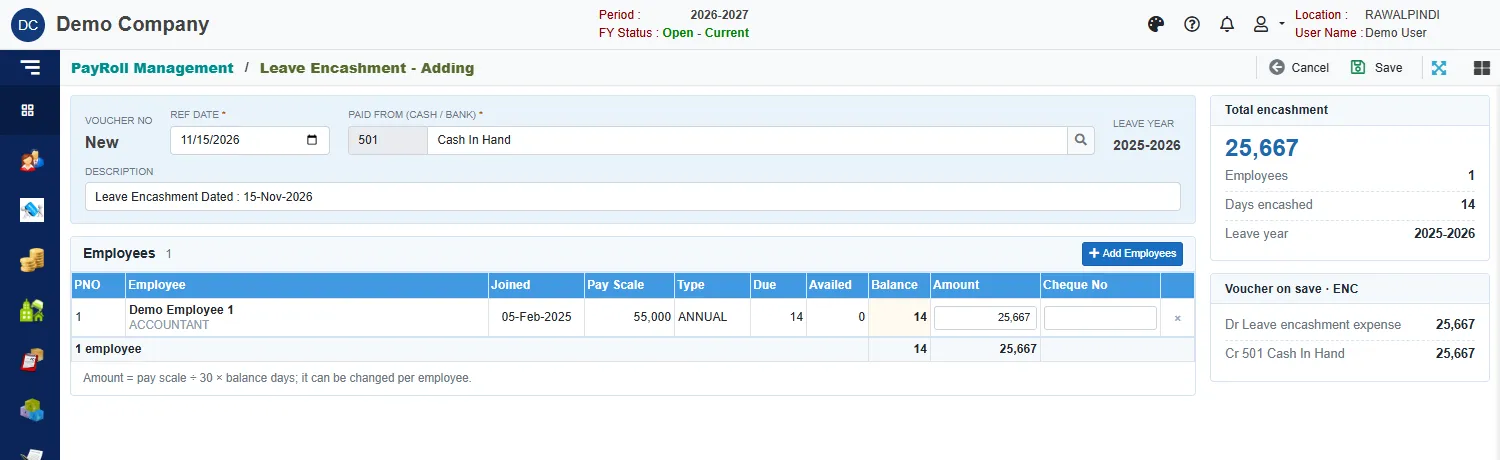
An encashment ready to save The Amount is the pay scale divided by 30, times the balance days. You can change it for any employee. Type a Cheque No if you pay by cheque. Click the x to drop an employee.
Click Save.
A green message confirms it, for example Leave encashment ENC-131-2627-000001 saved: 1 employees, 25,667; voucher posted.
The cards on the right
- Total encashment: the amount, the number of employees, the days encashed and the leave year.
- Voucher on save: the entry that will be posted. It debits the Leave encashment expense account, which is the GL account of the allowance type LEAVE ENCASHMENT, and credits the account you pay from.
Related
- Leave Entry
- Payroll setup lists: where a leave type is made encashable.