What it is for
A pay scale increment raises employees' salaries from a month. You enter it as a draft, check the new salaries, then approve it. Approving updates each employee's pay scale and rewrites their allowances (basic, house rent, medical, conveyance) from the new salary.
The list
Open Payroll and click Pay Scale Increments.

Each row shows the Ref No, the Increment Month, the Rate %, the number of Employees, the Old Amount, the New Amount, the Increase, the Arrears and the Status (Draft or Approved). Fiscal Year and Status narrow the list. Print prints the selected increment as a sheet.
Enter an increment
Click the green Add Increment.
Choose the Increment month, the month the new salary starts from.
Type the Increment rate %.
Click Add Employees. The window lists the employees who can be added, with their designation, department, pay scale and joining date. Narrow it with the search box or the department box, tick the employees (the box in the header ticks all), and click Add n employees.
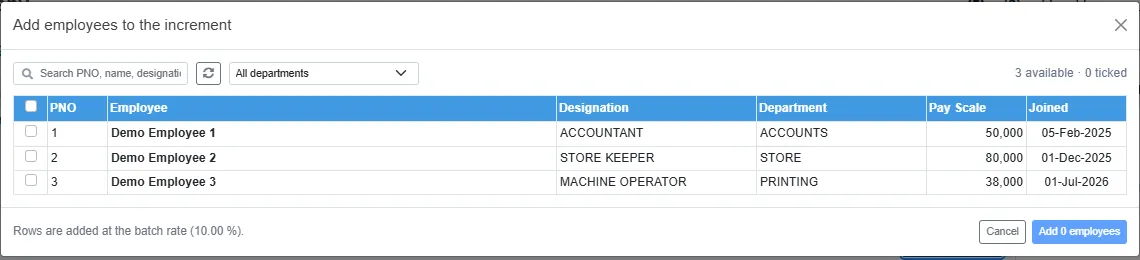
Choosing the employees The employees are listed with the rate you typed:
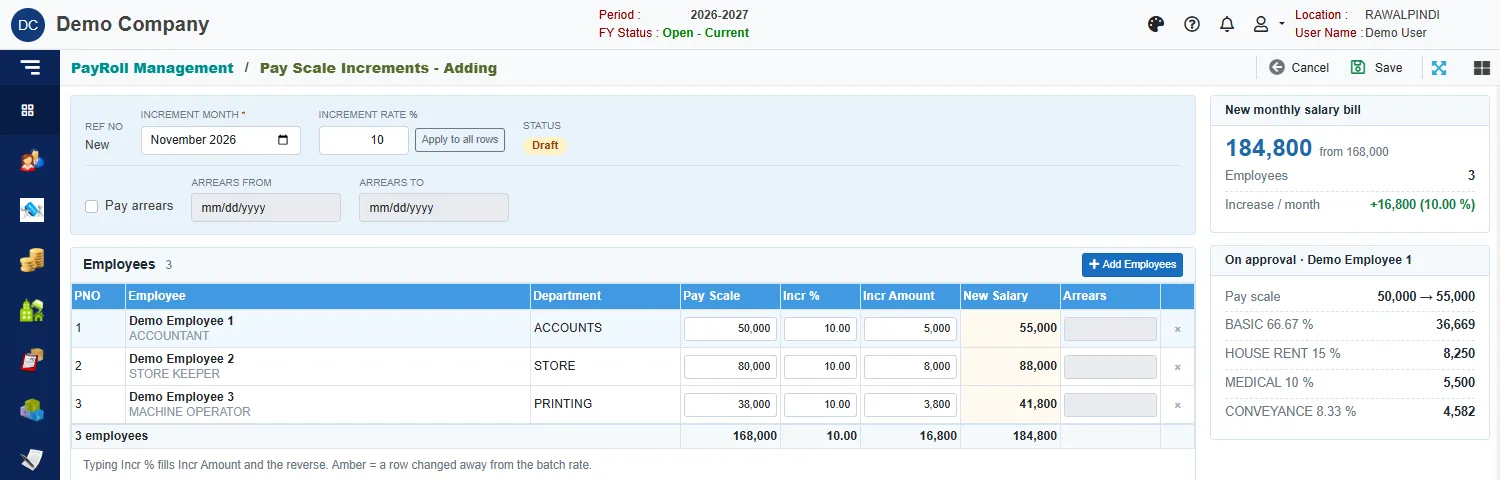
A draft increment of 10 per cent Each row shows the Pay Scale, Incr %, Incr Amount and New Salary. To give one person a different raise, change their Incr % or Incr Amount: typing one fills in the other. A row that differs from the batch rate turns amber. Apply to all rows puts the batch rate on every row again. The cross on a row removes the employee.
To pay arrears for the months before the increment was approved, tick Pay arrears, enter Arrears from and Arrears to, and the Arrears column fills in for each employee.
Click Save.
A green message confirms it: Increment Ref 1 saved: 3 employees, new monthly bill 184,800. The increment is saved as a Draft. Nothing about the employees has changed yet. A draft can be edited and deleted.
The card New monthly salary bill on the right shows the new total against the old, with the increase per month.
Approve it
Open the draft (double-click it, or Edit). The card On approval shows, for the first employee, how the pay scale and the default allowances will change:
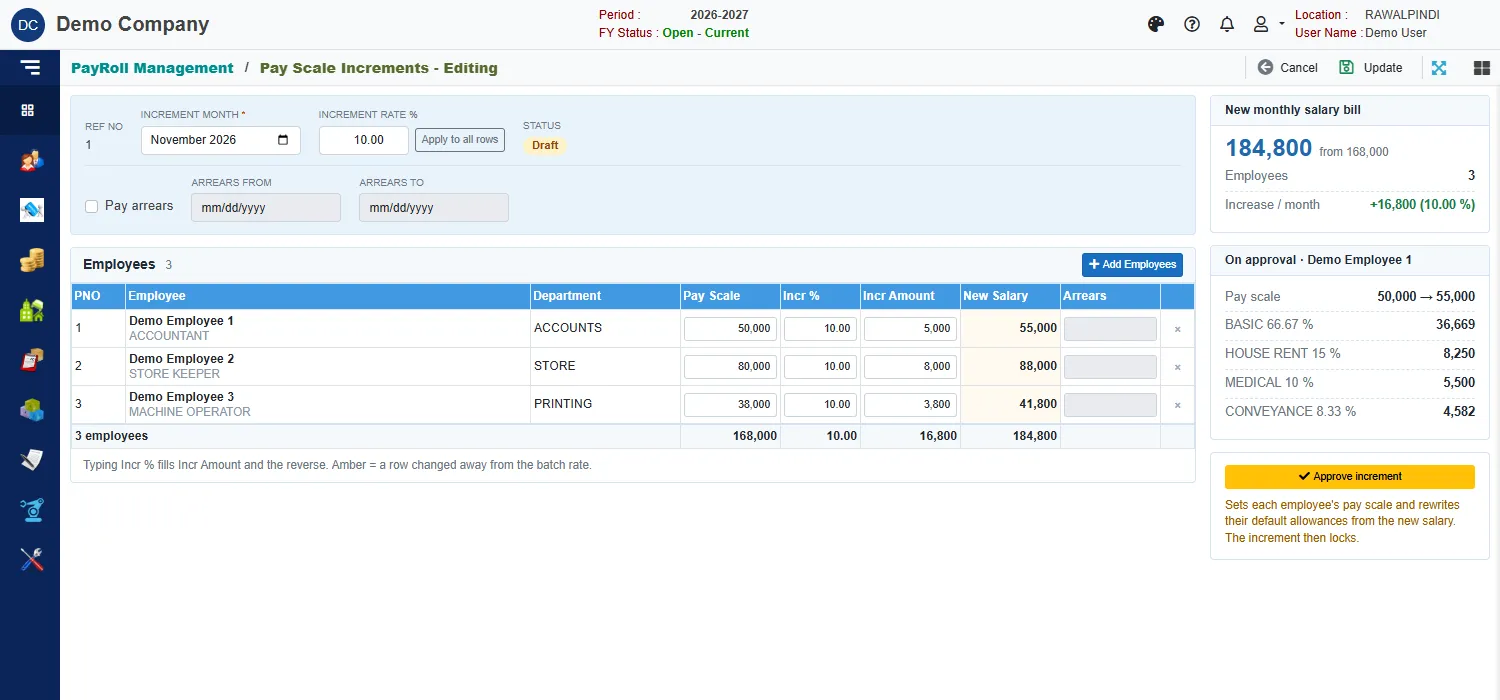
Click Approve increment. A window summarises what will happen:
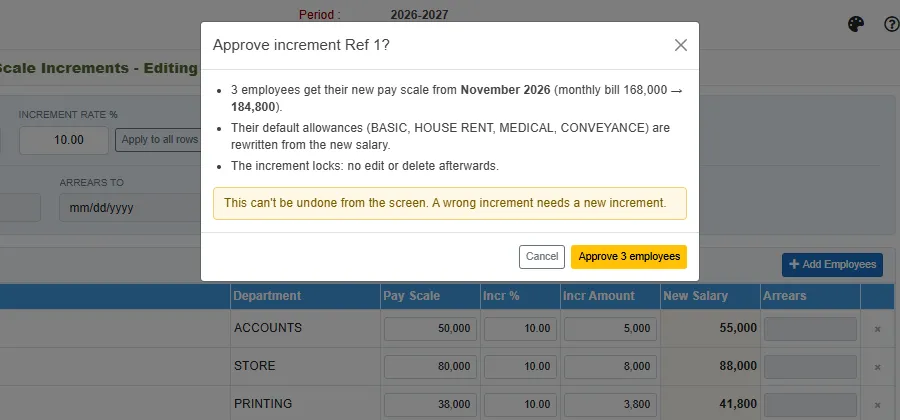
Click Approve n employees. The pay scales and default allowances are updated, and the increment is locked: it can no longer be edited or deleted. This can't be undone from the screen. A wrong increment needs a new increment.
From then on, the payslips for the month and later use the new pay scale.
Messages you may see
| Message | What to do |
|---|---|
| Increment month is required | Pick the month. |
| Add at least one employee | Click Add Employees. |
| PNO n: pay scale and increment amount are required | A row has no pay scale or no increment. |
| Arrears need a From date and a later To date | Correct the arrears dates. |