What it is for
A loan is money lent to an employee and repaid in instalments. Each month's payslip deducts that month's instalment. Unlike an advance, a loan has a schedule: you decide how many instalments, and from which month.
An employee can also repay part of a loan in cash, outside payroll. You record that with Receive Loan.
Issue a loan
Open Payroll and click Issue Loan. The list has the same shape as the advance list: the Loan Id, date, employee, amount and description, with Print (the loan slip), Attach and Voucher for the selected loan.
To lend money:
Click the green Add Loan.
In the window Select Employee, click a row and Ok (or double-click).
Fill in the loan:
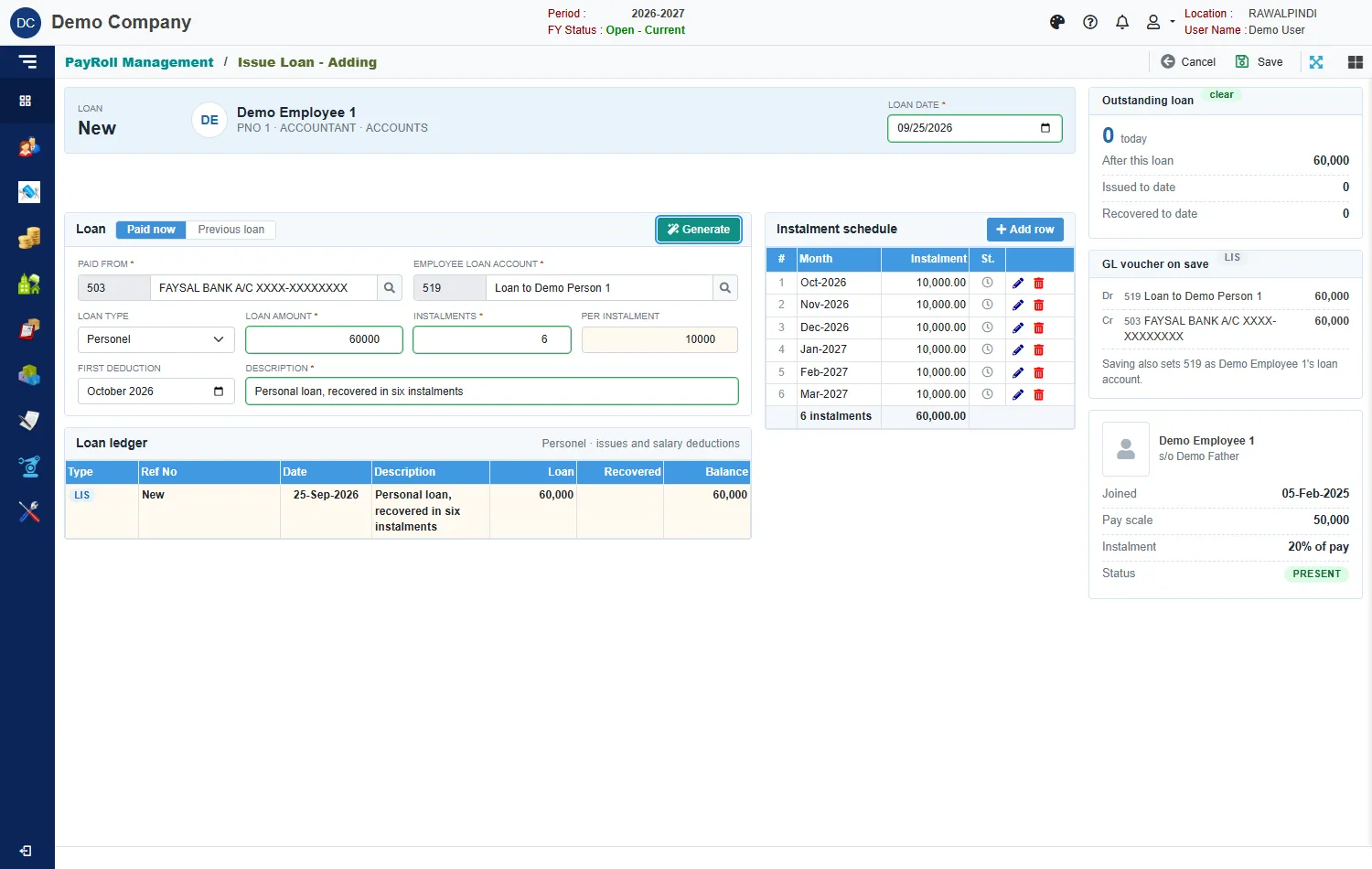
A loan with its instalment schedule Field What to enter Loan date Required. Paid now or Previous loan Paid now pays it today. Previous loan brings in a loan given before you used the system. Paid from Required. The cash or bank account the money comes out of. Employee loan account Required. The account that holds what the employee owes, for example Loan to Demo Person 1. Loan type The kind of loan. Loan amount Required. Instalments Required. How many months to repay over. Per instalment Worked out. First deduction The month of the first instalment. Description Required. Click Generate. The loan is split into equal monthly instalments, starting at the first deduction month, and the Instalment schedule fills in.
Click Save.
A green message confirms it, for example LIS-131-2627-000001.
The instalment schedule
Each row has a month and an amount. The small clock shows an instalment still due; a green tick shows one already deducted from a payslip. Use Add row to add an instalment, and the pencil and bin on a row to change or remove it, for example to give the employee a month off. The total at the foot should equal the loan amount: when it does not, hover over it to see the loan amount. Two instalments cannot fall in the same month.
The cards on the right
- Outstanding loan: what the employee owes today, After this loan, the totals Issued to date and Recovered to date, and the last issue and recovery.
- GL voucher on save: debit the employee loan account, credit the account you pay from.
- The employee's card, with the Instalment as a share of their pay.
The Loan ledger lists every loan, deduction and repayment of this employee.
How it is recovered
When you generate the payslip, the LOAN deduction is the instalment scheduled in that month. It is never more than what is still owed. The payslip marks the instalment as deducted. Deducted instalments show in the loan ledger, for example Personel Loan deducted against salary of month October-2026.
Receive Loan
When an employee repays part of a loan in cash, open Receive Loan and click Add Receipt.
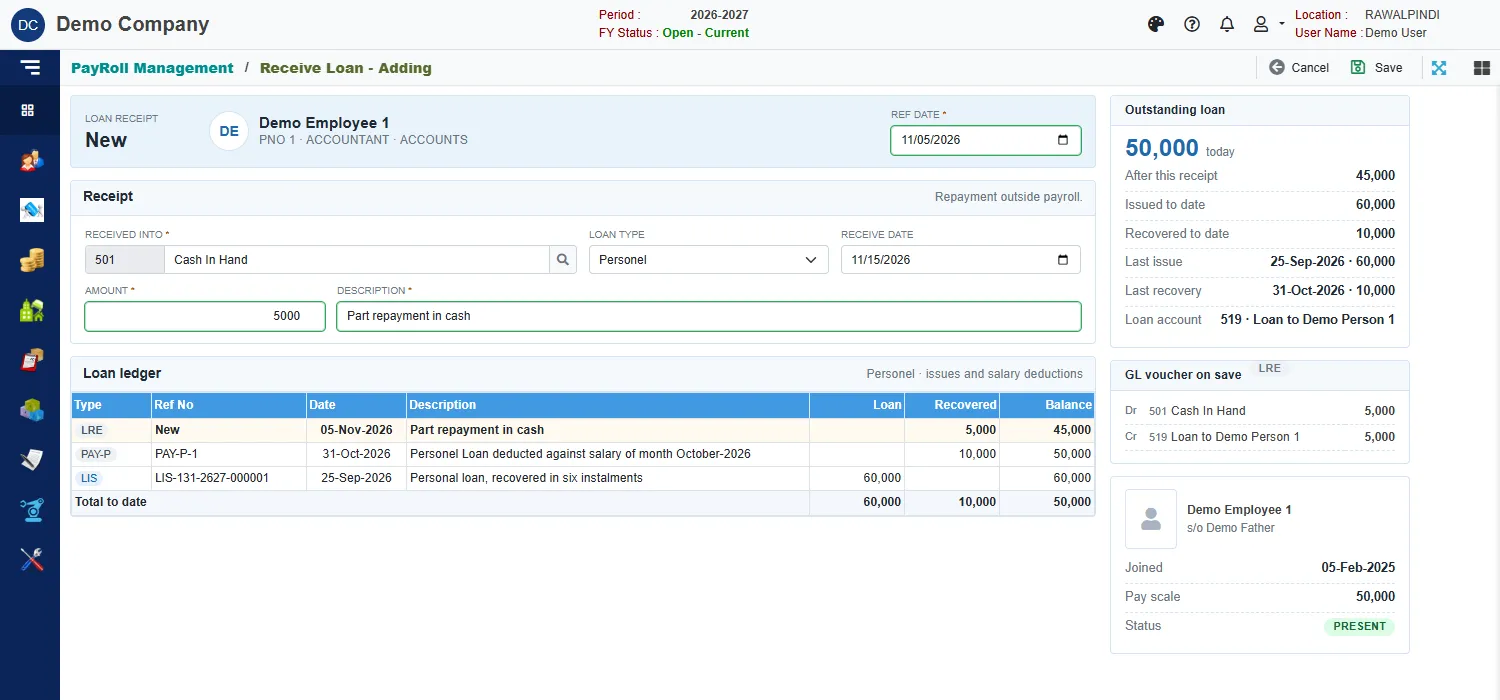
Pick the employee, then the Ref date, the account the money is Received into, the Loan type, the Amount and a Description, and click Save. The number starts with LRE-. The voucher debits the account that received the money and credits the employee loan account. The card Outstanding loan shows what is left.
A cash repayment lowers the balance, so the payslips stop deducting once the balance reaches nothing.
Messages you may see
| Message | What to do |
|---|---|
| Description is required | Type a description. |
| Paid from account is required / Received into account is required | Pick the account. |
| Loan Type is required | Pick the loan type. |
| Loan Amount is required / Receive Amount is required | Enter the amount. |
| Employee loan account is required | Pick the account that holds the employee's loan. |
| Loan Schedule : one item/row required | Click Generate, or add the instalments by hand. |
| Loan Schedule must be unique | Two instalments are in the same month. |
Related
- Advances
- Generate PaySlip
- Payroll reports: the loan statement.