What it is for
Attendance comes from the attendance machine: each scan an employee makes is stored. In/Out is where you look at a day, find the people with no scan or a missing scan, and put it right. The payslip uses what you leave here.
It covers the employees who are on machine attendance: active employees whose attendance is taken from the machine. Sundays and holidays are days off.
Look at a day
Open Payroll and click In/Out.
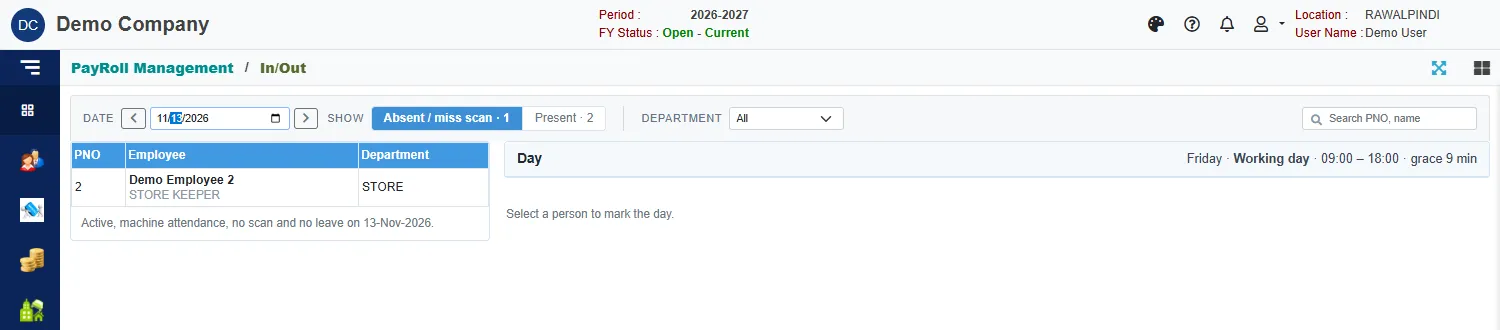
- Date at the top left shows the day. Use the arrows beside it to move a day back or forward.
- The day heading on the right gives the weekday, whether it is a Working day or a Day off, the working hours (here 09:00 to 18:00) and the grace minutes.
- Show picks the list on the left:
- Absent / miss scan lists the people with no scan and no leave on that day.
- Present lists those who scanned, with their first In and last Out.
- Department and the search box narrow the list.
Click a person to work on their day.
Mark an absence
Pick someone from Absent / miss scan. The right side shows their leave balances, and the box Mark the day.
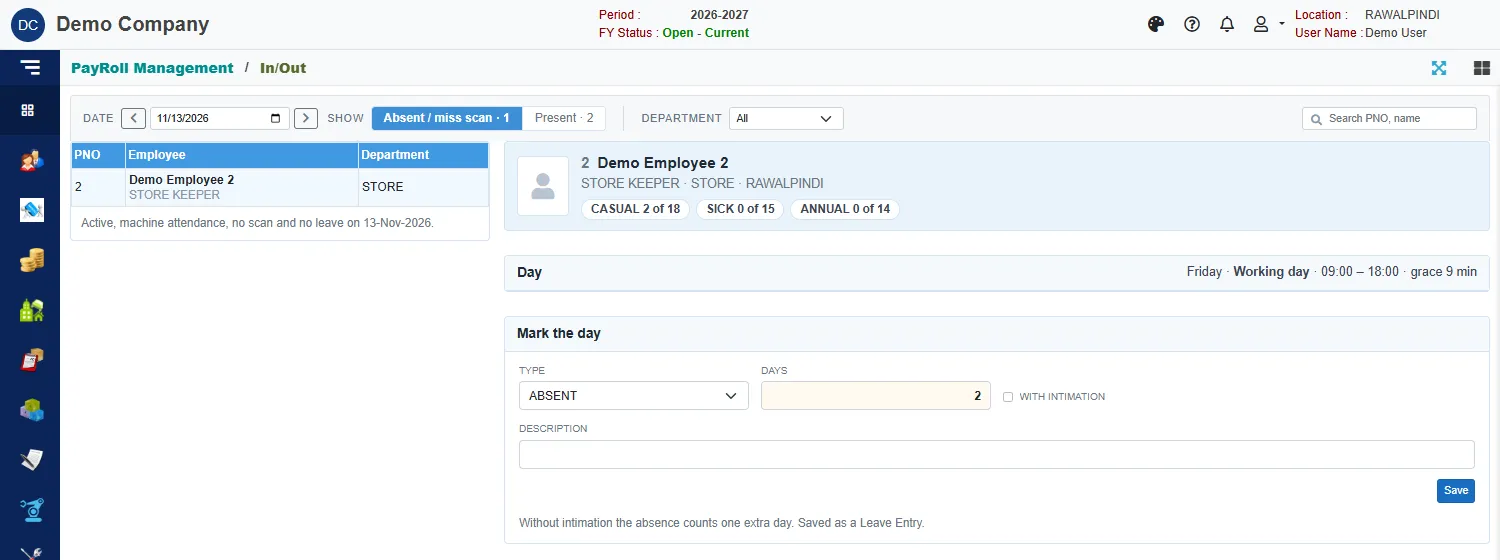
Choose the Type and click Save:
| Type | What it does |
|---|---|
| ABSENT | Records an absence. Days shows what it counts for. Tick With intimation if the employee told you in advance. Without it, the absence counts one extra day. |
| HALF ABSENT, CASUAL, SICK, ANNUAL and the other leave types | Records a one-day leave of that type. |
| MISS SCAN | The person did come, but a scan is missing. Enter the Time in and Time out, and two scans are added at those times, so the person shows as present. |
Absences and leaves are saved as a Leave Entry. You can see them there, and change or delete them there.
The system refuses a leave on a day when the person has scanned: Employee is present on 02-Nov-2026.
Correct a scan
Pick Present, then click a person. A person who has only one scan that day shows a small orange time and a miss scan tag.
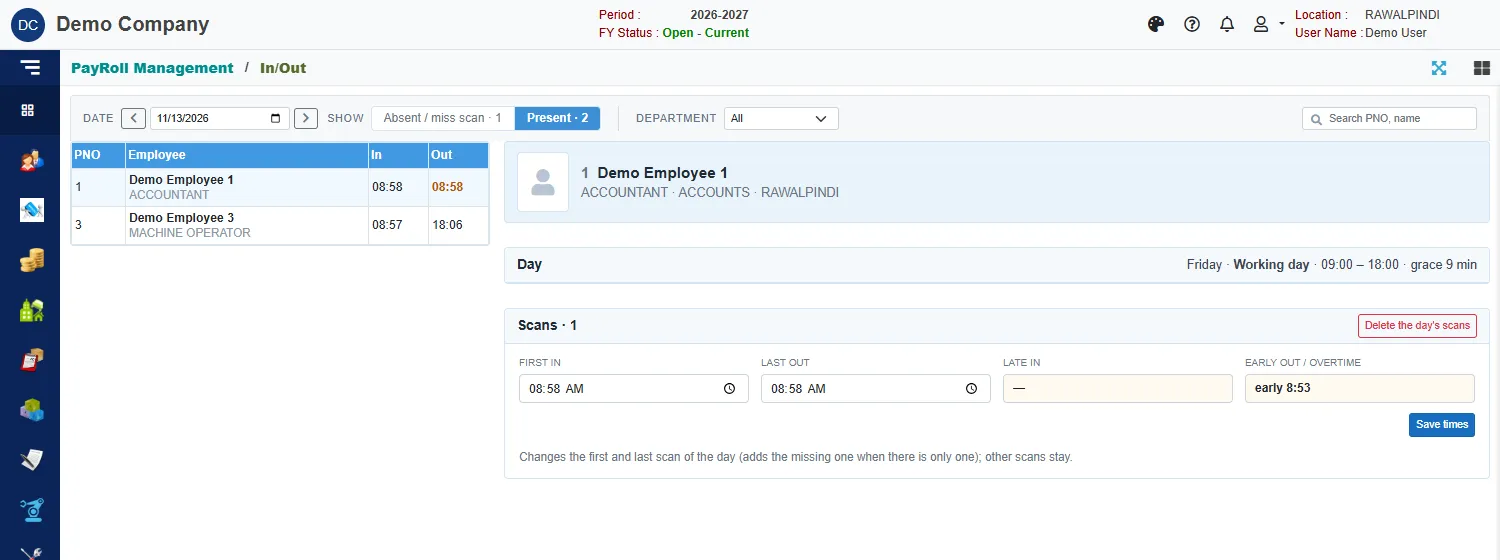
The box Scans shows the First in, Last out, Late in and Early out / overtime. Change the times and click Save times. If there was only one scan, this adds the missing one. Other scans of the day stay.
Delete the day's scans removes the day's scans so you can start again, for example after a wrong entry.
A day with only one scan counts the missing time as an early departure. In the example the person left at 08:58, so the day shows 533 minutes early.
In/Out exceptions: different working hours
Some employees work other hours than the company's standard, for example an evening shift. Open Payroll and click In/Out Exception.
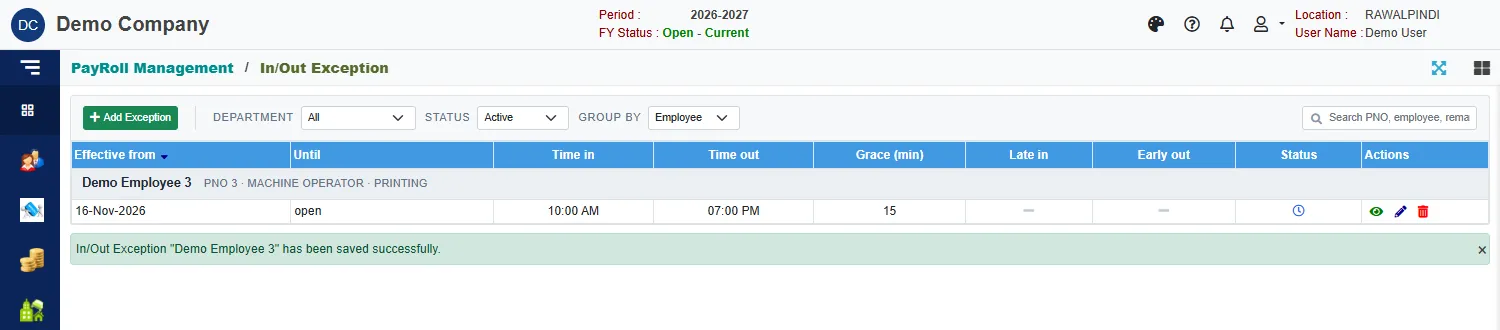
The list shows each exception grouped by employee: the date it takes effect (Effective from), until when, the Time in and Time out, the Grace (min), whether Late in or Early out is allowed, and its Status. The status icon tells you whether it applies now, is yet to start (the clock), was replaced by a later one, or has ended. Status filters the list and starts on Active.
Click the green Add Exception, pick the employee, and fill in:
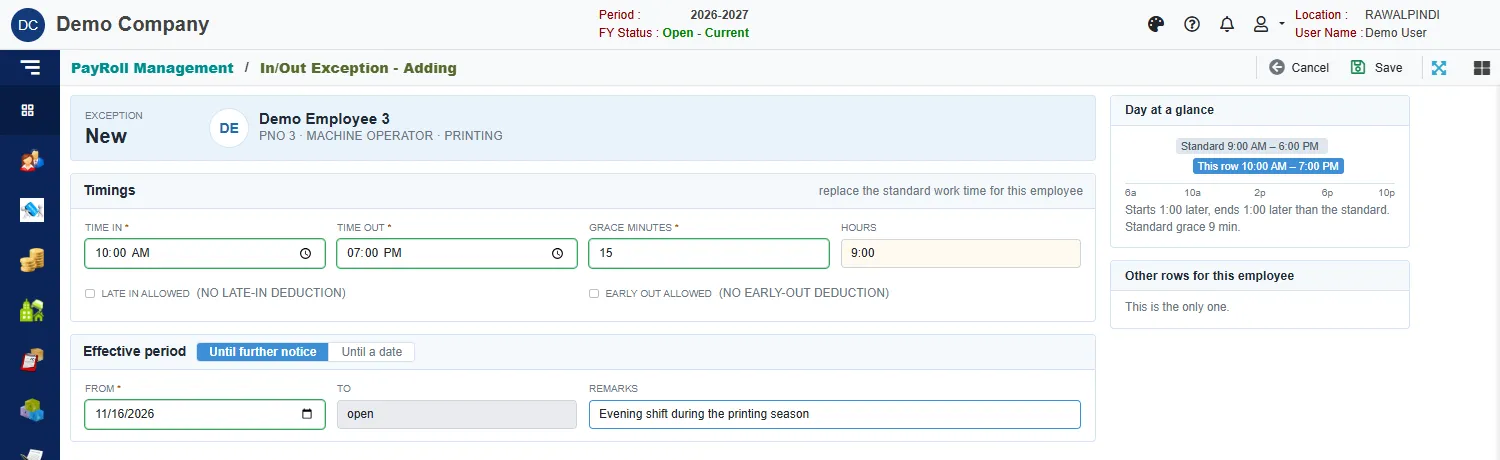
| Field | What to enter |
|---|---|
| Time in and Time out | Required. The employee's working hours. Hours is worked out. |
| Grace minutes | Required. How many minutes late counts as on time. |
| Late in allowed and Early out allowed | Tick to give the employee no late-in or early-out deduction. |
| Effective period | Until further notice, or Until a date. |
| From and To | When it starts, and ends if you chose a date. |
| Remarks | Why. |
The card Day at a glance compares the exception with the standard hours. Other rows for this employee lists their other exceptions. When two exceptions cover the same day, the one that starts later wins.
Messages you may see
| Message | What to do |
|---|---|
| Time out must be after Time in. | Correct the times. |
| To date can not be before From date. | Correct the dates. |
| Grace minutes can not be negative. | Enter 0 or more. |
| Enter the time in and a later time out | Fill both times of a miss scan or a correction. |
Related
- Leave Entry
- Generate PaySlip
- Payroll reports: the daily and monthly attendance reports.