What it is for
A sales order records what a customer has ordered. You deliver against it with Delivery Challans, and the order keeps track of what has been delivered.
Orders for goods you manufacture also appear here: saving a work order for a customer creates its sales order. See Work orders: the list and the order page.
The list
Open Sales (Stock) and click Sales Order.
The list shows each order's number, date, customer, Customer PO, description and amount, and a Status circle. Use Customer, Month, Status and Group by to narrow it, and the search box to find an order by number, customer, PO or description. Click the small arrow to see an order's lines.
Enter a sales order
- Click the green Add Sales Order.
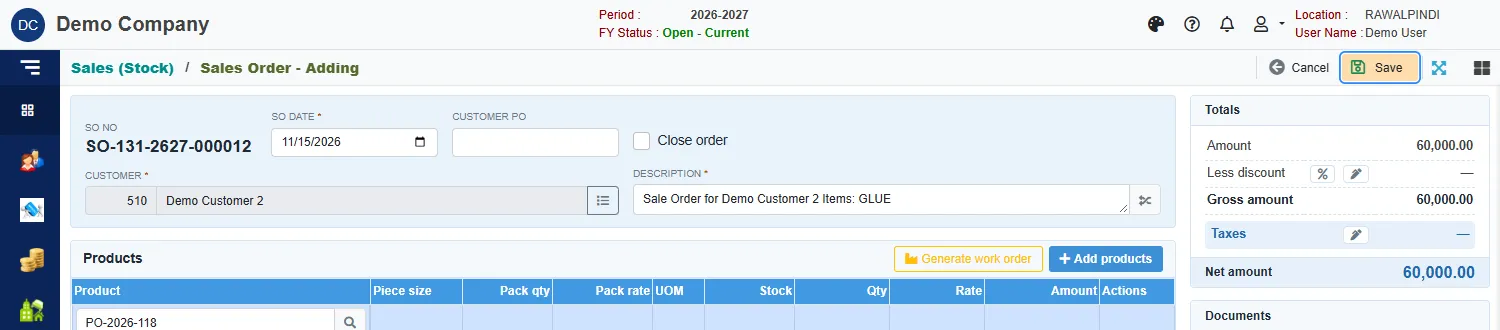
- Check the SO date. It must fall inside the fiscal year.
- Type the customer's Customer PO number if they gave one.
- Click the button beside Customer and pick the customer. You can add a new customer from there.
- Type a Description. It is required.
- Add the lines in one of three ways:
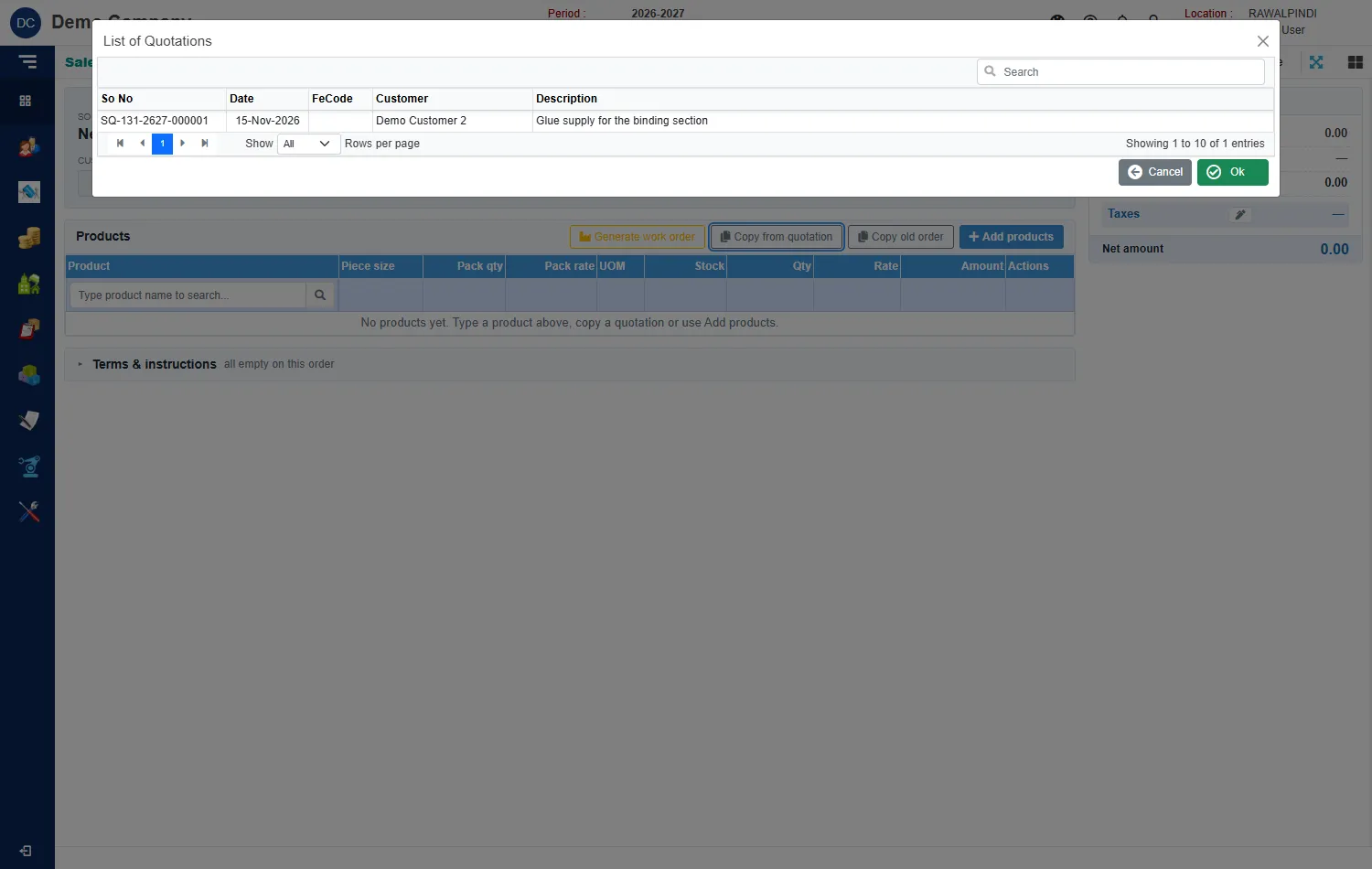
- Copy from quotation: pick a quotation. The customer, description and lines come from it.
- Copy old order: copy the lines and description of an earlier order.
- Add products, or type in the product box: add products one by one. On each line enter the Pack qty and Pack rate.
- Open Terms & instructions to add Delivery status, Rejection margin, Special instructions, Payment terms and Terms and conditions.
- Click Save.
A green message confirms it, for example Sales Order "SO-131-2627-000012" has been saved successfully.
The cards on the right
- Totals: Amount, Less discount, Gross amount, Taxes and Net amount.
- Documents: the documents this order came from, such as the quotation.
Close an order
Tick Close order when the customer will take no more. A closed order drops out of the pending list that challans pick from, so nobody delivers against it by mistake. Untick it to open the order again.
Work orders
The Generate work order button does not make one here. It tells you: New work orders are made on Work Orders; saving one creates its sale order. Make the work order on the Manufacturing screen.
Messages you may see
| Message | What to do |
|---|---|
| Title is Required | A line is missing its title. Pick one on the line. |
| Currency is required / Currency Rate is required | The order is in a foreign currency: pick the currency and enter its rate. |
| Opps! Nothing to save | You have not changed anything. |