What properties are
A property is one manufacturing option of a product: its paper type, weight, thickness, pins, gum, lamination, ruling and so on. The products' Manufacturing defaults tab and the Custom options when you create a work order are built from these properties. See Making a manual recipe and Create a work order.
Two screens set them up:
- Property Definitions: the list of properties.
- Property Assignments: which properties show, and in what order, for a work order type, a product group or one product.
These lists drive the manufacturing screens and the recipes worked out from a product's spec. Change them only with the person who looks after manufacturing setup. Unticking Show hides the property from that screen.
Property Definitions
Open User Administration and click Property Definitions.
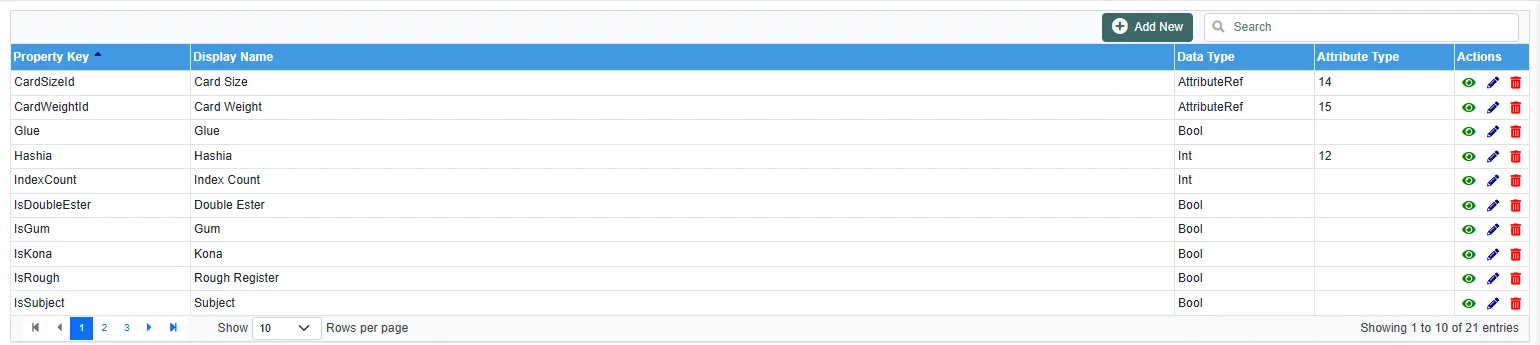
| Column | Meaning |
|---|---|
| Property Key | The internal name, for example PaperTypeId or PinCount. The program looks properties up by this key, so do not change it on an existing property. |
| Display Name | The label people see on the screens, for example Paper Type or Pins. |
| Data Type | Int (a whole number), Decimal (a number with decimals), Bool (yes or no), or AttributeRef (a choice from an attribute list). |
| Attribute Type | For AttributeRef: the attribute list the choice comes from, for example the paper types or sizes kept in Inventory. See Inventory setup lists. |
Click Add New to add a property, or Edit on a row to change its display name, type or Active tick.
Property Assignments
Open Property Assignments.
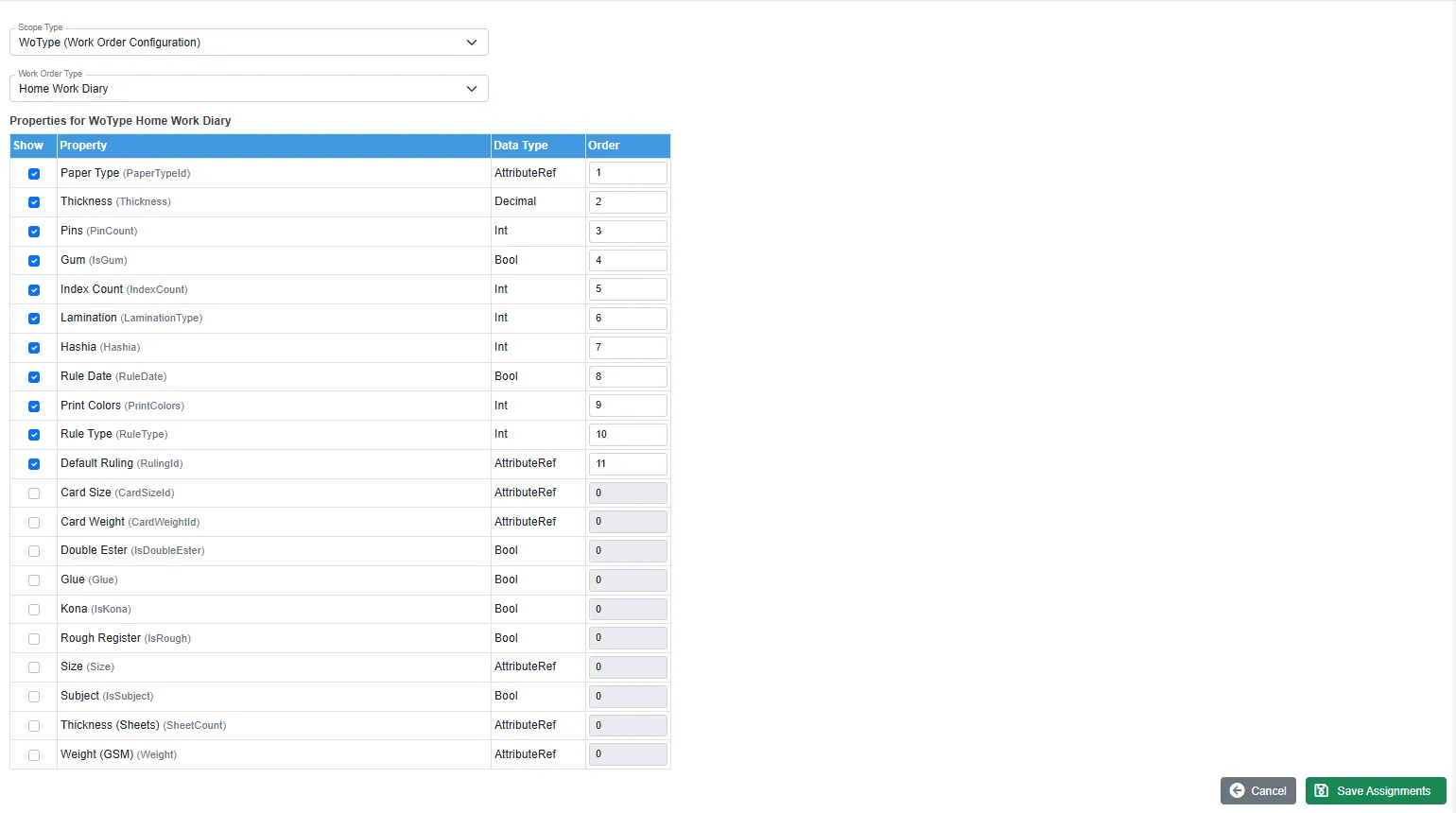
- Choose the Scope Type:
- WoType (Work Order Configuration): the options for a work order type.
- Product Group (Manufacturing Defaults): the Manufacturing defaults tab for every product in a group.
- Product (Manufacturing Defaults): the tab for one product. Pick it with the search button.
- Choose the work order type, the group or the product. The table lists every property.
- Tick Show for each property that should appear, and type its Order: the position on the screen, 1 first.
- Click Save Assignments. You get Property assignments saved. Cancel goes back to the module page without saving.
Related
- Administration: what it holds
- Work order setup lists: the work order types