What it is for
The purchase bill is the supplier's invoice. It is made from the goods you have received, and posts the purchase to the supplier's account. Receiving the goods (the GRN) puts them into stock; the bill is what makes you owe the supplier.
The list
Open Purchase and click Purchase Bill. Each row shows the Bill No, date, supplier, ST Inv No (the sales tax invoice number), description, Net Amount and Status. Columns such as Entered By, Prepared By, Checked By, Audit By, Approved By and Received By show who has handled the bill.
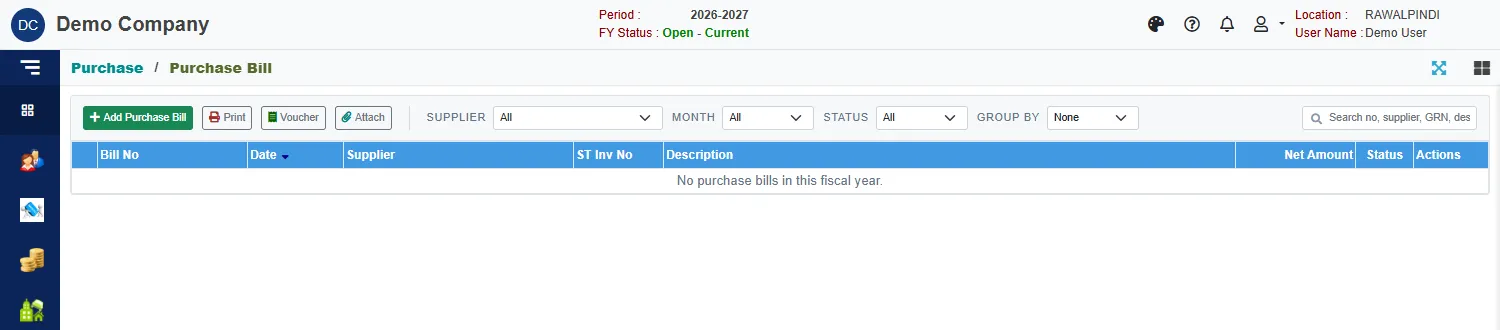
Use Supplier, Month, Status and Group by to narrow the list. The buttons above the list act on the selected bill: Print, Voucher and Attach.
Enter a bill
Click the green Add Purchase Bill.
In the window, pick the supplier. Their received goods that are not yet billed appear. Tick the lines to bill and click Add selected.
Fill in the header:
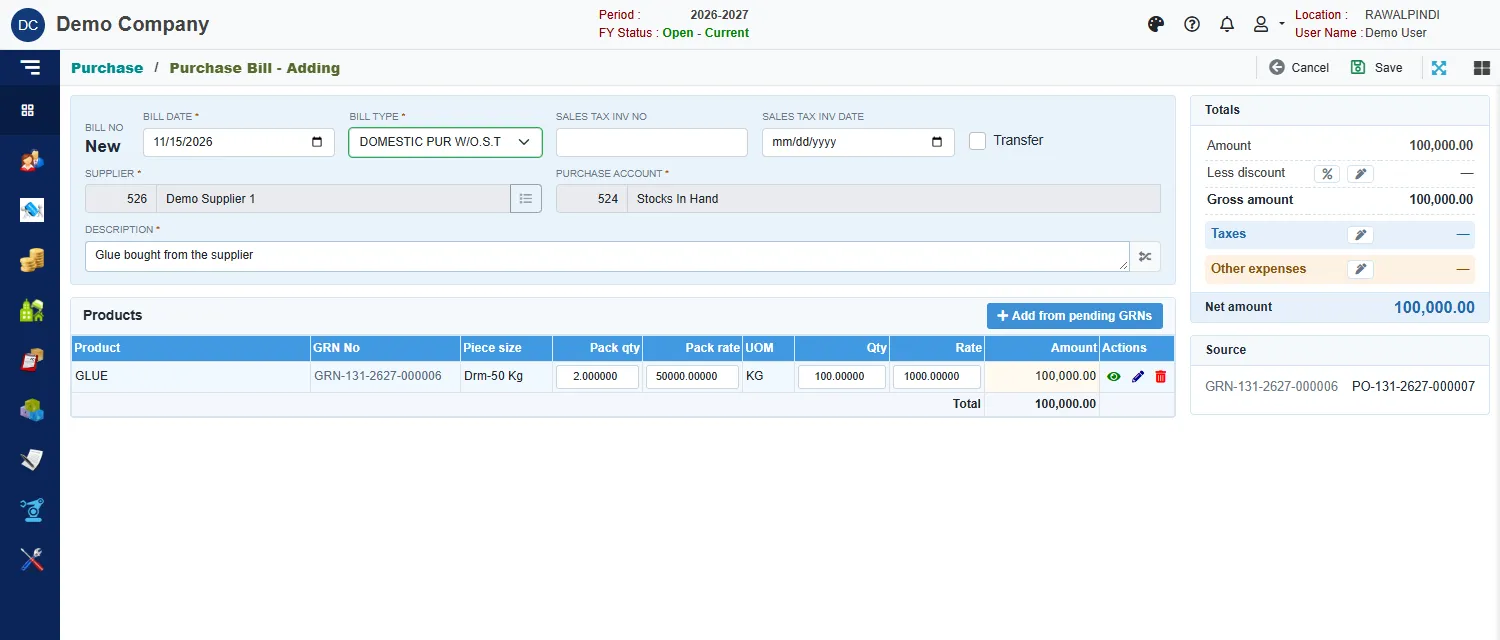
A purchase bill ready to save Field What to enter Bill date Required. Inside the fiscal year. Bill type Required. Choose how the purchase is taxed: for example DOMESTIC PUR W/O.S.T (without sales tax), DOMESTIC PUR W.S.T (with sales tax) or DOMESTIC PUR 0% S.T, and the IMP PUR types for imports. The type sets the taxes on the bill. Sales tax inv no and Sales tax inv date The supplier's sales tax invoice number and its date. Transfer A tick that marks the bill as a transfer. Leave it clear for an ordinary purchase. Supplier Filled in from the goods. Purchase account Required. The account the purchase is debited to. It starts on Stocks In Hand. Description Required. Check each line's Pack qty, Pack rate, Qty, Rate and Amount. They come from the receive note and can be corrected to match the invoice.
Click Save.
A green message confirms it, for example PB-131-2627-000001.
The totals card
Totals shows Amount, Less discount, Gross amount, Taxes, Other expenses and Net amount. Click % or the pencil beside a figure to enter a discount, the taxes, or extra charges. A GD rate calculator button on the lines helps work out a rate.
The Source card names the receive note and the purchase order the bill came from.
The voucher
A saved bill is Posted: it has an accounting voucher with the bill's number. Select the bill and click Voucher.
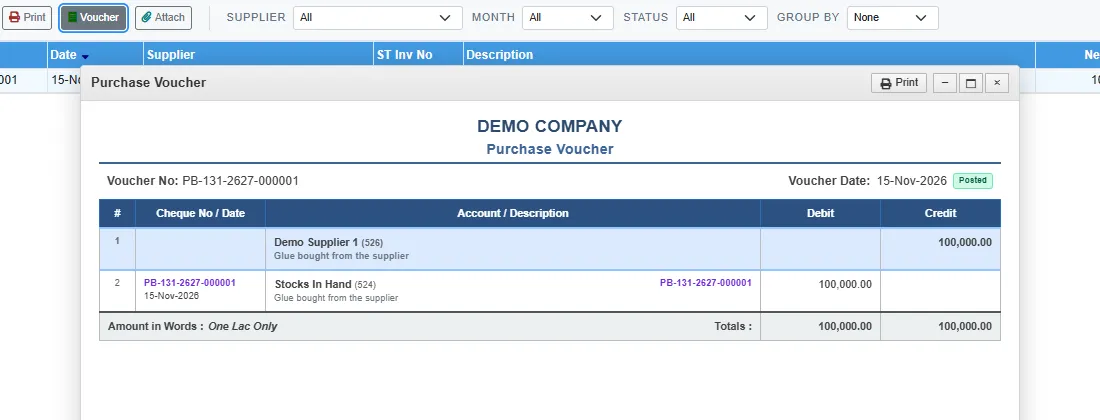
It debits the purchase account (here Stocks In Hand) and credits the supplier.
Messages you may see
| Message | What to do |
|---|---|
| The TypeCode field is required. | Pick a Bill type. |
| Item is already added … against GRN … | That received line is already on this bill. |
| Currency is required / Currency Rate is required | The bill is in a foreign currency: pick the currency and enter its rate. |
| Opps! Nothing to save | You have not changed anything. |