What it is for
A goods receive note (GRN) records goods arriving from a supplier. It is made from a purchase order: you pick what has arrived from the order lines still pending. Saving it adds the goods to your stock room.
A GRN posts no accounting entry. The accounts are posted when you enter the supplier's bill.
The list
Open Purchase and click Goods Recevice Note. The list shows the GRN No, date, supplier, the PO No it came from, the supplier's reference, description, amount and Status. Narrow it with Supplier, Month, Status and Group by.
Receive goods
Click the green Add GRN.
In the window, pick the supplier. Their pending order lines appear. Tick the lines that have arrived, or a whole order, and click Add selected.
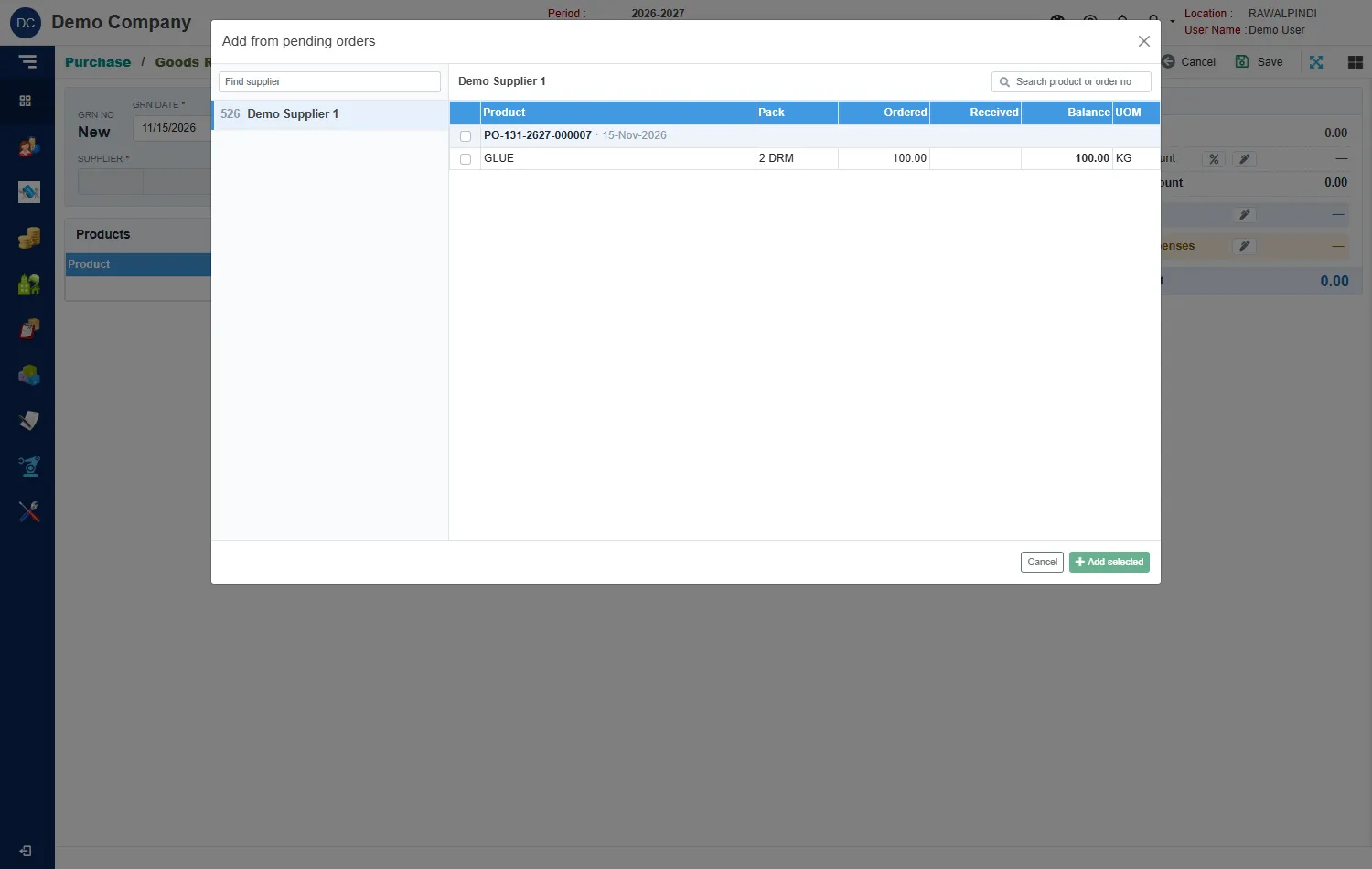
Choosing the order lines that arrived Fill in the header:
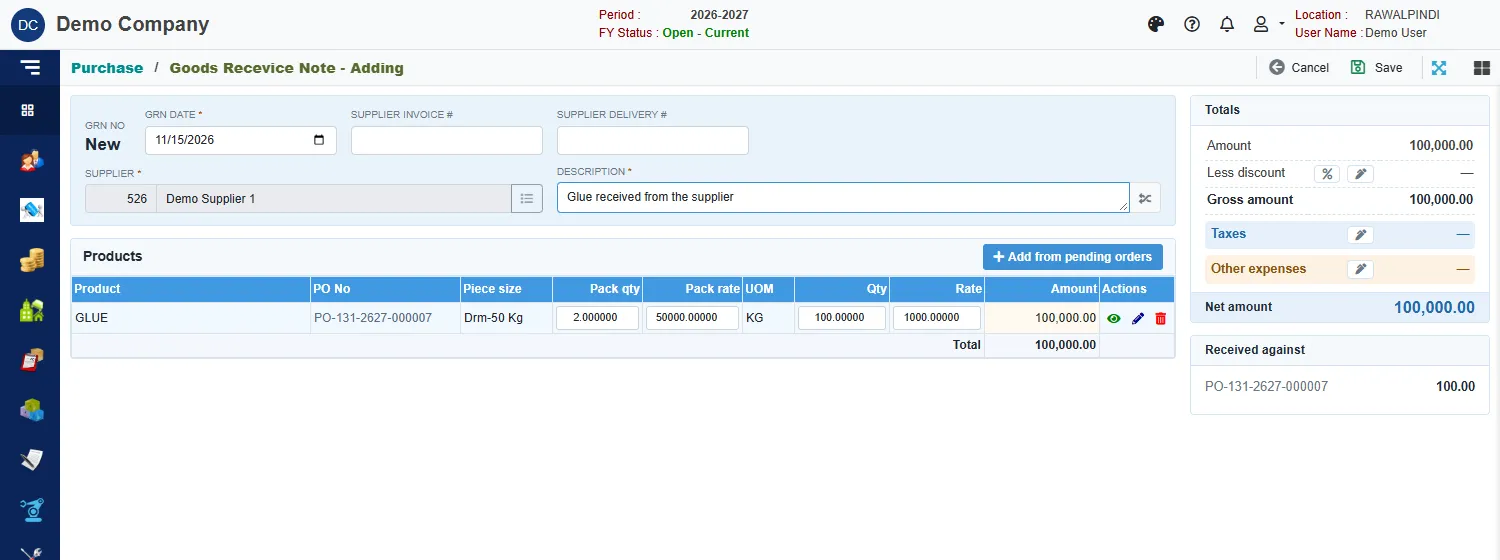
A goods receive note ready to save Field What to enter GRN date Required. The date the goods arrived. Inside the fiscal year. Supplier invoice # The number on the supplier's invoice, if you have it. Supplier delivery # The number on the supplier's delivery note. Supplier Filled in from the order. Description Required. Check the Qty on each line. It starts at what the order still has pending. Lower it if only part has arrived.
Click Save.
The Received against card on the right names the orders and how much of each this note receives. A green message confirms the note, for example GRN-131-2627-000006.
Partial deliveries
Receive part of an order by lowering the Qty. The rest stays pending on the order, and the next GRN lists it again.
Messages you may see
| Message | What to do |
|---|---|
| Item is already added … against purchase order … | That order line is already on this note. |
| Currency is required / Currency Rate is required | The note is in a foreign currency: pick the currency and enter its rate. |
| Opps! Nothing to save | You have not changed anything. |