The register
Open Assets Management and click Fixed Assets.
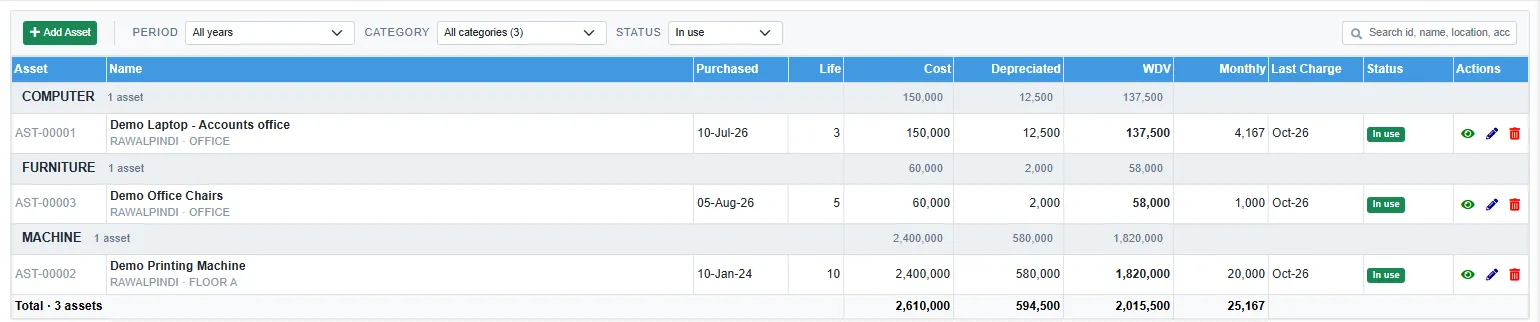
The assets are grouped by category, with the category totals on the grey line. Each row shows the asset number (AST-00001 and so on), the name with its site and location, the purchase date, the life in years, the Cost, the depreciation so far (Depreciated), the book value (WDV), the Monthly charge, the Last Charge month and the Status. The last line totals the rows shown. An asset taken from stock has a from stock tag.
- Period: all assets, or only those bought in the current fiscal year.
- Category: one category. The number in brackets is how many assets it has.
- Status: In use (the list opens on it), On hold, Fully depreciated, Disposed or All.
- The search box finds an asset number, name, location or account.
On a row, View, Edit and Delete. Double-click a row to open it.
Add a purchased asset
Book the purchase first: the purchase bill, or the cash or bank payment, debits the asset's account. The register then records the asset and posts nothing itself.
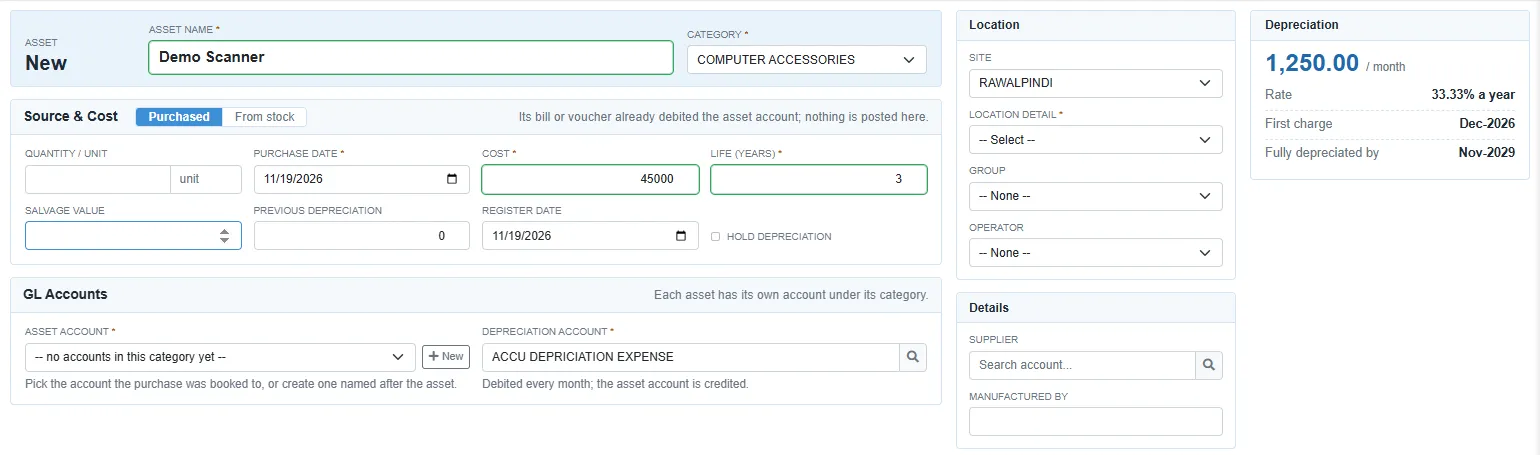
- Click the green Add Asset.
- Type the Asset name and choose the Category.
- Leave Source & Cost on Purchased and fill the fields below.
- Under GL Accounts, pick the Asset account the purchase was booked to, or click New to create one named after the asset.
- On the right, choose the Location detail (required), and the site, group and operator if you use them.
- Click Save on the bar at the top. The asset gets the next number.
| Field | What to enter |
|---|---|
| Quantity / unit | For example 6 NOS for a set of chairs registered as one asset. |
| Purchase date | Required. |
| Cost | Required, more than zero. |
| Life (years) | Required, more than zero. The asset is depreciated evenly over this many years. |
| Salvage value | For reference. The monthly charge still runs the book value down to zero. |
| Previous depreciation, Register date | For an asset taken on from earlier years. See below. |
| Hold depreciation | Tick it to stop the monthly run charging this asset, for example while a machine is out of use. |
The Depreciation card on the right shows the monthly charge (cost ÷ life in months), the yearly Rate, the First charge month and the month it will be Fully depreciated by.
Charging starts the month after the later of the Purchase date and the Register date. The register date starts on today's date. For an asset bought earlier this year, set the register date to the purchase date, or the months in between are never charged.
The asset's GL accounts
| Field | What it is |
|---|---|
| Asset account | The asset's own account, under the category's GL account category. The list shows the accounts in that category; one already used by another asset is greyed out. New creates an account named after the asset. It needs an account note on the category (see Asset setup lists). |
| Depreciation account | The expense account debited each month. It starts on the account set in the options, for example ACCU DEPRICIATION EXPENSE. It cannot be the asset account. |
Take an asset from stock
For an item you already hold in a stock room (for example a computer bought for stock and now used in the office):
- Click Add Asset, type the name and choose the category.
- In Source & Cost, click From stock.
- Choose the Stock room and search for the Item. The box under it shows the quantity in stock and the average cost on the transfer date.
- Type the Quantity and the Transfer date. The Cost is worked out: quantity × average cost.
- Fill the life, the accounts and the location, and click Save.
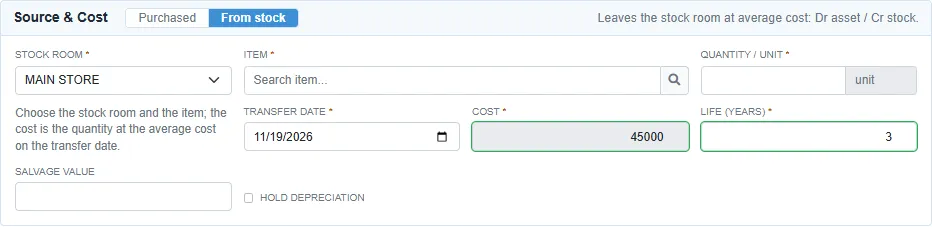
On save, the item leaves the stock room at its average cost and a voucher is posted: Dr the asset account, Cr stock. You get a message when the quantity is more than the balance, or when the item has no average cost on that date.
An asset taken from stock keeps the cost, date and quantity of that stock movement. To change them, delete the asset and add it again.
Take on an asset from earlier years
For an asset you owned before you started the register:
- Cost: the value taken on, which is the book value on the take-on date.
- Previous depreciation: the depreciation charged before take-on.
- Register date: the take-on date. Charging starts the month after it.
The monthly charge is then spread over cost + previous depreciation, which is the original cost. The record shows a note about this, and the Book Value card shows it under Before take-on.
Use a register date in the current fiscal year. Months that fall in a closed fiscal year cannot be charged, and the depreciation preview will refuse to post.
An asset after depreciation has started
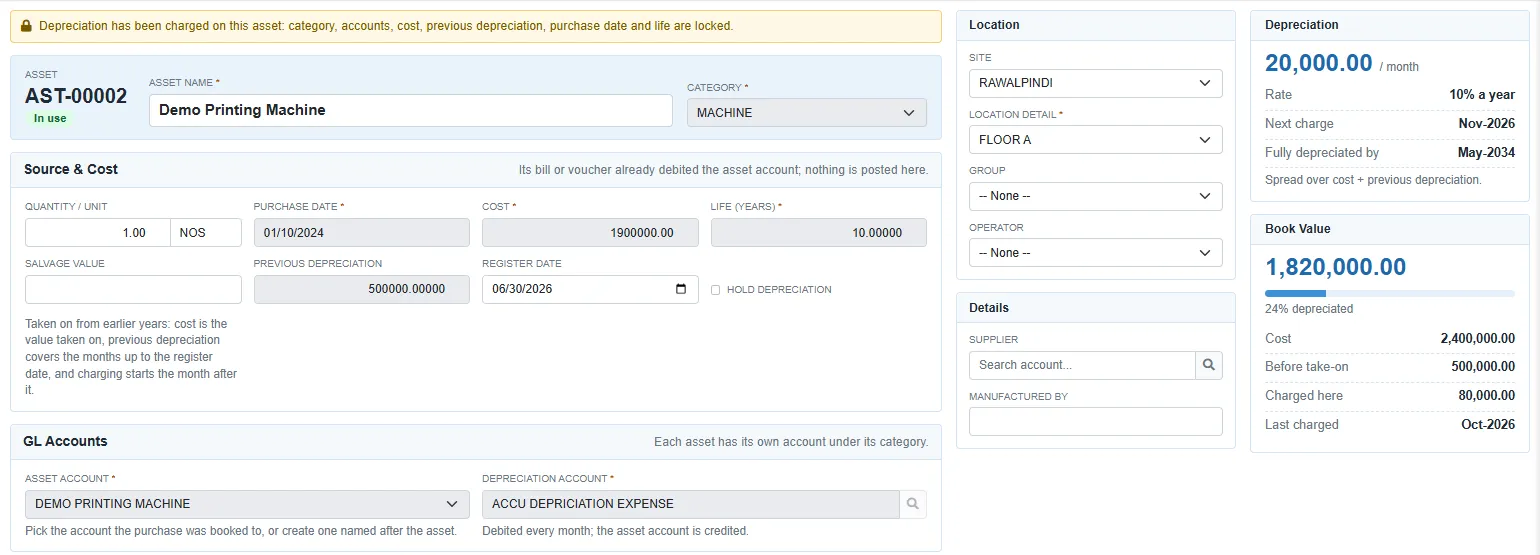
Once a month has been charged, or the asset has been disposed of, the amber bar at the top says so. The category, accounts, cost, previous depreciation, purchase date and life are then locked, because posted vouchers rely on them. The name, location, salvage value, supplier and Hold depreciation can still be changed. To change a locked field, undo the depreciation first. See Monthly depreciation.
The Book Value card shows the book value, how much of the cost is depreciated, the cost, the depreciation before take-on, the depreciation charged here, any amount written off on disposal, and the Last charged month. The status chip under the number reads In use, On hold, Fully depreciated or Disposed.
Delete an asset
Delete on a row removes an asset that has no depreciation and no disposal. Otherwise you get:
- This asset has depreciation charged and cannot be deleted. Undo the depreciation first.
- This asset has a disposal voucher and cannot be deleted.
- This asset was taken from stock in a closed fiscal year and cannot be deleted.
Deleting an asset taken from stock puts the item back in the stock room and removes its voucher.