How the charge is worked out
Depreciation is straight line: each asset is charged the same amount every month, its cost spread over its life (cost ÷ life in months). The last month takes whatever book value is left, so the asset ends at zero. One charge is made per asset per month, dated the last day of the month, and each charge is its own GL voucher (DV): Dr the depreciation account, Cr the asset's account.
The run skips an asset that is disposed, fully depreciated or on Hold depreciation.
Preview and post
Open Assets Management and click Depreciation.
- Charge up to starts on the last month that has ended. Choose another month if needed. It cannot be later than the current month.
- Click Preview. The list shows every charge still due up to that month, grouped by category: for each asset, the number of Months, From and To, the Monthly amount and the total Amount.
- Check it, then click Post (the button shows the number of charges and the total).
- Confirm. You get, for example, Posted 9 charge(s) on 3 asset(s): 94,500.01 (Jul-2026 to Oct-2026).
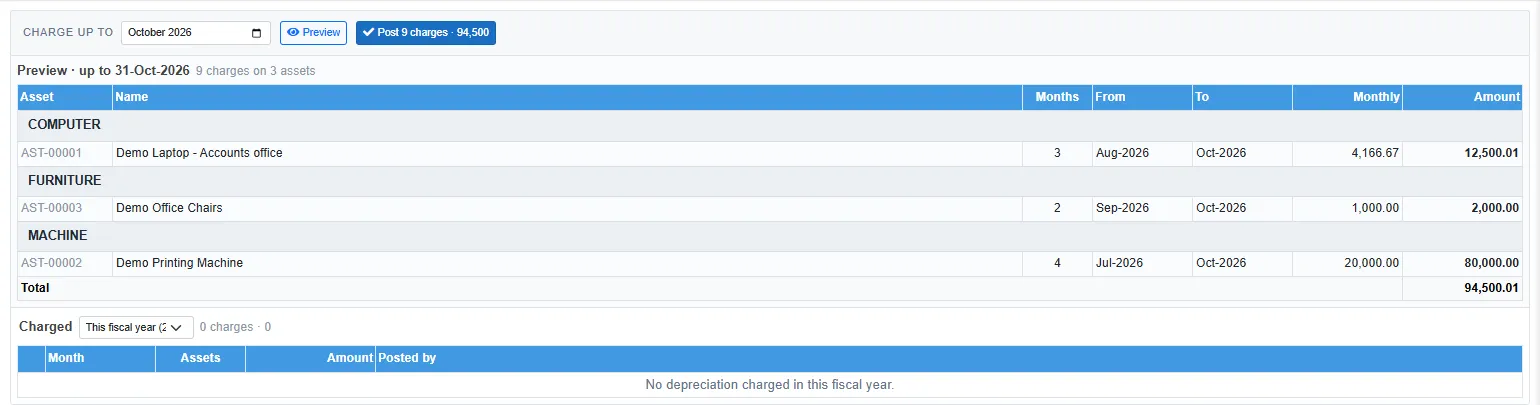
An asset that has missed months is charged for all of them at once, one voucher per month. In the example the laptop is charged for August, September and October.
If a month you preview falls in a closed or missing fiscal year, the row is marked FY closed, a warning explains it, and nothing can be posted. This usually means an old asset was added without its earlier depreciation. Fix it on the asset: enter the depreciation up to take-on as Previous depreciation and set the Register date to the take-on date. See The asset register.
What has been charged

Under Charged each month shows the number of assets, the amount and who posted it. Click a month to see its charges: the voucher number, the asset and the amount. Click a voucher number to open the GL voucher. A red not in GL tag means a charge without its voucher; tell the administrator.
The list shows the current fiscal year. Choose All years to see the earlier ones.
Undo the latest month
Undo (the red button on the right, for example Undo Oct-2026) deletes every charge of the latest month charged, with their GL vouchers. Use it when a month was posted by mistake, or before changing an asset's locked fields. To go back further, undo month by month.
- A month in a closed fiscal year cannot be undone: This period is in a closed fiscal year and cannot be undone.
- Only one run or undo can happen at a time. A second one gets Another depreciation run or undo is in progress. Try again in a moment.