The header
The bar at the top shows your company, the fiscal year (Period) and its status, your Location and your User Name. On the right are four buttons:

| Button | What it does |
|---|---|
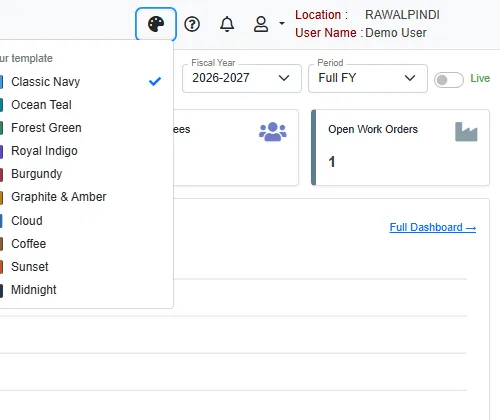
| Palette | Changes the colour template. Your choice is kept on this computer. |
| ? | Opens help for the screen you are on. |
| Bell | Not in use yet. |
| Person | Opens the user menu. Reset Password changes your password, Help opens the Help Center, Logout signs you out and Exit closes the browser tab. My Profile, Settings and About do nothing yet. |
The module strip
The dark strip on the left holds one icon for each module you may use. The first icon is the home dashboard. Point at an icon to see the module name, and click it to open the module page.

A module page
A module page lists everything you can open in that module, in three groups.
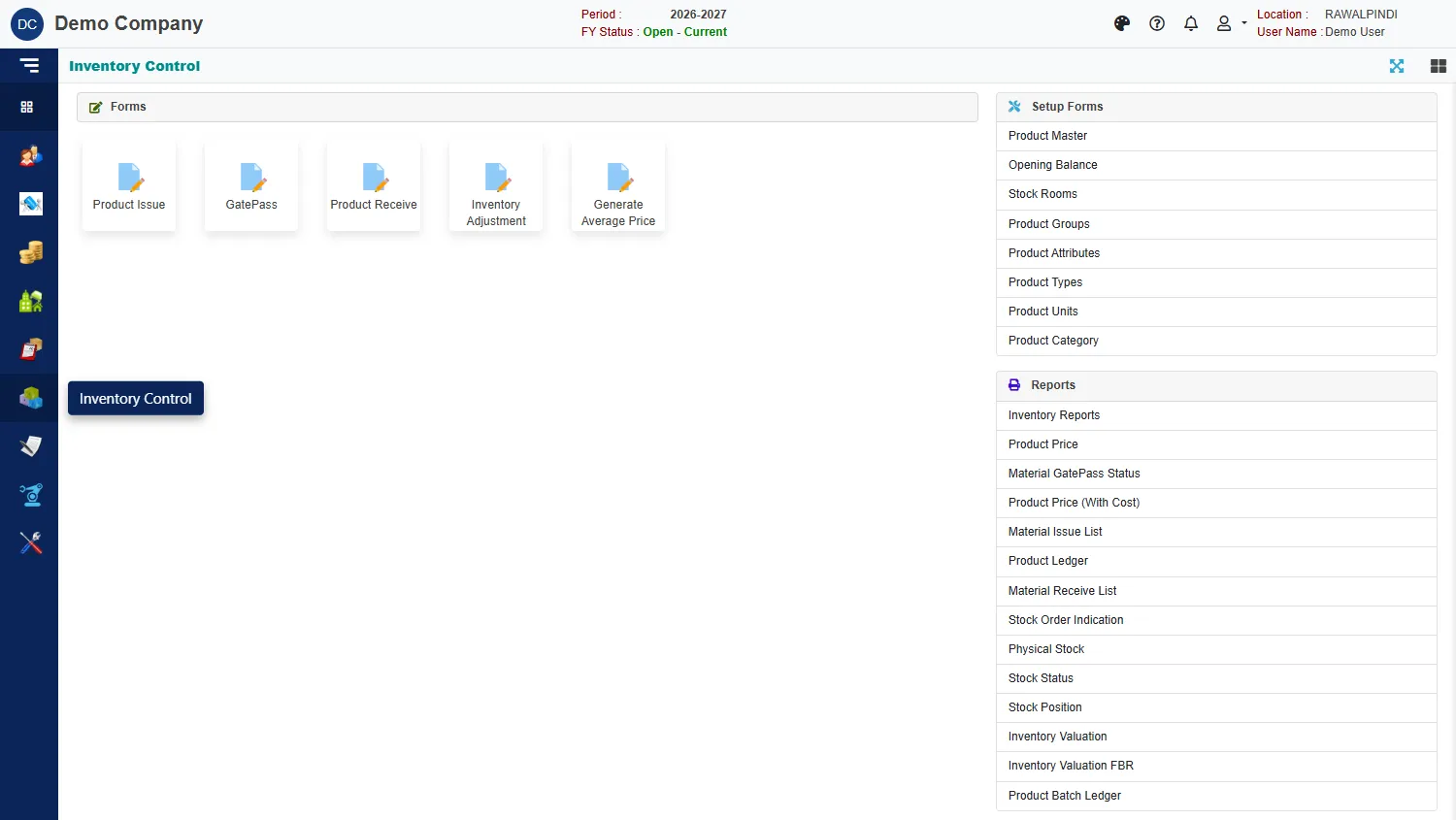
- Forms: the documents you enter every day, such as a receipt or an issue. Click a tile to open its list.
- Setup Forms: lists you set up once and then rarely change, such as products, units and stock rooms.
- Reports: printable and on-screen reports.
You only see the forms your role allows. If a form you need is missing, ask your administrator to add it to your role.
The colour template
Click the palette button and pick a template. It changes colours only, never the layout or the figures.